2D Precipitation and Evaporation
MIKE+ 2D Overland offers options for specifying ambient conditions for precipitation as well as evaporation for the 2D model domain. This is relevant for applications where the direct introduction of rainfall on the 2D model is important.
These options are available on the '2D precipitation and evaporation' editor when the 2D Overland Hydrodynamic (HD) module is active.
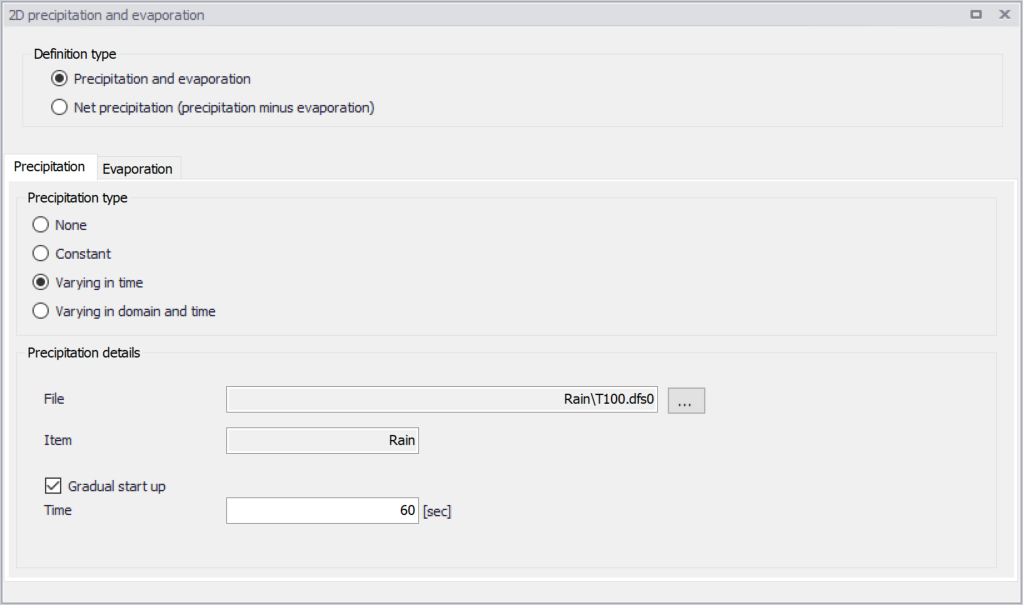
Figure: The 2D Precipitation and Evaporation editor
Precipitation and evaporation can be introduced to the 2D model as:
- Precipitation and evaporation. Requires definition of both precipitation and evaporation conditions in the setup. Different combinations of precipitation and evaporation conditions may be specified. Defined precipitation and evaporation rates must be positive.
- Net precipitation. Net precipitation is the precipitation minus evaporation. Thus, for this option, evaporation will occur if negative rates are specified.
Precipitation
The Precipitation tab offers various options for defining precipitation or net precipitation input types for the 2D overland model.
Precipitation Type
Available precipitation type options are:
- None
- Constant: Precipitation with a constant intensity is applied uniformly over the 2D domain.
- Varying in time: Time-varying precipitation applied uniformly over the 2D domain.
- Varying in domain and time: Time- and space-varying precipitation rates over the 2D domain.
Depending on the selected Precipitation Type, various parameters need to be defined under the Precipitation Details group box. These parameters are described in the succeeding sections below.
Precipitation Details
For Constant precipitation, the precipitation intensity should be specified.
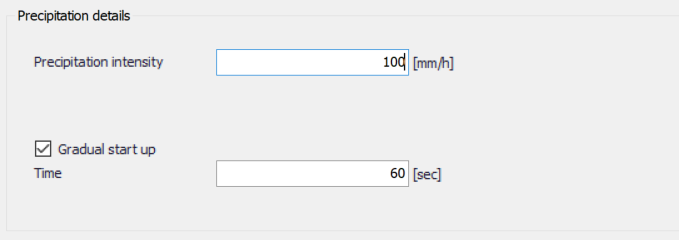
Figure: Define precipitation intensity for Constant Precipitation type
Varying in time
For time-varying precipitation input, a *.DFS0 time series file containing Precipitation Rate data is required. Browse to the file location via the ellipsis button beside the ‘File’ input box.
An option for creating a time series file is also available using the ‘Create new timeseries file’ option. This will launch the Time Series editor, with which a new *.DFS0 file may be created. Also, the program requires a ‘Precipitation Rate’ item type for the time series data. This property may be set using the Time Series editor, which may be accessed from via the ellipsis button with the ‘Edit timeseries in TS editor’ option.
The data must cover the whole simulation period, but its time step need not be the same as the hydrodynamic simulation time step. A linear interpolation of values will be applied if the time steps differ.
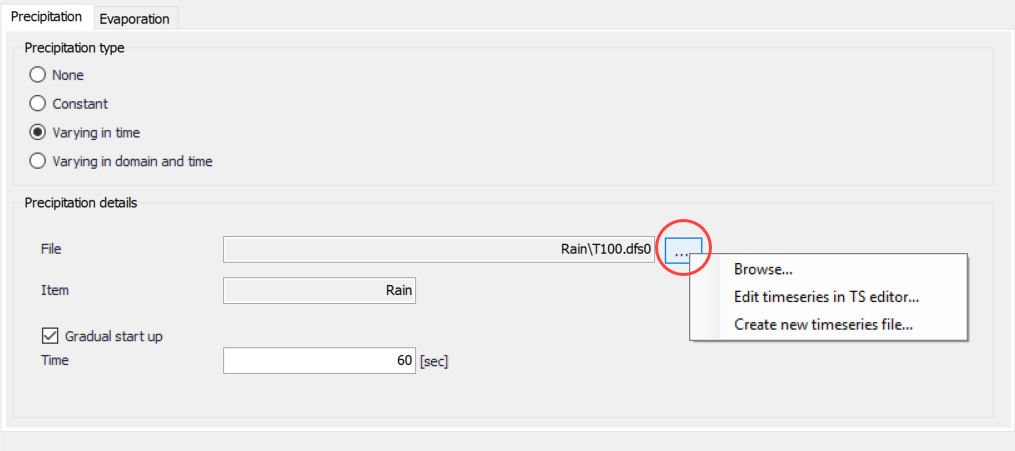
Figure: Options offered via the ellipsis button in relation to specification of precipitation time series data file
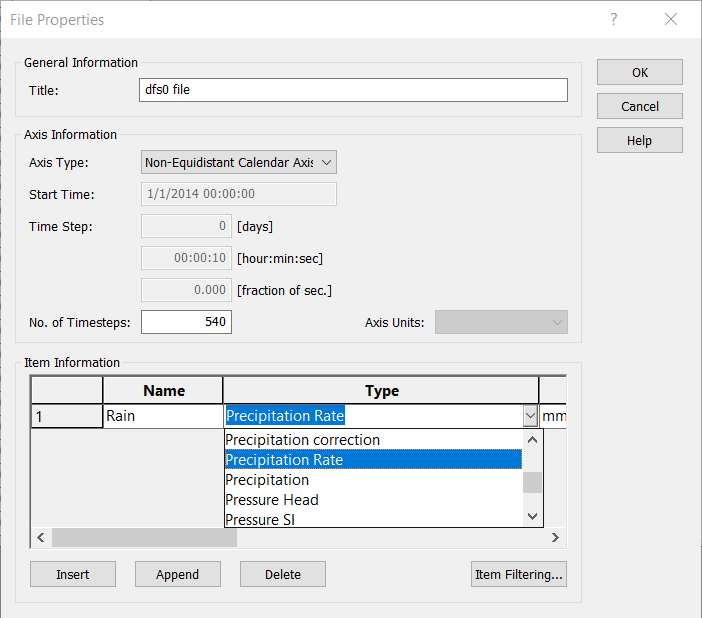
Figure: The item type for precipitation input data files must be ‘Precipitation Rate’. Edit the item type in the Time Series editor via the File Properties dialog (Edit| Properties)
Varying in domain and time
This option requires a temporally- and spatially-varying data file containing Precipitation Rate information. The file may be a 2D *.DFSU unstructured data file or a 2D *.DFS2 grid data file. Browse to the file location via the ellipsis button beside the ‘File’ input box.
An option for creating a 2D data file is also available using the ‘Create new grid file’ option. This will launch the Grid Series editor, with which a new *.DFS2 file may be created.
Also, the program requires a ‘Precipitation Rate’ item type for the grid series data. This property may be set using the Grid Series editor accessed via the ellipsis button option ‘Edit grid in Grid editor’. If the loaded data is a *.DFSU file, this option will open the loaded data file in the Data Viewer.
The data extent must cover the 2D overland model domain. If a *.DFSU file is used, piecewise constant interpolation is used to map the data to the domain. If a *.DFS2 file is used, bilinear interpolation is applied to map the data to the domain.
The data must cover the complete simulation period, although the input time step does not need to be the same as the hydrodynamic simulation time step. A linear interpolation will be applied if the time steps differ.
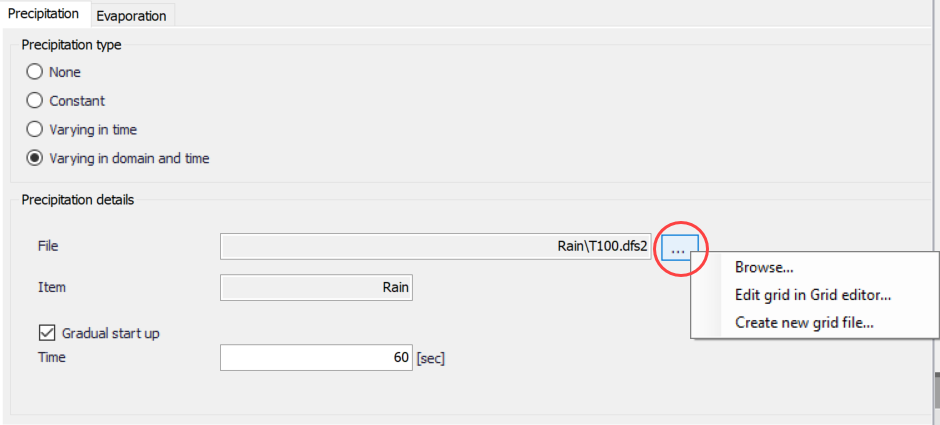
Figure: 2D grid or mesh files containing time- and domain-varying precipitation rates data must be specified
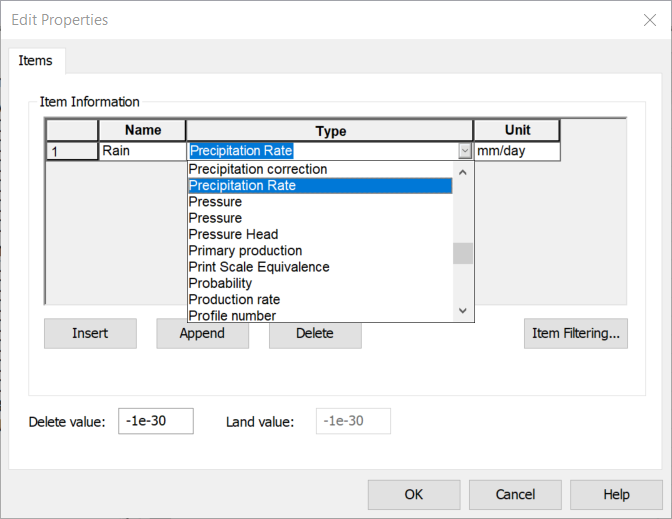
Figure: Edit the grid item type in the Grid Series editor via the Edit Properties dialog
Gradual start up
A soft start may be applied using the ‘Gradual start up’ check box on the tab. With this option, the precipitation rate is increased linearly from 0 to the specified precipitation rate values. The soft start time interval must be specified.
Evaporation
Choosing to define both precipitation and evaporation for the 2D overland model, the Evaporation tab page is made available for specifying evaporation-related parameters (Figure 4.30).
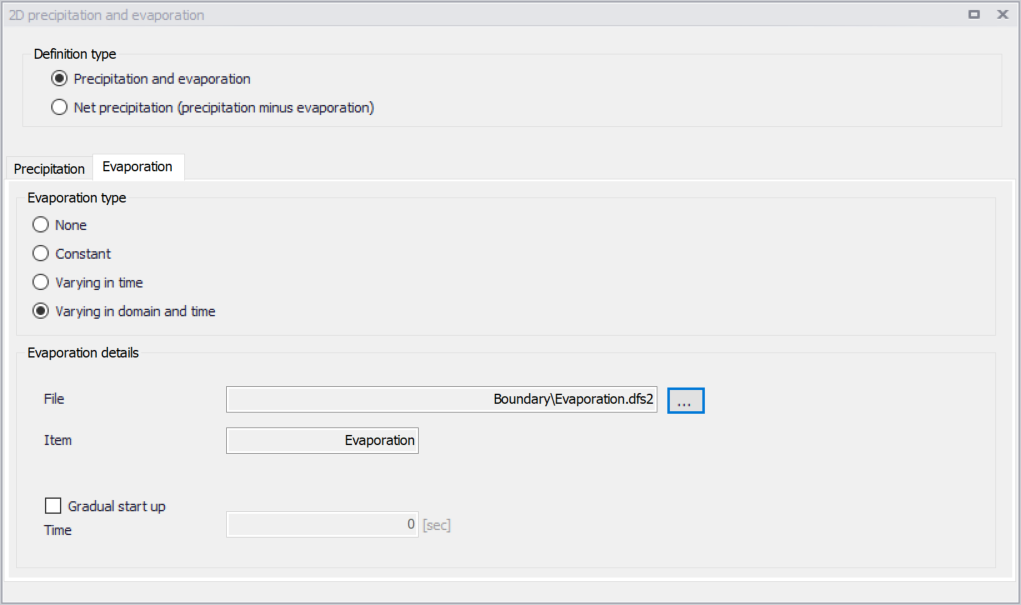
Figure: Contents of the Evaporation tab page on the 2D Precipitation and Evaporation editor
The Evaporation tab page is structured very similarly as the Precipitation tab. It offers various options for defining evaporation input types for the 2D overland model.
Evaporation Type
Available evaporation type options are:
- None
- Constant: Evaporation at a constant rate is applied uniformly over the 2D domain.
- Varying in time: Time-varying evaporation rates applied uniformly over the 2D domain.
- Varying in domain and time: Time- and space-varying evaporation rates over the 2D domain.
Depending on the selected Evaporation Type, various parameters need to be defined under the Evaporation Details section.
Evaporation Details
For Constant evaporation, the evaporation rate should be specified.
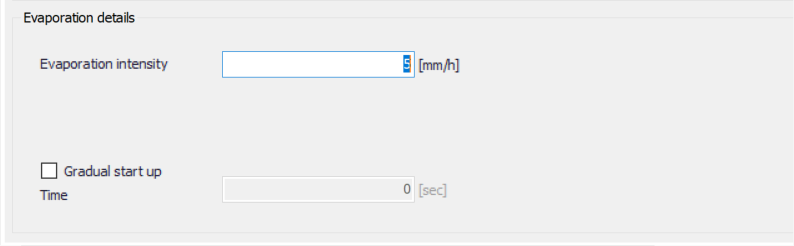
Figure: Define the constant evaporation rate to use in the 2D model
Varying in time
For time-varying evaporation, a *.DFS0 time series file containing Evaporation Rate data is required. Browse to the file location via the ellipsis button beside the ‘File’ input box.
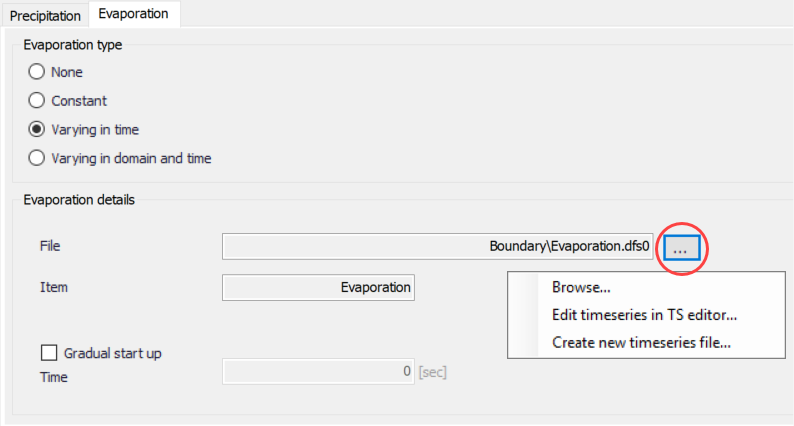
Figure: Options offered via the ellipsis button in relation to specification of evaporation time series data file
An option for creating a time series file is also available using the ‘Create new timeseries file’ option. This will launch the Time Series editor, with which a new *.DFS0 file may be created.
Also, the program requires an ‘Evaporation Rate’ item type for the time series data. This property may be set using the Time Series editor, which may be accessed from via the ellipsis button with the ‘Edit timeseries in TS editor’ option. Edit the item type in the Time Series editor via the File Properties dialog (Edit| Properties).
The data must cover the whole simulation period, but its time step need not be the same as the hydrodynamic simulation time step. A linear interpolation of values will be applied if the time steps differ.
Varying in domain and time
This option requires a temporally- and spatially-varying data file containing Evaporation Rate information. The file may be a 2D *.DFSU unstructured data file or a 2D *.DFS2 grid data file. Browse to the file location via the ellipsis button beside the ‘File’ input box.
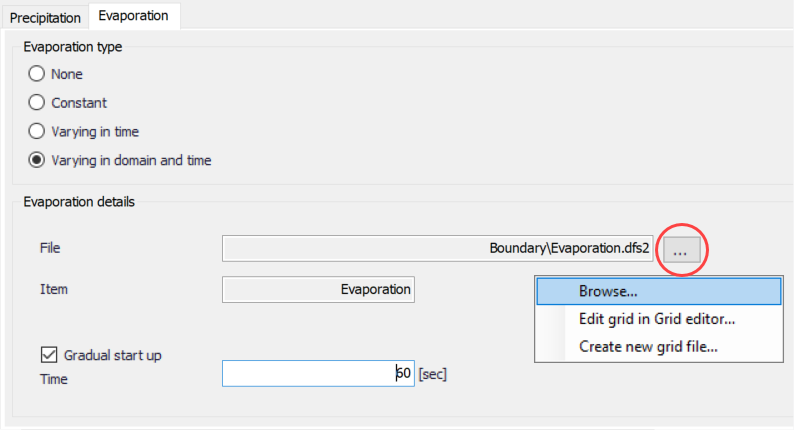
Figure: 2D grid or mesh files containing time- and domain-varying evaporation rates data must be specified
An option for creating a 2D data file is also available using the ‘Create new grid file’ option. This will launch the Grid Series editor, with which a new *.DFS2 file may be created.
Also, the program requires a ‘Evaporation Rate’ item type for the grid series data. This property may be set using the Grid Series editor accessed via the ellipsis button option ‘Edit grid in Grid editor’. If the loaded data is a *.DFSU file, this option will open the loaded data file in the Data Viewer.
The spatial extent must cover the 2D overland model domain. If a *.DFSU file is used, piecewise constant interpolation is used to map the data to the domain. If a *.DFS2 file is used, bilinear interpolation is applied to map the data to the domain.
The data must cover the complete simulation period, although the input time step does not need to be the same as the hydrodynamic simulation time step. A linear interpolation will be applied if the time steps differ.
Gradual start up
A soft start may be applied using the ‘Gradual start up’ check box on the tab. With this option, the evaporation rate is increased linearly from 0 to the specified evaporation rate values. The soft start time interval must be specified.