Connection Tool
The Connection Tool is a generic wizard which can be used to connect catchments, load points, demand allocations or measurement stations to the network.
The tool automatically connects all selected catchments to nodes, pipes or rivers, based on a number of principles, e.g. to the nearest node. For places where it is desired to connect catchments differently, the connections can be moved easily using graphical editing tools.
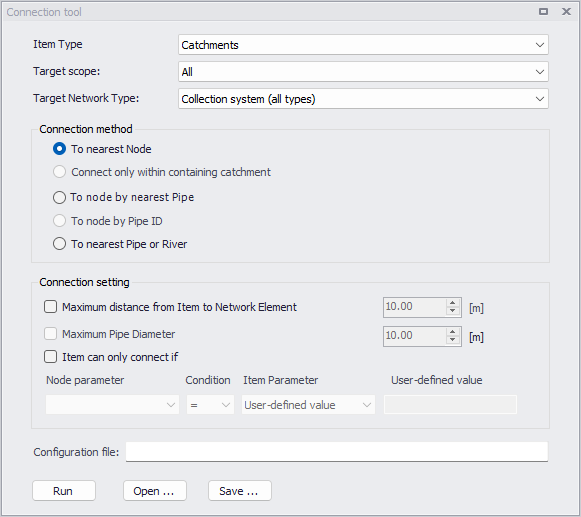
Figure: The Connection Tool dialog
Use of the Connection Tool requires first defining the 'Item Type' to be connected, which depends on the type of project. It can either be catchments, load points, demand allocations or measurement stations.
Note
For SWMM collection system projects, the tool can only connect catchments to nodes, although SWMM catchments may be connected to other catchments. If catchments shall be connected to other catchments, this should be done manually through the 'Catchments' editor.
Secondly, define the 'Target scope' i.e. the group of items included in the connection process:
- All: all the appropriate model items.
- Current Selection: only currently selected model items.
Then, define the 'Target Network Type' (only used with some item types) to only consider target network element of certain Network Types in the processing. The target network type acts as a filter to select which items on the network may be connected. Note that catchments will not connect to nodes which have undefined Network Type when applying to a specific target network type (other than ALL). Therefore, the CS network type must be appropriately set for the network items before applying a specific target network type.
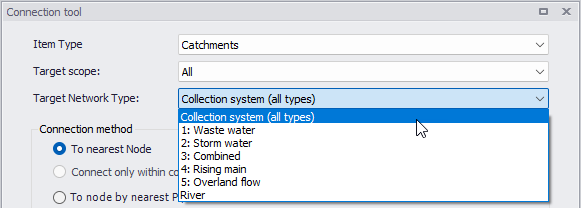
Figure: Selection of Network Type for target to which the items should be connected
Connection Method
Define the Connection Method to use:
- To Nearest Node: connect to node nearest the item location (or polygon's centroid, for a catchment).
- Connect only within containing catchment: connect load points only to nodes in the same catchment as the load points.
- To Node by Nearest Pipe: connect to the nearest end node of the nearest pipe to an item location/centroid.
- To node by Pipe ID: connect the demand allocation point to the closest node from a pipe with the same ID as the demand allocation (only available for Water Distribution networks). This option is relevant when demand allocation points have previously been named according to their connected pipe
- To nearest Pipe or River: connect to nearest pipe or river from the item location or centroid.
The available methods are different depending on the selected 'Item type'.
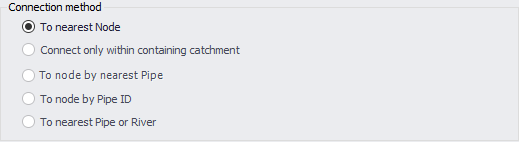
Figure: Selection of Connection Method
Connection Settings
Connection Settings are optional and may be used to include extra criteria for connecting to the network.
- Maximum Distance from Item to Network Element: maximum search distance to find nearest node element from the item location/centroid.
- Maximum Pipe Diameter: maximum pipe diameter to involve in the search for nearest pipe element from the item location/centroid. E.g. for Method = To Node by Nearest Pipe. If the nearest pipe's diameter is too large, the program will skip this pipe and will keep searching for another pipe. This is e.g. suitable in order not to allocate demand points to main or transmission pipes.
- Item Can Only Connect If: option for setting a user-defined condition in search for nearest elements.
- Node / Pipe Parameter: node or pipe parameter to use for additional filter criterion.
- Condition: mathematical condition for filter criterion.
- Item Parameter: item parameter to use for building the conditional statement for the filter criterion.
- User-defined Value: used when the criterion is defined with a user-defined value instead of an item parameter.
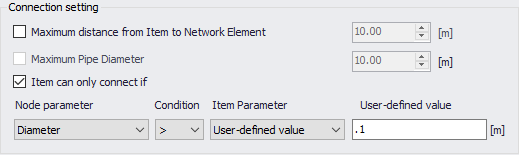
Figure: The Connection Settings section in the Connection Tool
Running the Tool
Finally, click on the Run button to run the Connection Tool.
Configuration
The Configuration File input box shows the file name for a saved or loaded/opened connection configuration *.XML file. The path and file name for a new configuration may also be specified in the input box. Note that only specifying a file name will save the file in the user's Documents folder by Default.
Use the Save button to save the current processing configuration into an *.XML file. The Open button loads a previously-saved processing *.XML configuration file.