MIKE ECO Lab Templates
A MIKE ECO Lab template, describing the water quality processes, must be included in the project. Multiple templates can be used, if they apply to different spatial locations on the network. Templates are selected via the MIKE ECO Lab Templates editor (Figure 10.4).
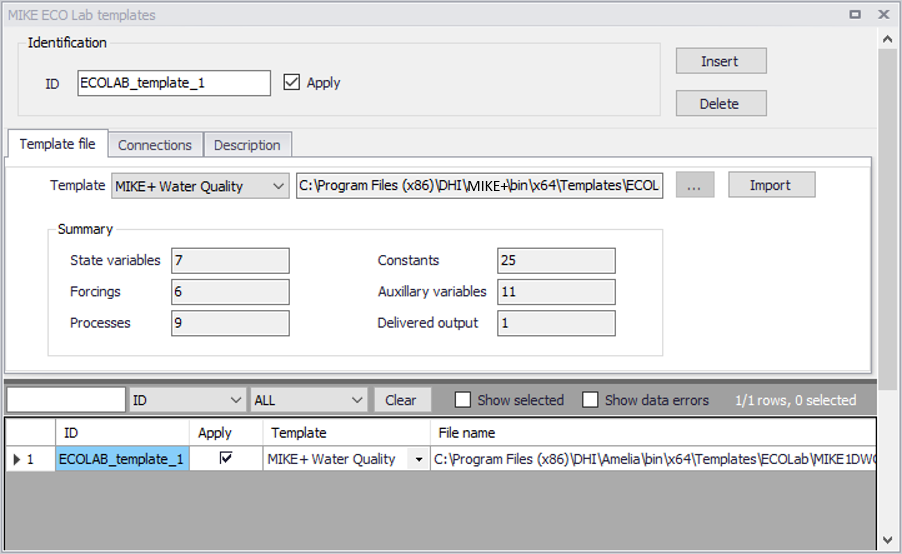
Figure: The MIKE ECO Lab Templates editor
For coupled simulations, coupling a 1D network to the 2D overland model, it is therefore possible to include one or more templates to model water quality in the network, and another template to describe water quality in the 2D domain.
A template is included in the simulation only if its 'Apply' check box is ticked, and is ignored otherwise.
Template File
Predefined MIKE ECO Lab templates are included in the MIKE+ installation located in the folder: ‘C:\Program Files (x86)\DHI\MIKE+\Version>\Templates\ECOLab’.
Point to the MIKE ECO Lab template file in the Template File tab page of the editor:
- Template: Define the MIKE ECO Lab template to which to connect using the drop-down list (or the ellipsis button for custom templates).
- Import: Use the Import button to read and import the contents of the template file (state variables, forcings and constants) into the MIKE+ project and editors. Pressing the Import button after the template has already been loaded (imported) will reload the template and reset all state variables, forcings and constants to default settings.
- Summary: Displays general information on the contents of the MIKE ECO Lab template file, such as the number of State variables, Forcings, Processes, Constants, Auxiliary variables, and Delivered output defined in the template.
Connections
Define for which model parts the loaded MIKE ECO Lab template is applied:
- Global network: The template is used over the whole network model (River and CS)
- Nodes: The template is used for CS network nodes. It may be in All nodes, a List of nodes, or Individual nodes selected from a list accessed via the ellipsis button, or interactively from the Map using the arrow button.
- Links: The template is used for links (i.e. River branches and/or CS pipes and canals). It may be in All links, a List of links, or Individual links selected from a list accessed via the ellipsis button, or interactively from the Map using the arrow button.
- 2D overland: The template is used for the entire 2D domain as part of a 2D overland simulation. Only one template can apply at a time for a 2D overland simulation.
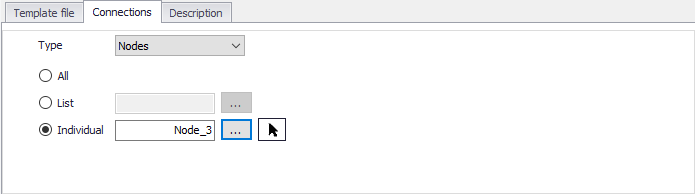
Figure: The Connections tab in the MIKE ECO Lab Templates editor
Description
Add a free text description for a MIKE ECO Lab template on the Description tab page of the MIKE ECO Lab Templates editor.