Coordinate System
Choosing a coordinate system for your MIKE+ database may be an important part of setting up a MIKE+ database. The default coordinate system is 'Local Coordinates' and allows you to operate most of MIKE+ features. It is basically treated as a rectangular system in unknown units.
However, several features of MIKE+ will only work when the coordinate system is properly defined. So if any of the below points apply to you, you should consider setting up the coordinate system correctly:
- You would like to visualize your model against an online background map on the MIKE+ interface.
- You need to calculate pipe lengths and other geographic measures in a specific unit.
- You have a corporate GIS and will be using data from this in MIKE+.
- You receive data in different coordinate systems and projections and need to overlay them correctly.
- You want to use MIKE+ features that require the system to calculate the scale (e.g. maps to scale, switching on and off features/labels depending on scale, etc.)
These functions will only work properly if MIKE+ knows about the units and other definitions in your coordinate system. If you do not already know your coordinate system, your GIS department or GIS data vendor will normally be able to tell you.
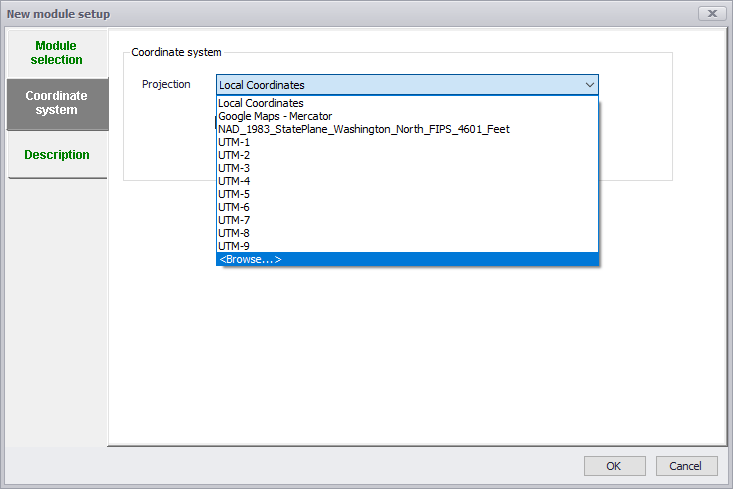
Figure: Defining the coordinate system for MIKE+ projects
The 'New model setup' dialog for creating a new MIKE+ project (figure above) handles the setting of Coordinate System.
In many cases you will simply select one of the predefined coordinate systems. Most often coordinate systems used in MIKE+ will be of the type 'Projected coordinate systems', and you simply browse through the available coordinate systems options and select the one matching your data.
Click OK and the coordinate system is defined, after selecting the system you should double-check the values in the domain as the defaults are changed when you select the coordinate system.
You can, however, also create a new one or by importing a coordinate system from e.g. a *.prj projection file. Choose the ‘\<Browse...>’ option to access the Map Projection Editing dialog (figure below) for doing this.
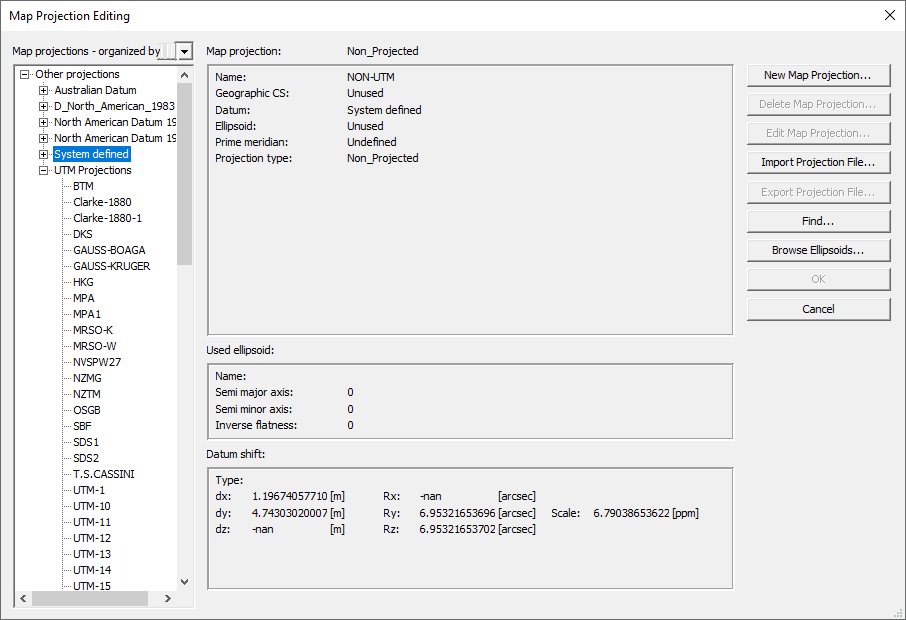
Figure: Defining a new or importing a coordinate system
Tip
If you do not know your coordinate system but still want to utilize the GIS functionality for length and scale calculations then use a rectangular system (e.g. UTM) in the unit (typical meter or feet) that you are working in. This will provide scaling and calculations, but unexpected results may occur if you open the database together with other (correctly geo-located) data.