Keyboard and mouse shortcuts
Many functionalities can be accessed using shortcuts as described below. When a button is associated with a shortcut, this shortcut is presented in the fly-by text of the button.
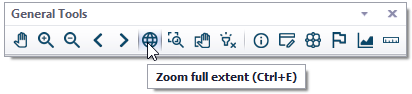
Figure: Example of shortcut presented in fly-by text
General functionalities
Create a new project (File \ New): Ctrl+N
Save the opened .mupp project file (File \ Save): Ctrl+S
Open a project file (File \ Open): Ctrl+O
Open online help (File \ Help \ Online help): F1
Exit MIKE+ (File \ Exit): Alt+F4
Switch between open windows: Ctrl+Tab. This opens a window listing all opened editors and tools. Keep pressing the Ctrl key, and press the Tab key to move to a different window's name in the list. Release the keys to open the selected window. Undocked windows are shown in the left list of the pop-up window whereas docked windows are shown in the right list (use Left and Right keys to switch between the two lists).
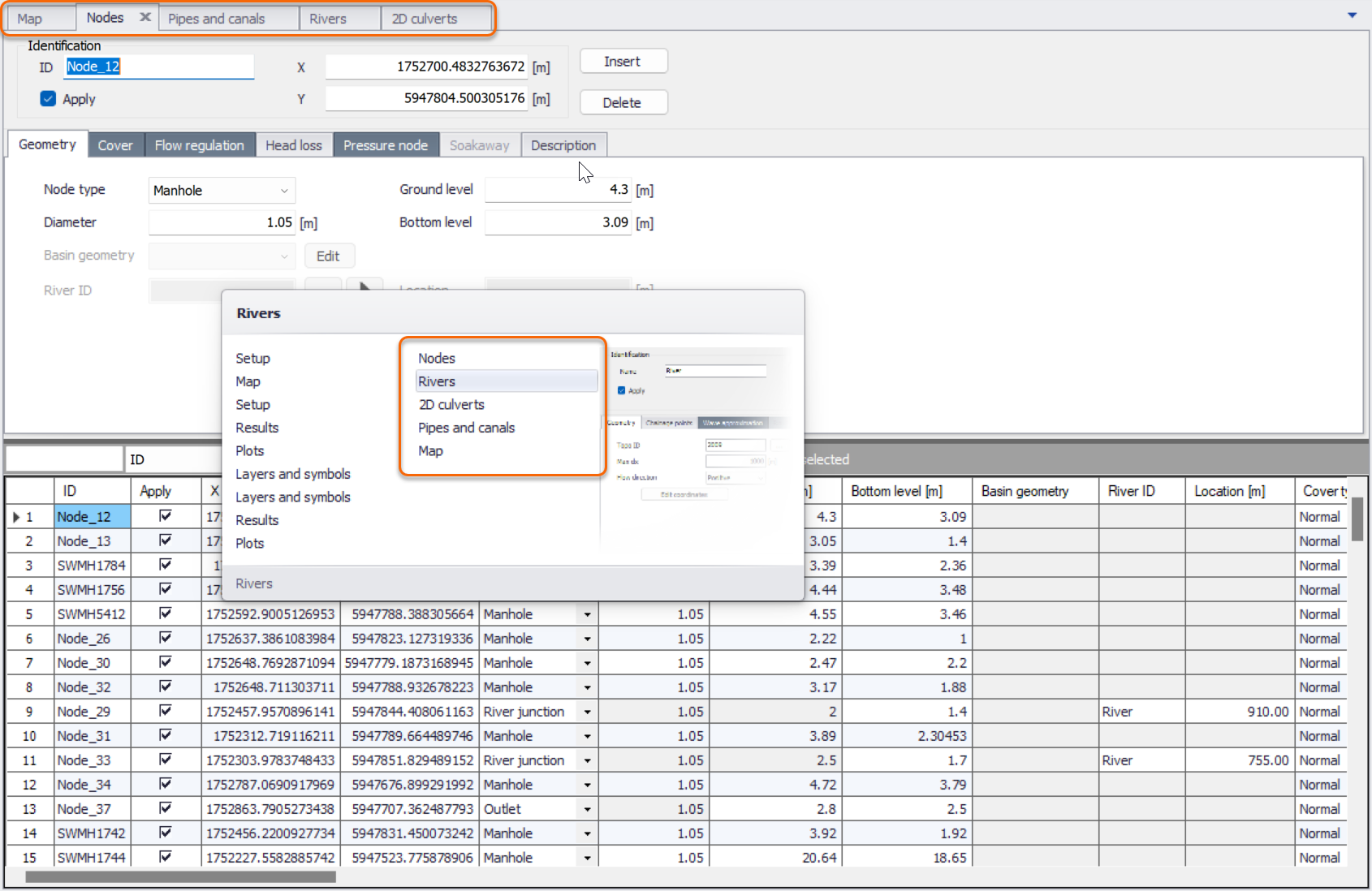
Figure: Switching between windows using Ctrl+Tab shortcut
Close current / active window: Ctrl+W. The active window is the one being edited and is shown with a slightly darker title. Note that moving the cursor above the map makes the map active even if no action has been made on the map.
Open the 'Setup' view: Shift+F1
Open the 'Layers and symbols' view: Shift+F2
Open the 'Results' view: Shift+F3
Open the 'Plots' view: Shift+F4
Run active simulation: Ctrl+R
Edit active cell in a table: F2
Delete records in a table: Del. This deletes the selected records, if any, or the active row otherwise.
Copy selection: Ctrl+C
Paste selection: Ctrl+V
Undo the last change(s): Ctrl+Z
Redo the last change(s): Ctrl+Y
Map-related functionalities
Open the Map view: Ctrl+M
Zoom to full extent: Ctrl+E
Activate the 'Identify' tool: Alt+E
Activate the 'Open layer editor' tool: Alt+D
Zoom to specific feature: double-click the row number in the overview table from the feature's editor, or search the feature in the Quick Search toolbar on the map.
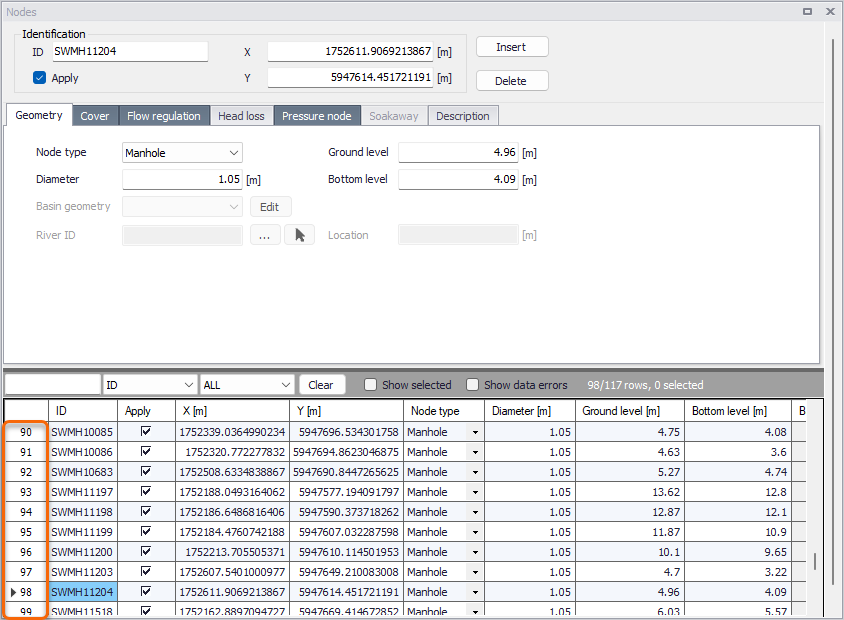
Figure: Double-click the row number column to zoom to corresponding record on the map
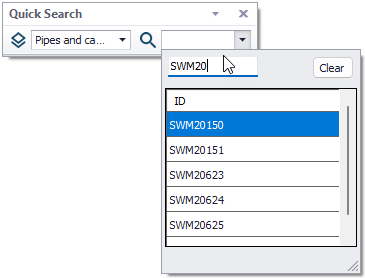
Figure: Searching and zooming to a feature using the Quick Search toolbar
Pan: various shortcuts may be used
- Shift + left mouse button
- Up / Down / Left / Right keys
- Pressing mouse wheel button.
Add to selection: Ctrl+Shift + left mouse click
Clear selection: Ctrl+U
Add new layer: Ctrl+L
Open the Measure tool: Ctrl+D
Open the Bookmark manager: Ctrl+Q
Cross sections editor
Add a marker to a cross section's point: select the point on the cross section plot and press the marker number on the keyboard.
Delete a marker: select the point on the cross section plot which holds the marker, then press Ctrl key and press the key with marker number to be removed.
Result windows
In profile plots, use Shift + left mouse button to enable 'Zoom to rectangle', or use the mouse wheel to zoom in or out.
In time series plots, use Shift + left mouse button to enable 'Zoom to rectangle', or use the mouse wheel to zoom in or out. Hold down the Ctrl key to pan.