Tools Menu
The Tools menu offers general data editing tools that are available for both Water Distribution and Collection System model types.

General
Under the General group, three main tools are available to assist you in building and updating models in an easier manner.

General SQL command
Allows you to add SQL commands to interrogate and edit model data. The ‘General SQL Command’ tool allows you to define, save, load, and execute an unlimited number of SQL commands.
The syntax you use to build SQL commands differs depending on the data source. This is because although SQL is a standard, not all database software implements the same dialect of SQL.
With the SQL commands you can for instance execute SQL UPDATE statements that will change the pipe diameter from the nominal (outside) diameter to the inside diameter or, you can define the pipe friction coefficient based on the pipe material and the pipe age.
General SQL commands can work on any MIKE+ geodatabase table such as "mw_*", "msm_*", and you can use standard SQL commands including UPDATE (to update table field values). Multiple SQL statements need to be separated by ";" (see figure below).
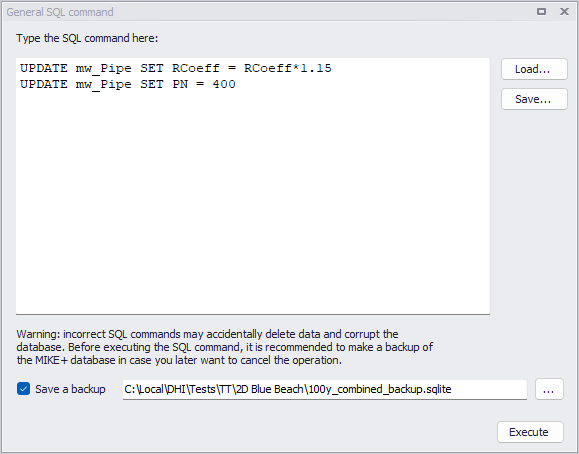
Figure: Example commands on the General SQL Command window
The functionalities of the buttons to the right are described below:
- Execute: Executes the SQL statements
- Load: Loads a text file with previously saved SQL statements
- Save: Saves SQL statements to a text file for later reuse
Some more examples are provided in the table below. Please note that SQL commands are dependent on the type of database.
| Command | Explanation |
|---|---|
| UPDATE mw_Pipe SET RCoeff=RCoeff*1.15 | General update of table: rcoeff value in mw_pipe table is multiplied by 1.15 |
| UPDATE msm_node SET diameter = 1.0 WHERE diameter = 0.99 | Specific update of table: diameter in msm_node table is set to 1.0 all the places where the diameter is currently 0.99 |
Table: SQL command examples

Thiessen polygons
A tool that allows the delineation of polygons around point features, e.g. specific tanks, or selected list of nodes/ junctions. The generated Thiessen polygon layer could then be exported to a new polygon layer shapefile.
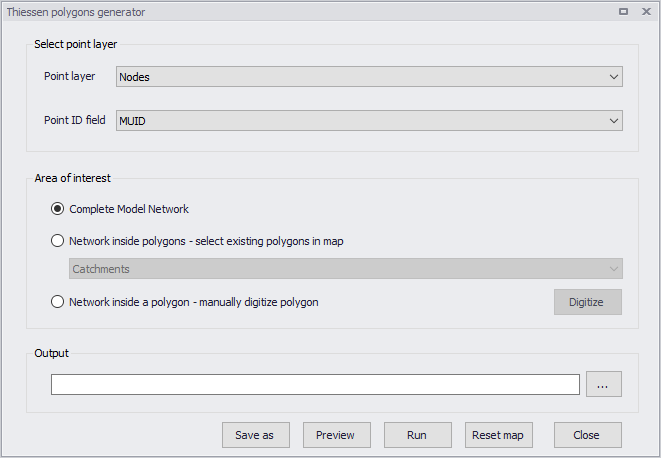
Figure: The Thiessen Polygons Generator dialog

Sequential labelling
A tool for automatic (bulk) assignment of element IDs(i.e. MUIDs) to selected model elements. See Chapter Sequential Labelling Tool for details.
Import/Export
MIKE+ offers the ability to import model data from various data sources, such as databases, shapefiles, Excel, etc Similarly, MIKE+ allows you to export model components to various file types using the Import and Export tool, and the ArcGIS Integration option.

Import and Export
The Import and Export tool provides a versatile and flexible environment for exchanging data between various external repositories and the MIKE+ database. The data can be imported to and exported from the MIKE+ database.
See Chapter Import and Export for more details on Import/Export functionalities in MIKE+.

ArcGIS Integration
Exports selected model components to a *.GDB file format and opens the model components (selected components) in ArcGIS Pro.
Also see Chapter Linking to ArcGIS Pro.
Time Series Editor

The Time Series Editor tool allows creating and editing *.DFS0 time series files from the MIKE+ interface.
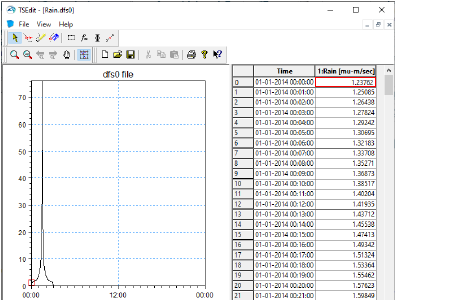
Figure: MIKE+ Time Series Editor window
To create a new time series, select 'Create new time series' from the ribbon, and then select the source of data to be imported into the time series.
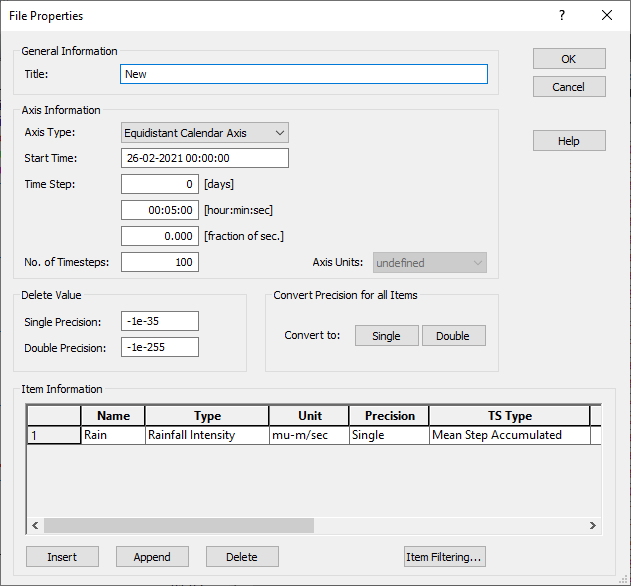
Figure: Example of TS editor properties setup for a new time series
Alternatively, when the time series editor is opened, go to File | Import in order to import data either from an Excel, ASCII or kmd/km2 file into a new time series file. Note that this operation creates a new time series file, but doesn't import into the active time series file. When you have multiple time series opened in the Time series editor, you can switch from one to another using the 'Window' menu in the upper bar.
Reporting

The Model Result and Report tool offers facilities for setting up reports based on information from model data as well as simulation results.
Also refer to chapter Reports for details on creating Reports in MIKE+.
Toolbox
This group offers various tools for data management.
MIKE Zero toolbox

The MIKE Zero toolbox contains a set of tools for e.g. data extraction or format conversion. The following tools are available:
- Profileseries from 2D files: extracts a profile series (.dfs1 file) along a line, from a 2D grid file (.dfs2)
- Timeseries from 2D files: extracts a time series (.dfs0 file) at point locations, from a 2D grid file (.dfs2)
- Mesh Converter: creates a flexible mesh file (.mesh) from other file formats (.dfsu or other formats)
- Mesh Manager: offers options for filtering and/or refining a mesh file.
- Georeferencing Image File: creates a World file for georeferencing a background image file.
- Grd2Mike: converts a grid file in Esri ASCII format (.asc or .txt) to DHI format (.dfs2)
- Mike2Grd: converts a grid file in DHI format (.dfs2) to Esri ASCII format (.asc or .txt)
- Mike2Shp: converts a 2D grid file (.dfs2) or flexible mesh file (.mesh or .dfsu) to a polygon shape file. When converting a .mesh file, a point shape file is also created with elevations at mesh nodes.
- Mike2Txt: converts a 2D grid file (.dfs2) to a text file containing a list of cells and their XY horizontal coordinates and Z elevation in three columns
- Shp2Xyz: converts a shape file to a text file containing a list of points, for use as input in the Mesh Generator
- TxStat: this tool computes statistics from time series (.dfs0 files), profile series (.dfs1 files) and rectangular grid series (.dfs2 files).
- Dfsu statistics: this tool computes statistical values for temporal data in .dfsu result files.
- Interpolate Time Series: creates a new time series file (.dfs0) with values interpolated on a fixed time step
- Preprocessing Temporal Data: generates time series (.dfs0 files) or spatially-varying time series (.dfs2 or .dfsu) of rainfall from measurement stations, using a spatial interpolation or the Thiessen polygons method
- Time Series Batch Conversion: automates the conversion of time series data between .dfs0 format and text or Excel files, using a customised configuration.
Please refer to the MIKE Zero Toolbox user guide for detailed information.
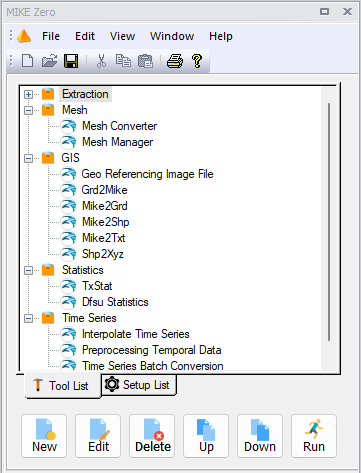
Figure: The MIKE Zero toolbox as available in MIKE+
Versions management

The Versions Management tool is designed to support a cost-effective model maintenance. The tool can identify, report and visualize differences between any two versions of a model setup, as well as it can automatically update any model with the identified differences. Additionally, the Versions Management tool facilitates the organization of various model versions into a tree-like dependency structure that reflects the actual models' mutual relations and evolution.
See Versions Management for more details on the tool.
Combine and convert rasters

The 'Combine and convert rasters' tool is used to generate a single output raster file (typically a DEM) by combining multiple tiles together. This is especially useful when the input DEM is provided in the form of tiles and should be used in MIKE+ to trace rivers or catchments, in which case the DEM data must be supplied in a single file.
Add or remove input tiles to be included in the final raster file, using the 'Insert' and 'Delete' buttons at the top.
Supported formats are DHI grid files (.dfs2), Esri ASCII format (.asc, .txt) and .tiff raster files. All input tiles must be in the same format. For .asc and .txt formats, the coordinates of the tiles are assumed to be expressed in the same map projection as the one being defined for the MIKE+ project. For the other formats, it is obtained from the files' metadata.
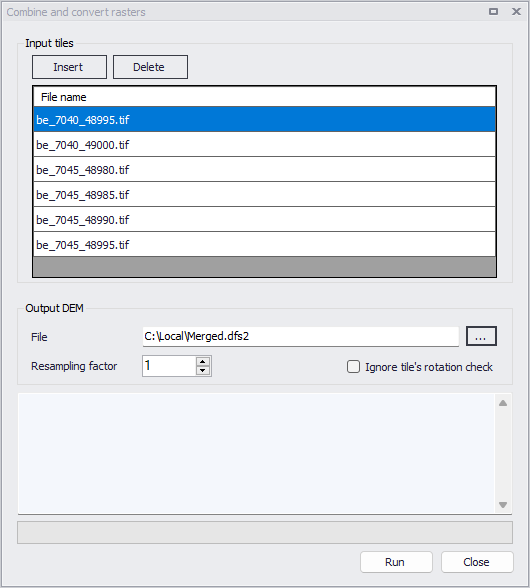
Figure: The Combine and covert rasters tool
It is mandatory that all input tiles have the same resolution (i.e. the same cell size).
Overlapping tiles are supported but overlapping cells must be strictly superimposed. Gaps between tiles are also allowed, in which case empty cells will be returned in the output raster.
The output raster file supports .dfs2, .asc, .txt and .tiff raster file formats. This file format does not have to be the same as the input tiles' format.
The resampling factor may be used to coarsen the resolution of the output raster. The cell size of the output raster will be equal to the input tiles' cell size times this factor. So, with a factor of 1, the output raster will use the same cell size as the input tiles, whereas it will use larger cells with a factor higher than 1. When the resampling factor is higher than 1, the average value from all underlying cells in the input tiles is used in the output raster.