Batch Simulation
If you need to run more simulations sequentially, you can choose to do so by including these to a batch simulation. This is done through the Batch Simulation editor.
The Batch Simulation editor includes functionalities allowing control and execution of batch simulations.
The ‘Batch Run’ button executes all simulations that have the ‘Include to batch’ flag set in the sequence that they are specified in the grid table. This means that multiple simulations and scenarios can be simulated in batch without user interaction.
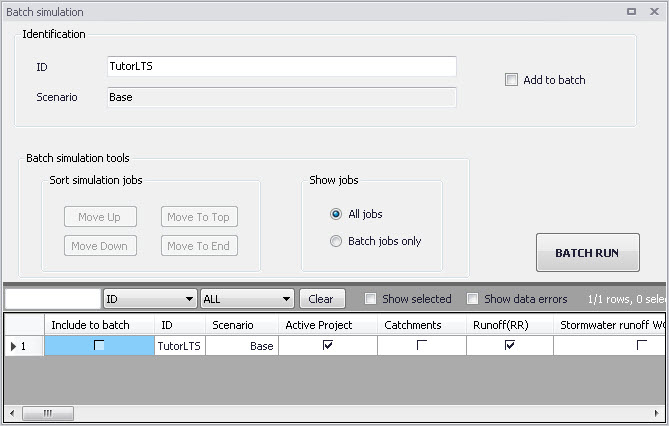
Figure: The Batch Simulation editor
The Batch Simulation editor manages the same data as from the Simulation Setup editor. The grid table shows the same entries as the grid in the Simulation Setup editor, but built-in tools allow reordering and filtering of simulation job records for batch execution.
| Edit field | Description | Used or required by simulations | Field name in datastructure |
|---|---|---|---|
| ID | ID of the simulation setup | Yes | MUID |
| Scenario | Scenario for the simulation setup | Yes | ScenarioName |
| Add to Batch checkbox | Option for including a simulation setup to batch | Yes | IncludeToBatchNo |
Table: Overview of Batch Simulation editor fields (Table msm_Project)
The following functionalities are available on the editor.
Move Up
Moves the active record one position up in the grid.
Move Down
Moves the active record one position down in the grid.
Move To Top
Moves the active record to the top of the table.
Move To End
Moves the active record to the bottom of the table.
‘All jobs’ and ‘Batch jobs only’ radio buttons
This filters the list of simulation jobs displayed in the table. A complete list of simulation jobs (i.e. All jobs) is shown by Default, but the display can be reduced to show only those jobs included in the batch (i.e. Batch jobs only).
‘Batch Run’ button
This starts a batch job execution following the sequence of the simulation jobs on the list. Each consecutive job must wait until the previous job has been fully completed. All user prompts are suppressed during the batch job execution, i.e. the simulations are automatically executed without user prompts.
Warning
For 2D overland simulations, if simulations involve different scenarios, it is not possible to change the below data as part of the scenarios in a batch run:
- 2D domain file created from MIKE+ definition
- 2D surface roughness defined either with:
- 'Varying in domain' option with Source = 'MIKE+ 2D surface roughness layer'
- 'Varying in domain' option with Source = 'Background layer of individual polygons'
- 'Varying in domain and flow dependent' option
- 2D eddy viscosity defined with 'Varying in domain' option with Source = 'MIKE+ 2D eddy viscosity layer'.
Each of these options require manual actions after changing scenario. For instance, when the 2D domain file is created from MIKE+ definition and if the mesh arcs are modified in a scenario, then it is required to regenerate the mesh and to re-interpolate topographical data onto the mesh, after activating the modified scenario. These manual operations cannot be performed automatically as part of a batch run after changing scenario. Therefore, it is not possible to use batch runs including various scenarios, if the corresponding scenarios include changes in the above data types.