Expression Editor
The Expression Editor supports creation of simple or complex assignment expressions.
An expression is a "sentence" involving variables, fixed values, functions and operators, designed to return a certain type of value, as e.g. a number or a date-time. It is required to build up the expression to return a value exactly of the type for which it is intended. As an example, when "x" is a variable being a number type, the expression "6+sqrt(x)" will also return a number type, and that expression can be used in a context where a double value is required.
The expression editor supports different types of values:
- Floating numbers, numbers which can include fractional part
- Integer numbers, numbers that does not have any fractional part
- Boolean values, which can either be True or False
- DateTime values, defining a date and a time
- TimeSpan values, defining a time span, as e.g. an hour.
- String values, containing some text.
The various operators and functions work on specific types and return specific types, so the expression must be composed such that types, operators and functions are compatible. As an example, the "-" operator can work on two number values and will then return a number, such as e.g. "6-1.3" returning the number 4.7. However, the "-" operator also works on other types, as e.g. a DateTime value minus a DateTime value will give a TimeSpan value, and a DateTime value plus a TimeSpan value will give a new DateTime value. However, only some combinations make sense, i.e. it is not possible to add a DateTime value and a Boolean value. The expression editor will help validate that the types are composed correctly and the expression returns the correct type.
The Expression Editor is used in several functionalities within MIKE+, such as:
- Field calculator
- For creating Import/Export assignments
- For creating control rules (for rivers and collection systems models)
- Creating data filters for Report configuration
For the Field calculator and Import/Export assignments, the expression must return the type matching the type of the field to update/import/export. For control rules, the return type for a condition must be a Boolean, whereas for actions it must be a number. For filters, the return type must be a Boolean.
The Expression editor reduces the actual typing (hence the source of errors) to absolute minimum. Also, automatic expression validation is provided.
Expressions are created via the Edit Expression dialog. The dialog has three sections: History, Expression, and Error List sections.
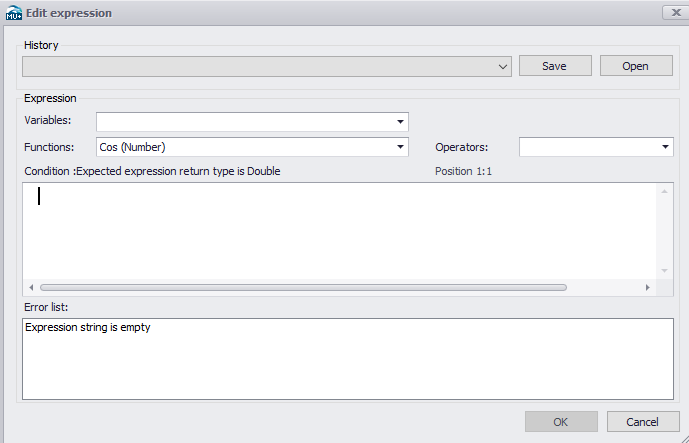
Figure: The Expression Editor in MIKE+
History
Provides a list of recently used expressions available for reuse in the current assignment.
Every new expression is automatically added to the history list. This allows for a very efficient reuse of similar assignments.
"History" can be saved into a simple text file (*.TXT) and reloaded (Open) in a future (relevant) expression editing session.

Figure: History section in Edit Expression dialog highlighting the Save button for saving previously-used expressions
Expression
This is the central part of the dialog. It is where expressions are built and value assignments defined using combinations of Variables, Domains, Functions, and Operators. It also lists the required return type.
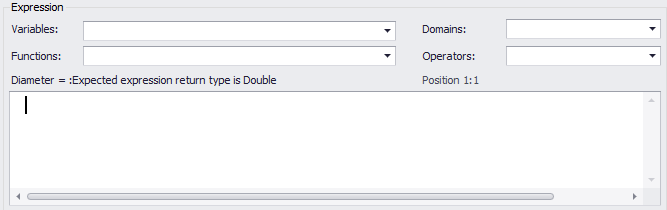
Figure: The Expression section
The left-hand side of the "equals to" sign of the expression is usually automatically provided. I.e. the user is expected to create only the right-hand side of the expression. This can be done either by direct typing, or by picking up the wanted variables, functions and operators from the respective drop-down lists. Typically, the process will involve both methods.
All variables in the expression should be embraced by square brackets ([]). This is good practice but not mandatory.
Strings must be embraced by double quotes ("").
“Domains” (for Field Calculator) lists the parameters in the data table being edited that use domain coded values.
"Variables" is a list including all attributes in the source table and any user-specified variable. A variable is included in the current expression by point & click. Square brackets are automatically provided.
"Functions" provides a list of available functions. A function is included in the current expression by point & click. Placeholders for the function's arguments are automatically provided.
"Operators" provide a list of available operators. An operator is included in the current expression by point & click.
Domains
This parameter is relevant for using the Expression Editor for the Field Calculator functionality.
It offers a list of parameters in the data table being edited that use domain coded values. For example, when editing a Node attribute in the node data table (i.e. msm_Node), the Domains dropdown shows the parameters that use domain code values (figure below). This information may then be used as a reference for defining the value in the expression.
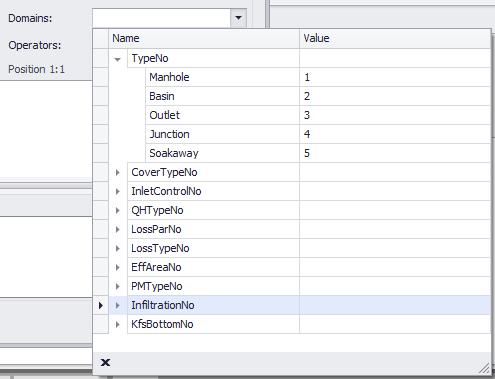
Figure: Domain coded values in the Nodes data table
Variables
The dropdown list shows all available attributes in the source table and any user-specified variable, which may be used in building the expression. Select a variable from the list to include in the current expression being built. Square brackets enclosing the variable are automatically provided.
Used with the Field Calculator, the variables are values of other columns in the table.
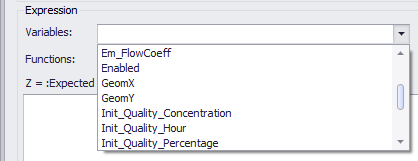
Figure: Example of variables offered when making edits in the Junctions data table (mw_Junction)
Operators
The dropdown shows the operators that may be used to create expressions.

Figure: Operators in the Expression Editor
It contains Arithmetic operators that works on numbers, Comparison operators and Boolean operators.
Arithmetic Operators
Arithmetic operators work on numbers and always returns a number. To have an arithmetic operator returning an integer value, both operands must be integers. If one of the operands is a floating number value, the result will also be a floating number value.
| Item | Description |
|---|---|
| + | Adds two numbers |
| - | Subtracts two numbers |
| * | Multiplies two numbers |
| / | Divides the first number with second number |
| % | Remainder after integer division of the first number with second number |
Table: List of arithmetic operators
Some of the operators also work on other types. More details in the following sections.
Comparison operators
The result of a comparison is always a Boolean value. The two operands must be of the same type to be compared.
| Item | Description | Supported types |
|---|---|---|
| == | Equal operator. Checks if the values of two operands are equal or not, if yes then comparison returns true | Number, DateTime, TimeSpan, String, Boolean |
| <> != | Not-equal operator. Checks if the values of two operands are equal or not, if values are not equal then comparison returns true | Number, DateTime, TimeSpan, String, Boolean |
| < | Less-than operator. Checks if the value of left operand is less than the value of right operand, if yes then comparison returns true | Number, DateTime, TimeSpan |
| <= | Less-than-or-equal operator. Checks if the value of left operand is less than the value of right operand, if yes then comparison returns true | Number, DateTime, TimeSpan |
| > | Greater-than operator. Checks if the value of left operand is greater than the value of right operand, if yes then comparison returns true | Number, DateTime, TimeSpan |
| >= | Greater-than-or-equal operator. Checks if the value of left operand is greater than or equal to the value of right operand, if yes then comparison returns true | Number, DateTime, TimeSpan |
Table: List of comparison operators
Logical Operators
Logical operators work on Booleans and always return a Boolean value.
| Item | Description |
|---|---|
| && | Logical AND operator. If both the operands are non-zero, then condition becomes true. |
| || | Logical OR Operator. If any of the two operands is non-zero, then condition becomes true. |
| ! | Called Logical NOT Operator. Use to reverses the logical state of its operand. If a condition is true, then Logical NOT operator will make false. |
Table: List of logical operators
Functions
The dropdown shows the functions that may be used in the current context. The set of functions available will depend on the context of the expressions.
Special functions for control flow
if statement
When it is necessary to return different values depending on some condition, the if statement comes in handy. It comes in two forms, but works the same:
Example
To return 5.6 or 6 depending on whether the 'a' variable is larger than zero:
ifs statement
If more than two values are to be chosen between, the ifs statement can help on this:
Example
To return the string 'a\<0' , 'a=0', 'a\<3' or 'a=...' depending on the value of the variable 'a':
Expressions involving numbers
A fixed value can be specified directly in the expression editor, using a dot as the decimal separator.
| Example | Description |
|---|---|
| 6 | Integer number value |
| 6.12 | Floating number value |
| 6.1234e+2 | Floating point number in scientific notation, same as 612.34 |
Table: Syntax for defining numbers
Standard math functions
The standard math functions work on floating numbers and returns floating numbers.
| Function | Description |
|---|---|
| Abs(x) | Absolute value of x |
| Acos(x) | Arccosine, or inverse cosine of x, x must be in the range [-1;1], the result is in radians |
| Asin(x) | Arcsine, or inverse sine of x, x must be in range [-1;1], the result is in radians |
| Atan(x) | Arctangent, or inverse tangent of x, the result is in radians |
| Atan2(y,x) | Arctangent calculated based on an (x,y) coordinate, the result is in radians |
| Ceiling(x) | Number rounded up, away from zero. |
| Cos(x) | Cosine of the angle x in radians |
| Cosh(x) | Hyperbolic cosine of x |
| Exp(x) | Exponential function, e raised to the power of x |
| Floor(x) | Rounds number down, toward zero |
| Log(x) | Returns the logarithm of x to the base e |
| Log10(x) | Returns the base-10 logarithm of x |
| Max(x,y) | Largest of the two values x and y |
| Min(x,y) | Smallest of the two values x and y |
| Power(x,y) | Number x raised to a power y |
| Round(x) | Rounds x to nearest integer value |
| Round(x,y) | Rounds x to y number of digits, y must be an integer |
| Sign(x) | Determines the sign of x, returning -1, 0 or 1 |
| Sin(x) | Sine of the given angle x in radians |
| Sinh(x) | Hyperbolic sine of x |
| Sqrt(x) | Calculates the square root of x, x must not be negative |
Table: List of math functions
ToInt(x)
Converts a floating number value to an integer number value. If the floating number contains a fractional part, the nearest integer is used (rounding).
ToString(x)
Converts a floating number value to a string representation.
ToString(x, ‘Fy’)
Converts a floating number value to a string representation, keeping only y digits after the decimal separator.
DoubleFromString(arg, sep)
Get double value from string representation arg, where sep is the decimal separator, either "." or ",".
Expressions involving DateTime and TimeSpan
A DateTime value can be specified directly in the expression editor in several ways.
| Function | Description |
|---|---|
| #2004-03-15 19:30:00# | Fixed Date and time |
| DateTime(2004,03,15) | Only Date |
| DateTime(2004,03,15,19,30,00) | Date and time |
| DateTime(2004,03,15,19,30,00,123) | Including milliseconds |
| DateTimeFromTicks(x) | From integer ticks value |
| DateTimeFromYears(x) | From decimal year value |
| DateTimeFromString(x) | From string representation |
| Now() | Current date and time on this computer |
Table: Syntax for defining date and times
The first "fixed date and time" is a constant value and cannot include expressions inside the ##. The other DateTime functions can include sub-expressions.
The DateTimeFromString(x) method supports both a local date-time representation which depends on the regional settings, and the standard date-time strings on the form: "2009-03-06 08:24:30" and "2009-03-06T08:24:30"
A Timespan value can be specified directly in the expression editor in several ways.
| Function | Description |
|---|---|
| #+1085.12:54:30# #-1085.12:54:30# | Fixed TimeSpan, being 1085 days, 12 hours, 54 minutes and 30 seconds, either positive or negative |
| #+1085.12:54:30.020# #-1085.12:54:30.020# | Fixed Timespan, including milliseconds |
| #+12:54:30# #-12:54:30# | Fixed timespan, not including days value. |
| #+12:54# #-12:54# | Fixed timespan, not including days and seconds value |
| TimeSpan(1085,12,54,30) | TimeSpan function |
| TimeSpanFromDays(x) | Timespan from decimal days value |
| TimeSpanFromHours(x) | Timespan from decimal hours value |
| TimeSpanFromMinutes(x) | Timespan from decimal minutes value |
| TimeSpanFromSeconds(x) | Timespan from decimal seconds value |
| TimeSpanFromTicks (x) | Timespan from integer ticks value |
Table: Syntax for defining a Timespan
The "fixed timespan" are constant values and cannot include expressions inside the ##. The other TimeSpan functions can include sub-expressions.
Operators involving DateTime and TimeSpan
| Name | Description | Return type |
|---|---|---|
| DateTime - DateTime | Subtract two date-times | TimeSpan |
| DateTime + TimeSpan | Add a time-span to a date-time | DateTime |
| DateTime - TimeSpan | Subtract a time-span from a date-time | DateTime |
| TimeSpan + TimeSpan | Add two time-spans | TimeSpan |
| TimeSpan - TimeSpan | Subtract two time-spans | TimeSpan |
Table: Operations with DateTime and TimeSpan
Functions involving DateTime
| Name | Description | Return type |
|---|---|---|
| AddYears(dt, n) | Add n years to the dt datetime, n must be integer number | DateTime |
| AddMonths(dt, n) | Add n months to the dt datetime, n must be integer number | DateTime |
| AddDays(dt, x) | Add x days to the dt datetime | DateTime |
| AddHours(dt, x) | Add x hours to the dt datetime | DateTime |
| AddMinutes(dt, x) | Add x minutes to the dt datetime | DateTime |
| AddSeconds(dt, x) | Add x seconds to the dt datetime | DateTime |
| AddTicks(dt, n) | Add n ticks to the dt datetime, n must be integer number | DateTime |
| Year(dt) | Year component of date time | Integer |
| Month(dt) | Month component of date time | Integer |
| Day(dt) | Day component of date time | Integer |
| Hour(dt) | Hour component of date time | Integer |
| Minute(dt) | Minute component of date time | Integer |
| Second(dt) | Second component of date time | Integer |
| Millis(dt) | Millisecond component of date time | Integer |
| DayOfFraction(dt) | Fractional part of the day, between 0 and 1 | Integer |
| DayOfWeek(dt) | Day of week, 1 being Monday and 7 being Sunday | Integer |
| DayOfWeek0(dt) | Day of week, 0 being Sunday and 6 being Saturday | Integer |
| DayOfYear(dt) | Day number of the year | Integer |
| Ticks(dt) | DateTime ticks value | Integer |
| TimeOfDay(dt) | Time of the day as a TimeSpan | TimeSpan |
| TotalYears(dt) | Whole and fractional year of date time | Number |
| YearFraction(dt) | Fractional part of the year, between 0 and 1 | Number |
Table: List of functions for Date and Times
Functions involving TimeSpan
| Name | Description | Return type |
|---|---|---|
| Abs(ts) | Absolute value of time span | TimeSpan |
| Days(ts) | Day component of time span | Integer |
| Hours(ts) | Hour component of time span | Integer |
| Minutes(ts) | Minute component of time span | Integer |
| Seconds(ts) | Second component of time span | Integer |
| Ticks(ts) | Time span ticks value | Integer |
| TotalDays(ts) | Whole and fractional days of time span | Number |
| TotalHours(ts) | Whole and fractional hours of time span | Number |
| TotalMinutes(ts) | Whole and fractional minutes of time span | Number |
| TotalSeconds(ts) | Whole and fractional seconds of time span | Number |
Table: List of functions for Timespans
Expressions involving strings
Strings are enclosed in either double or single quotes: “MyString” or ‘MyString’.
If a quote character is required matching the enclosing character, it can be escaped using the backslash character.
| Expression string | Result string |
|---|---|
| "my \new\ value" | my "new" value |
| 'my "new" value' | my "new" value |
| 'my \new\ value' | my "new" value |
Table: Syntax for defining a text string including quotes
Operators involving string
Adding two strings together will concatenate the strings.
Functions involving string
| Item | Description | Return type |
|---|---|---|
| Concat(str1, str2 [,str3[…]]) | Concatenates two or more strings. | String |
| Contains(str, substr) | Returns whether the specified substring occurs within a string. | Boolean |
| EndsWith(str, substr) | Returns whether a string ends with the specified substring. | Boolean |
| StartsWith(str, substr) | Returns whether a string starts with the specified substring. | Boolean |
| Substring(str, startIndex [,length]) | Retrieves a substring from the str string. The substring starts at a specified index position and has at most the specified length. If length is not provided, the substring includes all characters till the end of the string. | String |
| Trim(str) | Remove leading/trailing white-space characters. | String |
| TrimStart (str, substr) | Removes the specified substring 'substr' at the start of the 'str' string. The specified substring is removed only if placed at the start of the source string. Only one occurence of the specified substring can be removed, even if another one exists at the start of the remaining string. The function is case sensitive, i.e. it removes only a substring with identical upper and lower cases. | String |
| TrimEnd (str, substr) | Removes the specified substring 'substr' at the end of the 'str' string. The specified substring is removed only if placed at the end of the source string. Only one occurence of the specified substring can be removed, even if another one exists at the end of the remaining string. The function is case sensitive, i.e. it removes only a substring with identical upper and lower cases. | String |
| IndexOf (str, char [,int]) | Returns the index (position) of a specified character within a string. This index may e.g. be used in the Substring function. Numbering starts at 0. The first argument is the source string, the second defines the character to get the index from. The last optional argument is an integer selecting the occurrence of the searched character, when the source string contains several times this character. This integer must be >= 1 and \<= number of occurrences of the specified character in the input string. | Integer |
| Split (str, substr) | Splits a string using the specified substring as separator, to return a list of substrings. The first argument is the source string to split, the second defines the separator. This function is only meant to be used in the 'Import and export' tool, which can import each substring from the resulting list using the 'Iterate' action. | Array |
| NewLine() | Inserts a new line (carriage return). This is used in expressions for labels shown on map, to display labels on multiple lines. It is an alternative to using \n\r in the expression. | String |
Table: List of functions for strings
Variables and functions for rivers and CS control rules
| Item | Description | Return type |
|---|---|---|
| SimStartTime() | Returns the simulation start date and time. | DateTime |
| SimTime() | Returns the current time of the simulation. | DateTime |
| SimTimeStep() dt() | Returns the current time step size. | TimeSpan |
| SimTImeSpan() | Returns the elapsed simulation time, i.e. the time since simulation start time. | TmeSpan |
| TableLookup('table-id', input) | Based on an input value it will do lookup in a table and return the looked-up value. The table-id is a string that identifies the table to use. The input expression must return a double value (it is usually a sensor, but any expression returning a double value can be used). | Number |
| TSLookup('ts-id', [phaselag]) | Based on the current simulation time it will do lookup in a time series. The ts-id identifies the time series to use, by a file and an item name/number. The optional phaselag expression is a TimeSpan value used as offset from the current simulation time, to look forwards/backwards in time (if the phaselag is a negative time span, it will look backwards in time). | Number |
| TSTableLookup('table-id', [phaselag]) | Based on the current simulation time it will do lookup in a table containing times in the input column. The table-id identifies the table. Values in the input column of the table must be strictly monotonically increasing. The input column can contain DateTimes values representing absolute time values, or double values representing the number of seconds since simulation start. The optional phaselag expression is a TimeSpan value used as offset from the simulation time, to look forwards/backwards in time (if the phaselag is a negative time span, it will look backwards in time). | Number |
| PreviousInTime(input, timeBack) | Based on an input value it will return the value as it was some time back. The input expression must return a double value (it is often a sensor, but any ex-pression returning a double can be used). The timeBack expression must be either a double or a TimeSpan value (a double value is interpreted as a number of hours). | Number |
| TimeSinceChange(input) | Time since value changed. The input expression must return a double value (it is usually a sensor, but any expression returning a double value can be used). | TimeSpan |
| MinInTime(input, startTime, endTime) | Based on an input value it will return the minimum value within a specified time interval back in time from the current simulation time. The input expression must return a double value (it is usually a sensor, but any expression returning a double value can be used). The startTime and endTime expressions must be either a double or a TimeSpan value (a double value is interpreted as a number of hours). | Number |
| MaxInTime(input, startTime, endTime) | Based on an input value it will return the maximum value within a specified time interval back in time from the current simulation time. The input expression must return a double value (it is usually a sensor, but any expression returning a double value can be used). The startTime and endTime expressions must be either a double or a TimeSpan value (a double value is interpreted as a number of hours). | Number |
| DiffInTime(input, startTime, endTime) | Difference in value over time, from startTime to endTime. The input expression must return a double value (it is usually a sensor, but any expression returning a double value can be used). The startTime and endTime expressions must be either a double or a TimeSpan value (a double value is interpreted as a number of hours). | Number |
| TimeDerivative(input, startTime, endTime) | Based on an input value it will return the time derivative over a specified time interval back in time from the current simulation time. The input expression must return a double value (it is usually a sensor, but any expression returning a double value can be used). The startTime and endTime expressions must be either a double or a TimeSpan value (a double value is interpreted as a number of hours). | Number |
| Average(input, startTime, endTime) | Based on an input value it will return the average value within a specified time interval back in time from the current simulation time. The input expression must return a double value (it is usually a sensor, but any expression returning a double value can be used). The startTime and endTime expressions must be either a double or a TimeSpan value (a double value is interpreted as a number of hours). | Number |
| AverageIf(input, condition, startTime, endTime) | Based on an input value it will return the average value within a specified time interval back in time from the current simulation time, including the value in the average if some condition is fulfilled. The input expression must return a double value (it is usually a sensor, but any expression returning a double value can be used). The condition expression must return a boolean value. The startTime and endTime expressions must be either a double or a TimeSpan value (a double value is interpreted as a number of hours). The condition is evaluated together with the input expression at every time step, and the input expression is only stored for processing if the condition at the current simulation time evaluates to true. | Number |
| TimeIntegrate(input [, startTime, endTime]) Accumulate(input [, startTime, endTime]) | Based on an input value it will accumulate/time integrate the value over time, either since start of simulation or within a specified time interval back in time from the current simulation time. The input expression must return a double value (it is usually a sensor, but any expression returning a double value can be used). The startTime and endTime expressions must be either a double or a TimeSpan value (a double value is interpreted as a number of hours). | Number |
| TimeIntegrateIf(input, condition, startTime, endTime) AccumulateIf(input, condition, startTime, endTime) | Based on an input value it will accumulate/time integrate the value within a specified time interval back in time from the current simulation time, if some condition is fulfilled. The input expression must return a double value (it is usually a sensor, but any expression returning a double value can be used). The condition expression must return a boolean value. The startTime and endTime expressions must be either a double or a TimeSpan value (a double value is interpreted as a number of hours). The condition is evaluated together with the input expression at every time step, and the input value is only stored for processing if the condition at the current simulation time evaluates to true. | Number |
Table: List of variables and functions for control rules
Error list
The "Error list" reports "on-the-fly" any syntactic errors in the expression and provides advice on how to complete the expression.

Figure: The Error list section reports on the real-time validation of expressions
Examples of Expressions
Below are some examples of expressions built in the Expression Editor used in MIKE+.
| Description | Variable | Expression |
|---|---|---|
| Time-Area model Imperviousness is equal to the Flat and Steep Kinematic Wave Impervious Areas | ModeAImpArea | [ModelBAIFlat] + [ModelBAISteep] |
| Kinematic Wave model Steep Impervious Area is equal to 80% of Time-Area model Imperviousness | ModelBAISteep | [ModeAImpArea]*0.8 |
| Kinematic Wave model Flat Impervious Area is equal to 100% minus Kinematic Wave Steep Impervious Area | ModelBAIFlat | 100-[ModelBAISteep] |
| An Action Active sensor senses a Rule for a valve (i.e. PID control) is Active. | (CS Model RTC Conditions) | ([ActionActive_Tank_Valve_Open]) |
| A Level sensor at a node senses a level less than12.19 | (CS Model RTC Conditions) | ([Sensor_Col_OLS_Suct] < 12.19) |
| A Level sensor at a node senses that level is less than 40.48 and another Level sensor at another node senses level is greater than 8.51 | (CS Model RTC Conditions) | ([Sensor_PCVRt199_Primary] < 40.48) && ([Sensor_WmbgPS_WW] > 8.51) |
| A Level sensor at a node senses that level is greater than 1.37 and an Action sensor senses a Rule for a valve (i.e.setting valve opening) is Active. | (Condition for Rivers and CS control rules) | ([Sensor_NS_003] > 1.37) && ([ActionActive_Act_V003_OPEN_STOR]) |
| If a Pump ON/OFF sensor is active (i.e. evaluated as ON) and a Discharge sensor at a link detects flows less than 0.005 m3/s | (Condition for Rivers and CS control rules) | ([PumpIsActive_BL_P10_fik_p1]) && ([BL_StopToem_Discharge] < 0.005) |
| If an Action Active sensor detects that a Rule is active | (Condition for Rivers and CS control rules) | ([ActionActive_EK_P10_STOP_1]) |
| Import a list of values to 'Curves and relations' (ms_TabD) from a single string storing all data in a row, using the 'Iterate' action in the 'Import and export' tool | An input string "List" with this value "12,2;43;27.9" | Split( [List], ";") will return an array with three values: - 12,2 - 43 - 27.9 which can be imported one by one in each iteration. |
| Get the index of a given character with a variable position in the input strings, for use in the 'Substring' function | An input string "Str" with this value "224.9866;27.9;863.12" | IndexOf( [Str], ";", 2) will return the index of the second semicolon. Substring ( [Str], IndexOf( [Str], ",", 2)) will return the last value 863.12 |
Table: Example expressions