Running MIKE ECO Lab Simulations
To run a MIKE ECO Lab simulation, the wanted MIKE ECO Lab template(s) should first be imported to MIKE+. Then, WQ components must be created in the 'WQ components' editor as appropriate and each MIKE ECO Lab state variable must be associated to a WQ component. Make sure that the WQ component is set to use the unit which is expected for the state variable in the template file. Possible unit inconsistencies must be considered and resolved by providing proper conversion factors. Note that no other unit conversion / correction will be performed during the simulation.
Values of constants should be reviewed and modified as appropriate, as well as user-defined forcings.
Initial conditions and boundary conditions of the WQ components in the 1D network must also be specified when they should differ from 0. They must be defined for all components for the 2D overland model, even when they equal 0.
Result items from the MIKE ECO Lab model to be saved to result files during the simulation, must be configured in the 'Result files' editor.
The simulation with MIKE ECO Lab is activated by activating the ‘Transport (AD, SWQ)’ and ‘Water quality (MIKE ECO Lab)’ modules for the simulation setup in the Simulation Setup editor.
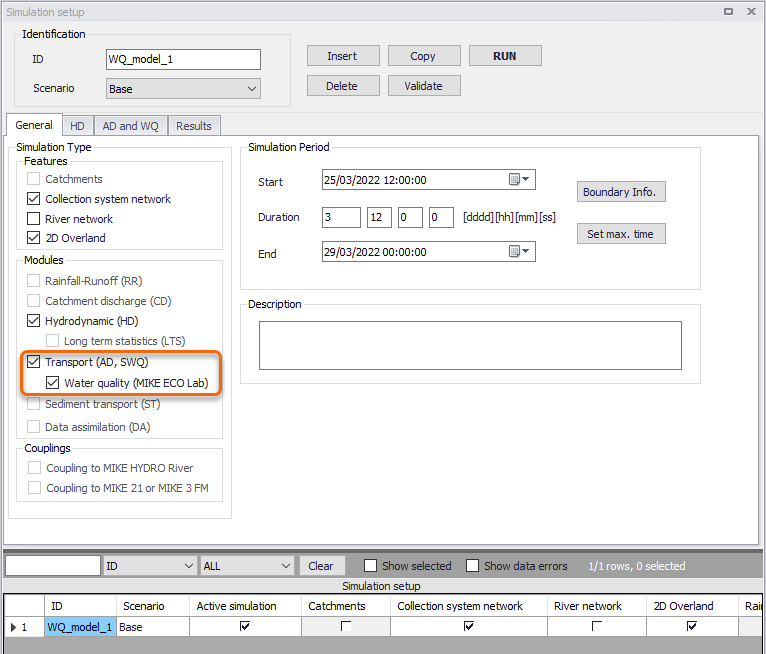
Figure: Setting up a MIKE ECO Lab simulation in the Simulation Setup editor
In the ‘AD and WQ’ tab, define the MIKE ECO Lab update frequency and the MIKE ECO Lab Integration method to use for the simulation. The update frequency is a parameter that defines how often the water quality processes will be calculated during the simulation. It is defined as a multiple of the simulation time step used for the HD and AD simulation and therefore determines the frequency for simulating water quality processes on top of the standard Advection and Dispersion processes which are calculated at every time step. The Update Frequency must be a positive integer. Definition of the frequency should be based on careful considerations. The dynamics of the advection dispersion is comparable to the dynamics of the process descriptions. Thus, it is strongly recommended to use an update frequency of 1. The selection of the Update Frequency has to be based on considerations of the time scales of the processes involved. Please notice that this selection can be rather decisive for the precision of the numerical solution as well as for the CPU time of the simulation. A large Update Frequency will decrease the precision as well as the CPU time. It is therefore advisable to perform a sensitivity analysis on the Update Frequency before making the final selection. Also see chapter Integration Methods for more information on the available methods.
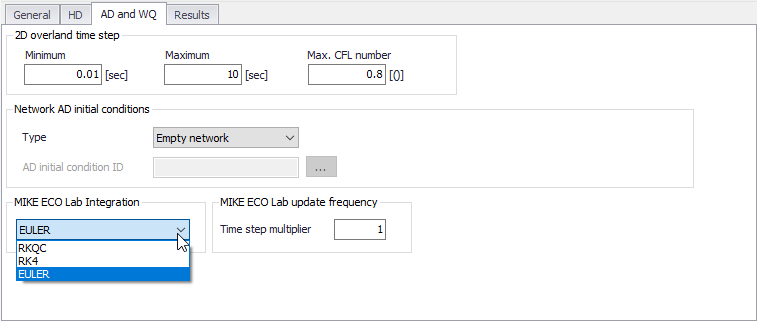
Figure: Define the MIKE ECO Lab Integration Method in the AD and WQ tab of the Simulation Setup editor
In the 'Results' tab, select the result files to be saved during the simulation.