Property and Result Explorer
It is possible to quickly query associated result items by selecting model elements from maps via the Identify tool.

The tool is available for maps in several locations on the interface:
- Map: For the main Map view, the tools is available from the Map ribbon, and the Map view toolbar.
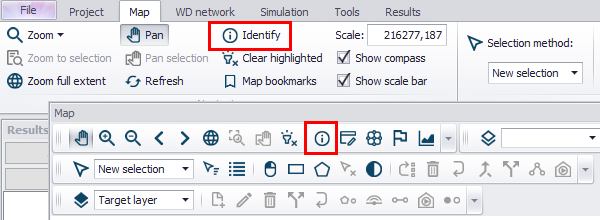
- Result map: For result maps, the tool is available from the result map toolbar.
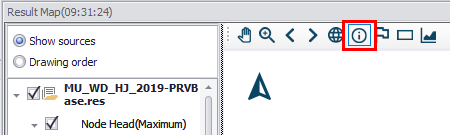
Once the Identify tool is activated, you can click on any node (junction, reservoir, tank) or link (pipes, pump, valve) on the map and the Property and Result Explorer will display data attributes and result values.
Map View
On the Map view, use the Identify tool to view the Properties and Result Explorer (figure below). The Properties and Results Explorer displays result files that are currently loaded as a Map layer. It shows result values and also gives information about the element selected on the map.
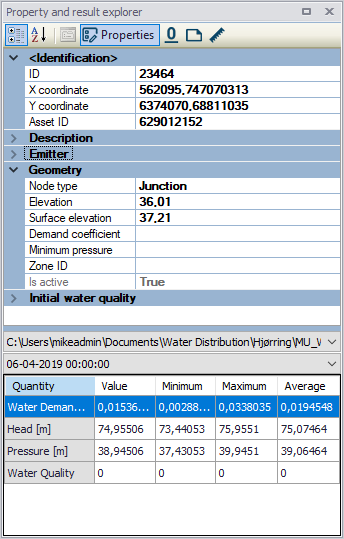
Figure: The Property and Results Explorer on the main Map view
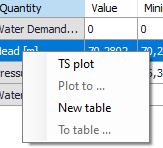
In addition, it is also possible to create a Table or TS Plot (i.e. time series) result document from the Property and Result Explorer table’s context menu (i.e. via right-click):
Result Map
On result map plots, use the Identify tool to view tabulated result values on the lower left panel of the plot (figure below). The table displays element properties, result files that are currently loaded in the Results manager, and result values.
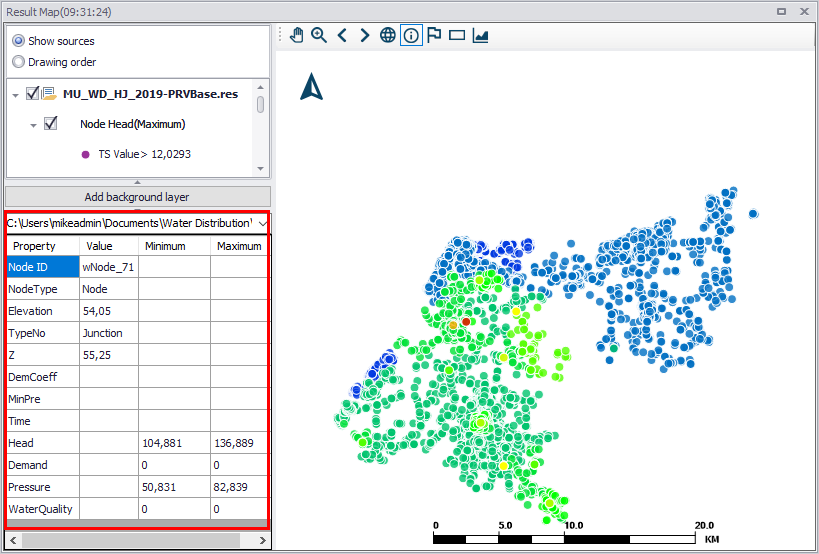
Figure: The results explorer on result maps