2D WQ Infiltration
Water quality associated with infiltration conditions may be modelled in MIKE+ 2D Overland.
These options are available in MIKE+ if the 2D Overland modules 'Hydrodynamic (HD)' and 'Water quality (AD)' are active AND 2D Infiltration boundaries are included in the model setup.
Infiltration water quality conditions can be included as:
- Ambient Concentration: The concentration of the infiltrated water mass is set equal to the concentration of the ambient water in the domain.
- The concentration of the infiltrated water mass may be specified explicitly as:
- Uniform
- Varying in Time
- Varying in Domain
- Varying in Domain and Time.
Configure these WQ characteristics individually for each WQ component defined in the setup.
Use the 2D WQ Infiltration editor to configure water quality properties for Infiltration boundaries in the model.
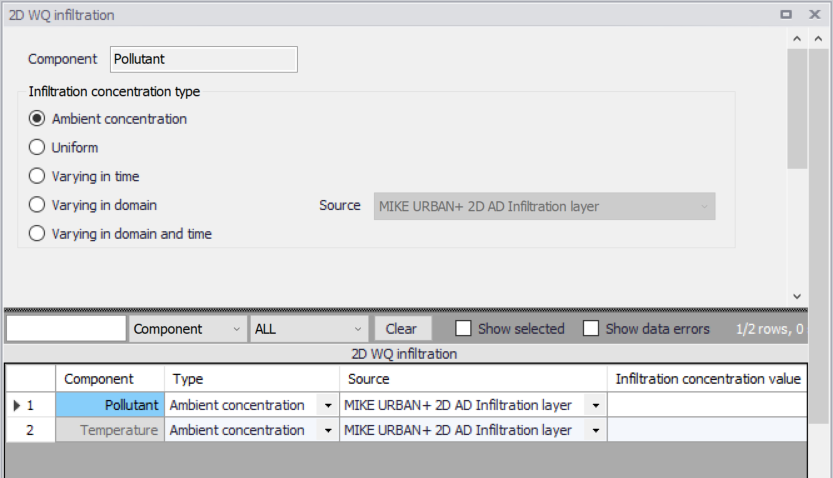
Figure: The 2D WQ Infiltration editor
The following sections describe data requirements for specifying 2D water quality characteristics for 2D Infiltration boundaries.
Ambient Concentration
For this type of 2D WQ infiltration input, the concentration of the evaporated water mass is set equal to the concentration of the ambient water in the domain.
Thus, this type of WQ boundary condition does not require additional details on infiltration concentrations.
Uniform
Use this option if infiltration boundary concentrations shall remain constant (in time and domain).
Under the Infiltration Concentration Details section define:
- Infiltration concentration value: Specified concentration of the selected/active pollutant component in the infiltration boundary condition.
- Soft start interval: Soft start interval during which WQ boundary values are increased from 0 to the specified value in order to avoid shock waves being generated in the computations.
Specify parameters for Uniform 2D WQ Infiltration conditions under the Infiltration Concentration Details section on the editor. A list of WQ components in the model setup is shown in the table overview at the bottom of the editor.
Varying in Time
The case with infiltration concentrations varying in time but constant in domain requires a (*.DFS0) data file containing timeseries data on concentrations (in component unit).
The data must cover the complete simulation period, but the time step of the input data file does not need to be the same as the time step of the hydrodynamic simulation. A linear interpolation will be applied if the time steps differ.
Varying in Domain
2D WQ infiltration boundary characteristics for various WQ components may also be modelled as varying in domain (constant in time). Input for this type of 2D WQ boundary may be defined using:
- MIKE+ 2D AD Infiltration Layer
- Background Layer.
The data requirements for each are described in the following sections.
MIKE+ 2D AD Infiltration Layer
This option requires definition of ‘2D AD infiltration’ polygon features on the Map.
One may use the Edit Features toolbox from the 2D Overland menu ribbon, or the Flooding Layer Editing Tools toolbar on the Map. Use the ‘Create’ tool to draw features on the Map. Right-click to remove the last vertex added, and double-click to finish polygon drawing.
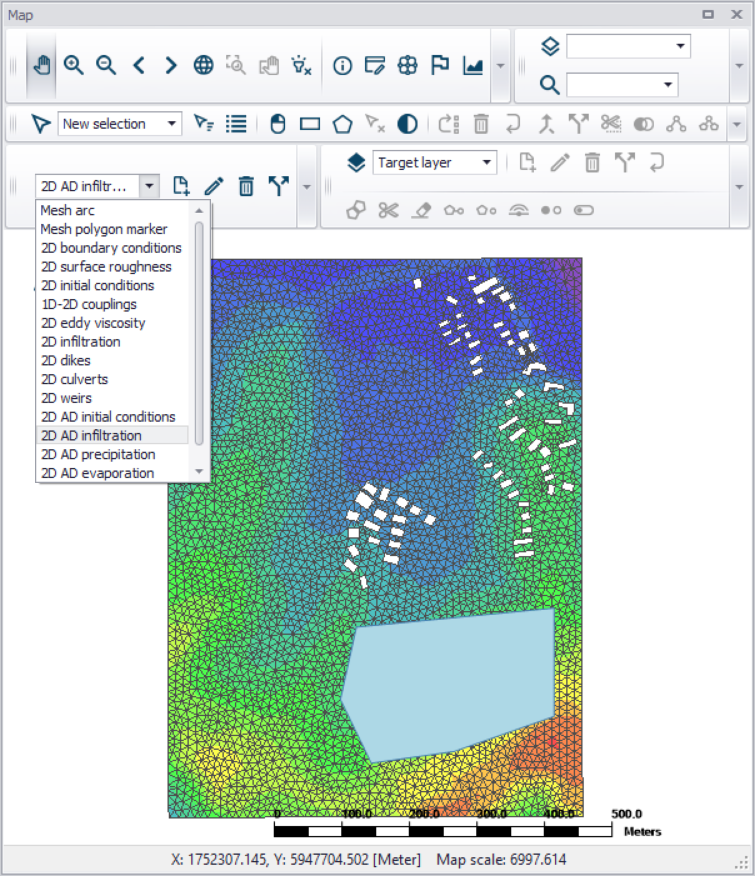
Figure: Define ‘2D AD infiltration’ layer polygons on the Map
Under the ‘Infiltration Concentration Details’ section on the editor, define the 'Default infiltration concentration'. This value will be used over areas in the domain for which 2D AD infiltration parameters are not defined via the ‘2D AD infiltration’ polygons on the Map.
Records for 2D AD infiltration polygons drawn on the Map are listed in the table on the 2D WQ Infiltration editor. New records cannot be added from the tabular view. They are only added when drawing a new polygon on the map.
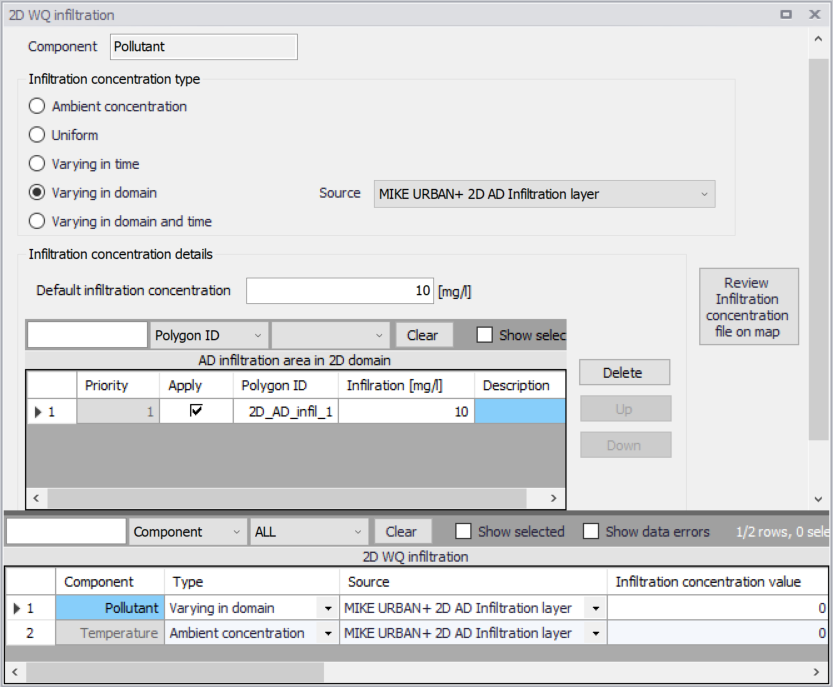
Figure: Define infiltration concentration properties for each ‘2D AD infiltration’ layer polygon record in the table
Specify the concentration value (related to the active/selected WQ component) for each polygon feature on the table. All items from the table are WQ component-specific. The table has the following columns:
- Priority: This is equivalent to the row number. Indicates the order with which values for overlapping features will be prioritized for use in the model.
- Apply: Check box allowing activation/deactivation of individual polygon features without deleting the polygon and its properties from the Map.
- Polygon ID: This is a text string used to identify the polygon.
- Infiltration: This is a numerical field containing the infiltration concentration value assigned to the polygon. The unit is shown in the header (same unit as for the numerical field above the table).
- Description: This is an optional text string used to save a free user description for a polygon feature.
Use the ‘Review infiltration concentration file on map’ button to generate a 2D file from the infiltration concentration configuration and view the generated file on the Map. The generated 2D file type depends on the defined 2D model type: *.DFS2 grid files for rectangular grid models, and *.DFSU unstructured files for flexible mesh models.
When the file is created, it is then added as a layer on the Map (i.e. it is listed in the tree view and visible on the Map). When the file contains multiple items/components, the component which is drawn on the map is the active component in the overview table. If the file was already loaded as a layer, it is only refreshed (with new data, and with the last active component number).
Background Layer
This option requires specification of a background polygon layer to represent domain-varying 2D infiltration concentrations.
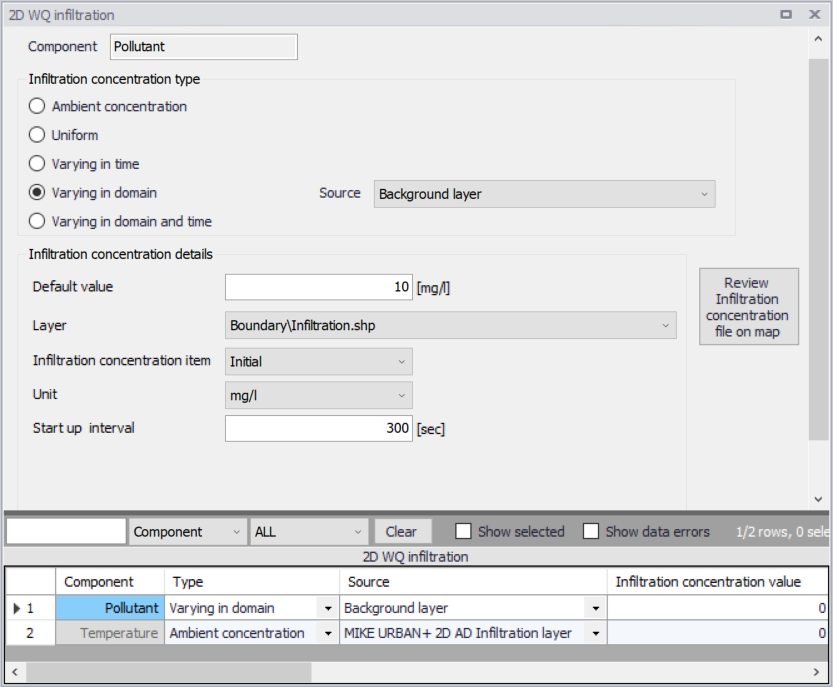
Figure: Specify domain-varying infiltration concentration parameters based on Background layer data
The ‘Infiltration concentration details’ section on the 2D WQ Evaporation editor displays:
- Default value: This value will be used as infiltration concentration over areas in the domain for which parameters are not defined with the background layer polygons.
- Layer: A drop-down list populated with valid layers loaded as background layers on the Map. A layer is valid if it is a *.TAB, or *.SHP polygon layer.
- Infiltration concentration item: Drop-down list populated with the full list of attributes from the selected layer.
- Unit: Drop-down list showing unit options depending on the 'Type' of WQ component as specified in the 'WQ components' editor:
- For Type = 'Pollutant', it shows the list of all supported units for concentration (e.g. mg/l, g/m3, kg/m3, g/l, μg/l, pound/(feet US)3, pound/feet3, pound/(yard US)3, pound/yard3, etc.)
- For Type = 'Microorganism', it shows the list of all supported units for bacteria / micro-organism concentrations (e.g. million/100 ml, per 100 ml, per liter, etc.)
- For Type = 'Temperature', it shows the list of all supported units for temperature (e.g. degree Celsius, degree Fahrenheit, degree kelvin, etc.)
- For Type = 'pH', it shows a single undefined unit [].
- For Type = 'Salinity', it shows the list of all supported units for salinity (e.g. PSU, per thousand, etc.)
- For types 'Water age' and 'Water blend', it shows a single undefined unit [].
- Start up interval: Interval during which WQ boundary values are increased from 0 to the specified value in order to avoid shock waves in the computations.
The ‘Review infiltration concentration file on map’ button generates a 2D file from the infiltration concentration configuration and loads the generated file on the Map. The generated 2D file type depends on the defined 2D model type: *.DFS2 grid files for rectangular grid models, and *.DFSU unstructured files for flexible mesh models.
When the file is created, it is then added as a layer on the Map (i.e. it is listed in the tree view and visible on the Map). When the file contains multiple items/components, the component which is drawn on the map is the active component in the overview table. If the file was already loaded as a layer, it is only refreshed (with new data, and with the last active component number).
Varying in Domain and Time
The case with infiltration concentrations varying both in time and domain requires a 2D file with time-varying concentration values. The file must be a 2D unstructured data file (*.DFSU) or a 2D grid data file (*.DFS2).
The area in the 2D data file must cover the model domain. If a *.DFSU file is defined, piecewise constant interpolation is used to map the data to the domain mesh. If a *.DFS2 file is defined, bilinear interpolation is used to map the data to the domain grid.
The data must cover the complete simulation period, although the time step of the input data file does not have to be the same as the time step of the hydrodynamic simulation. A linear interpolation will be applied if the time steps differ.
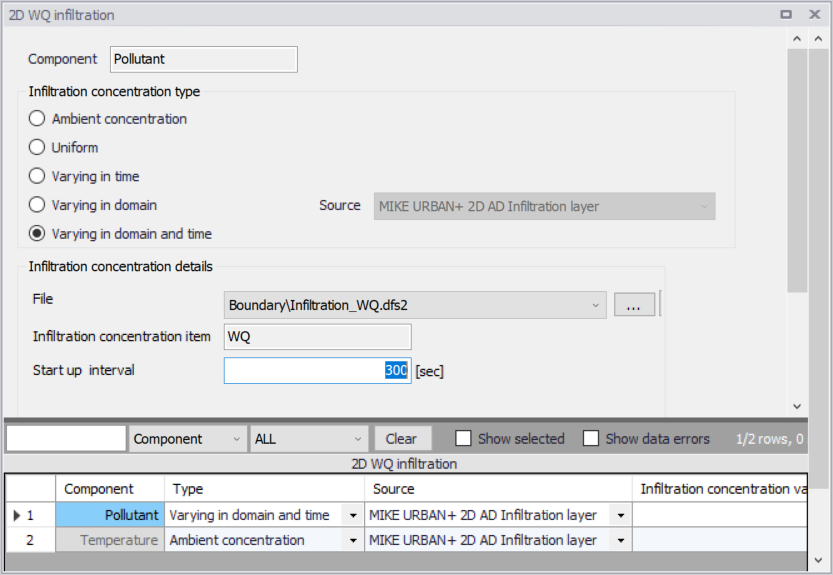
Figure: Specify the time-varying 2D data file under the Infiltration Concentration Details section on the editor
On the editor, define the 2D data file under the ‘Infiltration Concentration Details’ section:
- File: A drop-down list of valid 2D layer files on the Map. A file is valid if it is a time-varying *.DFS2 or *.DFSU file. The ellipsis button launches the 'Open a dfs file' dialog that is used to locate a valid time-varying 2D file. The dialog filters on types '2D Grid file (*.DFS2)' or 'Unstructured data file (*.DFSU)', and has a drop-down list for Items that may be loaded. The 'View' button opens the selected time-varying 2D file for viewing/editing. It launches the Grid Editor if a *.DFS2 file has been selected in the editor. If a *.DFSU file has been selected, it opens the file using the Data Manager.
- Infiltration concentration item: Non-editable text box displaying the selected Item from the loaded file. The database stores one file name and item for each WQ component.
- Start up interval: Interval during which WQ boundary values are increased from 0 to the specified value in order to avoid shock waves in the computations.