Simulation Menu
The Simulation menu offers functionalities related to simulation-running for both Collection System and Water Distribution models.

Setup

Simulation setup
Launches the Simulation Setup editor. Provides access to various options for a simulation setup. You can select the desired module from the General tab, specify the simulation period, and computation time steps, among other things.
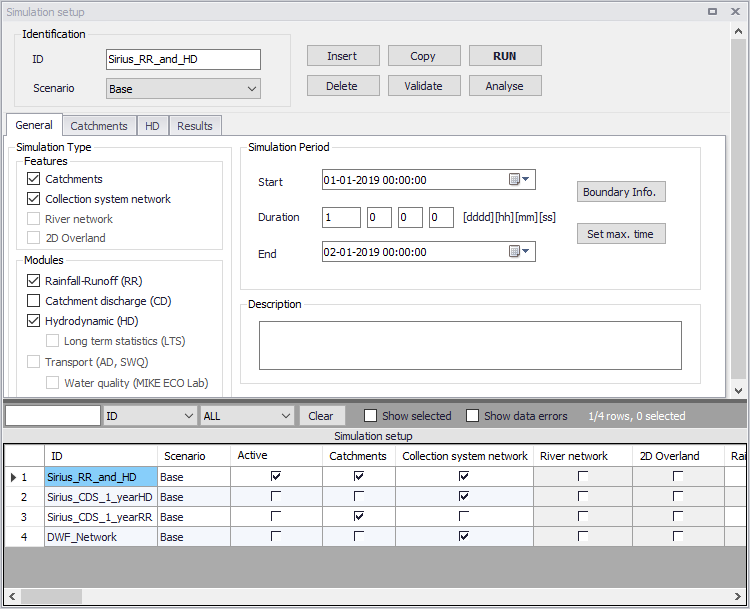
Figure: MIKE+ Simulations Setup editor

Batch simulation
Launches the Batch Simulation editor, which offers the option of running simulation setups in batch (i.e. consecutively).
Configuration (‘Rivers, collection system and overland flows’ models)

MIKE 1D engine configuration
This dialog offers options for specifying or defining special parameters for the MIKE 1D computation engine to use during simulations.
In the 'Predefined options' tab, it is possible to set a number of (selected) computation engine parameters. These parameters may activate different formulations for specific aspects in the computations, set the thresholds or default values for variables, etc.
A description of the parameter is shown in the lower right panel of the window. Note that the parameters for which user-specified values differ from default are highlighted in red in the window (see figure below).
Use the ‘Reset defaults’ button to revert to default values for all customizable parameters listed in this tab.
The 'Import from file' button can be used to import the equivalent parameters from a dhiapp.ini file used by MIKE URBAN Classic, in case this file was not imported with the MIKE URBAN Classic data into MIKE+.
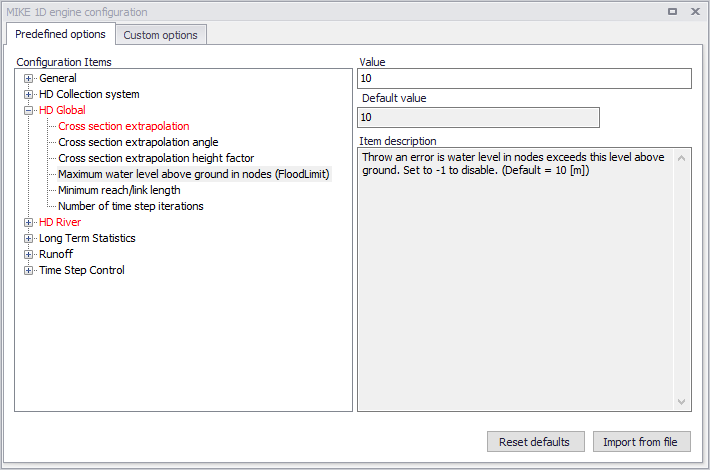
Figure: The predefined options in MIKE 1D Engine Configuration dialog
The 'Custom options' tab is used to apply more advanced options for the MIKE 1D simulation. These advanced options are in general not required, so this tab is used only for very specific applications.
Custom options can be additional parameters, as described in the "MIKE 1D additional parameters" chapter here:
https://docs.mikepoweredbydhi.com/engine_libraries/mike1d/mike1d_api/#mike-1d-additional-parameters
A general application example of this is to convert a specific error message into a warning, to prevent from stopping the simulation when the issue is met (and assuming that the simulation engine can continue, after ignoring the problem). This is achieved by inserting an option with the name 'MessageIdToWarning', with value type 'Text' and with the value matching the error name as reported in brackets in the simulation log file (e.g. 'ST_ERR_ReachStructureBottomLevelMismatch').
A custom option can also be used to enable the use of a script for the MIKE 1D simulation, as described here:
https://docs.mikepoweredbydhi.com/engine_libraries/mike1d/mike1d_scripts/
Custom options are added or removed from the list using the 'Insert' and 'Delete' buttons above the table. A custom option will only apply to simulations if the 'Apply option' box is ticked. Additionally, it is possible to filter the simulations to which the option applies, by ticking the box 'Apply only to following Simulation IDs' and by specifying the relevant simulation IDs in the text box underneath. Simulation IDs must be separated by a semicolon character.
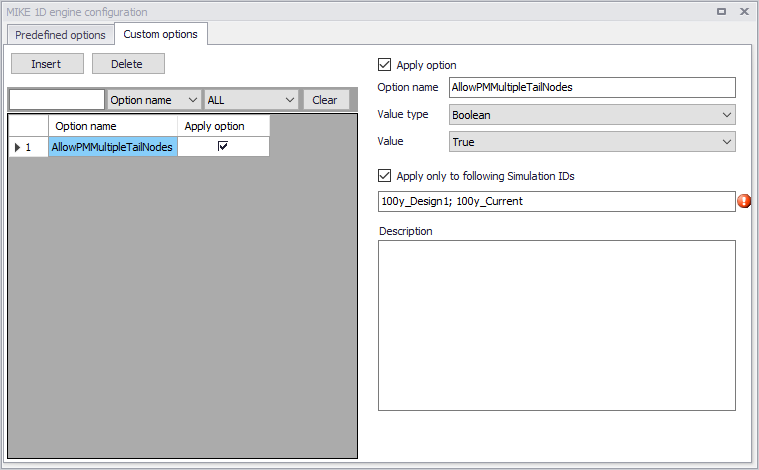
Figure: The custom options in the MIKE 1D Engine Configuration dialog

Parallelisation configuration
Allows customization of computation optimization options for ‘Rivers, collection system and overland flows’ model computations.
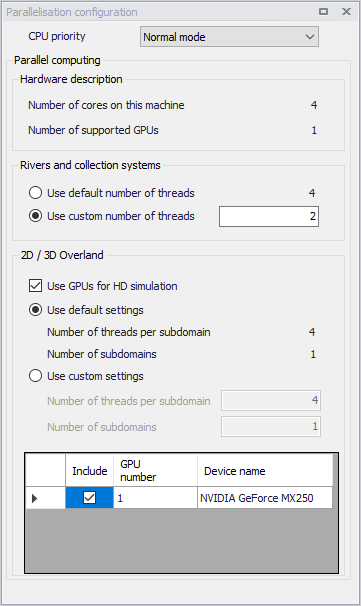
Figure: Parallelisation configuration dialog in MIKE+
Execution
Set active simulation
Dropdown menu for selecting the Active simulation among the existing simulation setups in the project.

Run active simulation
For launching the Active simulation.

View log
For viewing the simulation log file after a simulation.

View summary
For viewing the result summary file after a simulation.
Reporting
The Model Result and Report tool offers facilities for setting up reports based on information from model data as well as simulation results.
Also see chapter Reports for details in reports in MIKE+.
Boundaries (For CS models)

Launches the Boundary Overview window, which graphically displays the temporal extent of each boundary condition in the model setup.