Coordinate System
The Coordinate System editor displays the projection system used in the project.
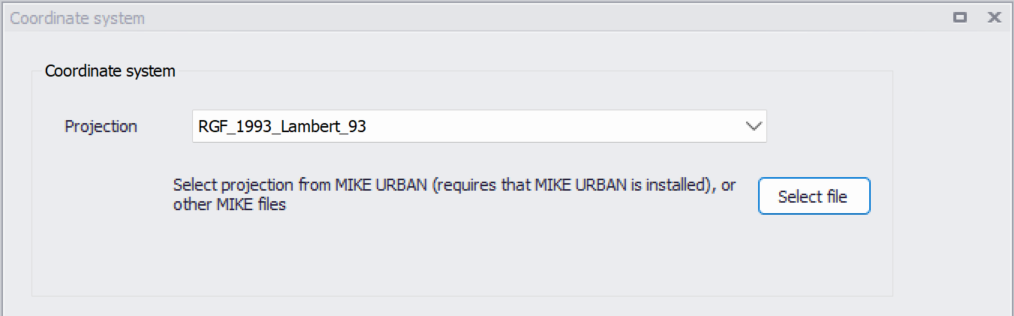
Figure: The Coordinate System dialog showing information on the projection system used in the project
The projection can be selected from the short list, or by searching the projection amongst all the map projections available in MIKE+. The latter is achieved by selecting the
Alternatively, the map projection may be read from other MIKE files: click the 'Select file' button to select one of the supported file types containing map project information, and the same projection as in the selected file will be applied in the MIKE+ project. In order to get the map projection from a MIKE URBAN project file, MIKE URBAN must also be installed on your computer.
When changing the map projection, it is possible to reproject geographical data in the project, for example to convert the coordinates of the network and catchments data, or mesh arcs used for the creation of the 2D domain. Some data files used as input for the simulation can however not be re-projected: this is especially the case for an external 2D domain file (.mesh or .dfs2) or external 2D data file used to map input parameters (e.g. .dfsu or .dfs2 file used to map the 2D surface roughness).
The same options for selecting the projection are also used in the 'New Model Setup' window when a new MIKE+ project is created.
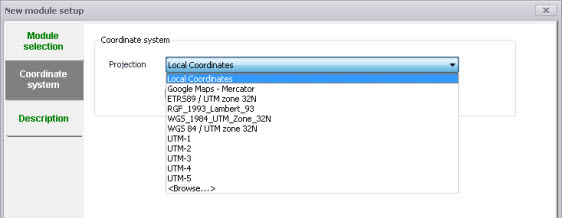
Figure: Specify the projection system for a new MIKE+ project on the New Model Setup window
Note
The default option 'Local coordinates' represents an undefined map projection. This may be used but it won't be possible to properly locate geographical data, and therefore the following functions won't work:
- Displaying online background layer on the map
- Converting coordinates of data defined in a different coordinate system, e.g. to display an additional feature layer on the map, or to import data into the database from a feature layer.
If you do not already know your coordinate system, your GIS department or GIS data provider will normally be able to tell you.