Create Valves from Points Tool
Introduction
This tool is used to create multiple valves at once, by finding their locations and optionally their properties in a point shape file.
It creates the new valves at the closest location on the pipe network from the original point, within a maximum search distance. When the valve is inserted in the middle of a pipe, this pipe is automatically split in two new shorter pipes. When the valve is inserted at the end of the pipe, this pipe is simply shortened and no new pipe is created on the other side of the valve.
The tool is accessed through the MIKE+ ribbon, WD network tab, Network Editing Tools, Create valves from points.

Figure: Accessing the Create valves from points tool
Configuration
The input shape file, with the points locating the valves to be created, must be selected in the 'Configuration' tab.
In the 'Input attributes' group, it is possible to import the main valves' properties from an attribute from the selected shape file. To achieve this, select the relevant attribute from the list, for the corresponding valve's property. Note that not all attributes are valid for each property: for example, only the attributes with numerical values will be listed for numerical properties. The details for each property are:
- Valve ID: any attribute can be selected to specify the valve ID. Note that this ID is expected to be unique for each valve: if the attribute contains an ID already in use for another valve, then the new valve will be assigned a default ID, thus differing from the name in the attribute.
- Valve type: the valve type can be imported either from attributes containing text data (in which case the valve type should be the same text as in the valves editor) or from attributes containing integers (in which case the valve type's value should correspond to the value of mw_Valve.TypeNo). For example, both an input value '2' and an input string 'PSV' would be imported as valve type 'PSV'.
- Fixed status: the Fixed status can be imported from attributes containing integers corresponding to the value of mw_Valve.StatusNo.
- Diameter: any attribute with numerical values can be imported.
- Setting: any attribute with numerical values can be imported.
- Description: any attribute can be imported.
Selection of any of these attributes is optional. When no attribute is selected, the corresponding valve's property will be given a default value. Similarly, when an attribute is selected but when it contains an invalid value for a point, then the created valve is also given a default value and a warning will be provided.
The 'Maximum search radius' is the distance around a point in the shape file within which the tool will look for a pipe. If no pipe is found within this distance, the valve is not created.
The 'Created valve length' is the distance between the new nodes to which the valves are connected. This length therefore controls the length by which the pipes are reduced after inserting the valves.
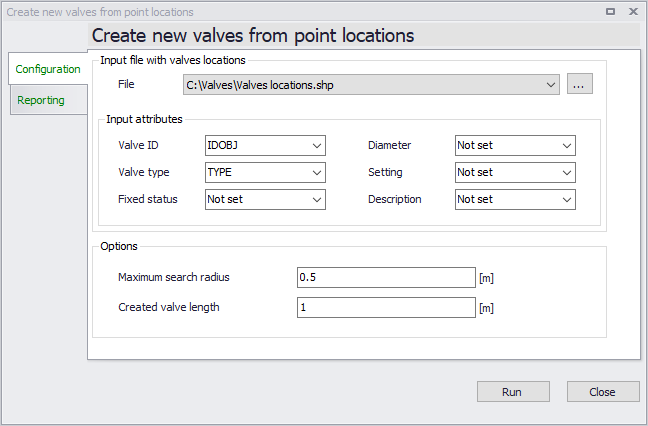
Figure: Configuring the Create valves from points tool
Running the tool
To update the model with the new valves, click on "Run". The 'Reporting' tab shows the warnings, if any, which are provided when valves could not be created or when properties could not be imported from the shape file.