File Menu
On the File menu it is possible to create, open, save and close MIKE+ projects. The menu provides access to import and export functionality of multiple model formats, as well as access to recently opened projects and more.
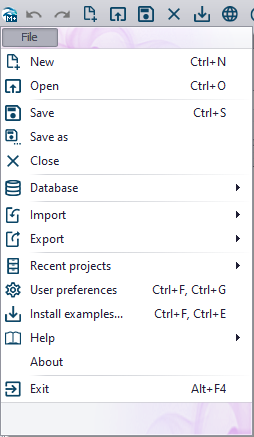
New

This function allows to create a new project/database. It is required to name the project, choose the preferred directory, model type, database type and coordinate system, as shown in the figure below.
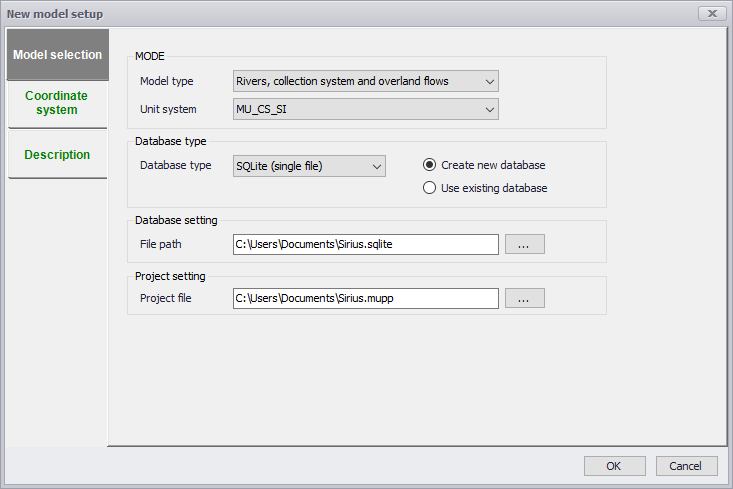
Figure: New model setup
The option 'Create new database' will create both a database, containing the model data, and the related *.mupp file, which stores information about the layout (location of the various opened windows) and the map (link to additional background layers, symbology). The option 'Use existing database' will only create a new *.mupp file, for use with an existing database: this is e.g. required in order to open a model database if the *.mupp file is missing.
Open
Opens an existing MIKE+ project file (*.mupp) and its related database. It is also possible to select a database file (*.sqlite) directly: if a *.mupp file with the same name exists in the same folder, it will be used to open the project and load all its layout settings, and if no *.mupp file with the same name is found a new one will automatically be created.
Save
Saves MIKE+ project file (*.mupp) only. Note that changes applied to the model data are automatically and continuously saved to the database, so the Save button is only used to save the windows layout, the list of background layers added to the map, or the symbology applied to the map.
Save as
Save a copy of the model as a new copy
Close
Close the model without closing the MIKE+ application
Clone and repair database
The option to clone a database is used to copy a source database into a new target database. It can therefore be used to change the database format (SQLite to PostGIS database type, or vice versa).
It can also be used to recover from damaged tables in the database. While cloning, corrupt table(s) will be skipped and the cloned database may be usable again in MIKE+. However, the data from the skipped table(s) will need to be re-imported afterwards. If the skipped table is a "system" table, which is strictly required by MIKE+, then the cloned database may not open properly. System tables e.g. include:
- MIKE 1D engine configuration
- Fields' status
- Default values
- User-defined column information
- Status codes
- Bookmarks
- Model type settings
- Custom units
More information on how to use the tool can be found in chapter Cloning the MIKE+ Database.
Cloning a database doesn't create a corresponding *.mupp file which is necessary in MIKE+. Therefore, in order to open a cloned database in MIKE+, it is required to create a new project using the cloned database.
Import
MIKE+ offers options for importing different model databases and setups into a MIKE+ project database. Those are:
- Import MIKE URBAN (*.mdb): Imports all data from a MIKE URBAN database (in *.mdb or *.gdb format).
- Import MIKE HYDRO River model (*.mhydro): Imports river model data from a MIKE HYDRO River file. Some functionalities and options from MIKE HYDRO River are not supported in MIKE+ and cannot be imported.
- Import MIKE 11 model (*.sim11): Imports river model data from a MIKE 11 file. Some functionalities and options from MIKE 11 are not supported in MIKE+ and cannot be imported.
- Import EPANET model: Imports a water distribution model data from an *.inp file.
- Import full MIKE FLOOD model setup (*.couple): Imports all data from a MIKE FLOOD setup file. All data files used in the selected MIKE FLOOD setup will be imported to the MIKE+ database: MIKE URBAN classic, MIKE 21, MIKE HYDRO River, MIKE 11, couplings. Some functionalities and options from MIKE HYDRO River and MIKE 11 are not supported in MIKE+ and cannot be imported. If the MIKE HYDRO River data must not be altered, use the coupling to MIKE HYDRO River instead of this import option.
- Import MIKE 21 model setup (*.m21, *.m21fst, *.m21fm).
- Import MIKE FLOOD couplings (*.couple): Imports only the couplings from a MIKE FLOOD file. Related river, urban and/or 2D data files are not imported.
- Import SWMM model (*.inp): Imports a SWMM model from an *.inp file.
Before using the predefined import for a MIKE URBAN model, it is necessary to update any old model to MIKE URBAN Release 2020 Update 1 so that the *.mdb or *.gdb source database is in the correct format. Before importing any other MIKE file, the file should also be updated to the latest version to be in the correct format.
Also see Chapter Predefined Import and Export Routines.
Export
- Export EPANET model: Exports WD model to EPANET *.inp file.
- Export to M1DX file: Exports CS and river network model to a MIKE 1D engine *.m1dx file.
- Export to MIKE 21 FM setup file: Exports MIKE+ 2D overland model setup to a *.m21fm file.
- Export to MIKE FLOOD couple file: Exports MIKE+ 1D-2D couplings setup to a *.couple file.
- Export SWMM model: Exports SWMM model to SWMM *.inp file.
Also see Chapter Predefined Import and Export Routines.
Recent projects
To access recent projects which were opened recently at MIKE+, click on File | Recent projects, and choose the desired project
User preferences
From the 'User preferences' dialog, it is possible to configure several general settings for the MIKE+ product installation, including e.g. default unit settings, language or default behaviour for automatic loading of results.
See User preferences for more details.
Install examples
As a new user it would be useful to load examples and practice testing various items in the example model. Examples can be loaded in your local directory, with a *.PDF explaining the content of the example and *.MUPP file to load into MIKE+.
Help
This menu gives access to various sources of help or information related to MIKE+:
- Documentation: opens the Documentation Index page, containing links to the various user guides and release note of MIKE+ available online, in PDF format.
- Online help: opens the help page, providing the same content as the user guides but in a more searchable format.
- Customer Care portal: opens DHI's Customer Care portal, with access to support contact, FAQs and software updates.
- YouTube videos: opens the YouTube channel including demonstration videos for MIKE products and their functionalities.
- Training portal opens DHI’s training portal, offering access to training courses, conferences and webinars.
- MIKE+Py: opens the download page for MIKE+Py, a Python interface for MIKE+.
About
Provides details about the software release, contact details and product license.
Exit
Exit the project and close MIKE+.