Editors
Model setup editors are accessed from the Setup tree view to the left of the main window. Clicking on a setup item opens a new tab with an editor related to the item.
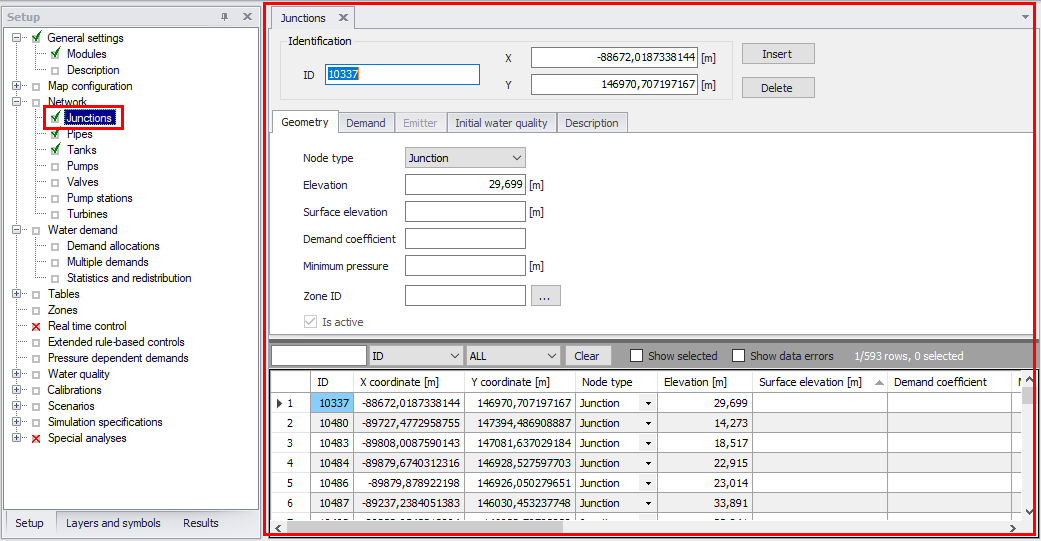
Figure: Example Editor (for WD model Junctions) shown on the main window
Editors in MIKE+ may be "docked" or "floated":
- When "Floated", editors are displayed in a stack, with the active editor on top. This is shown in the figure below.
- “Docked" editors are displayed one at a time, or side-by-side. Any editor can be brought to the front by clicking on its tab. This is shown in Figure 2.6 below.
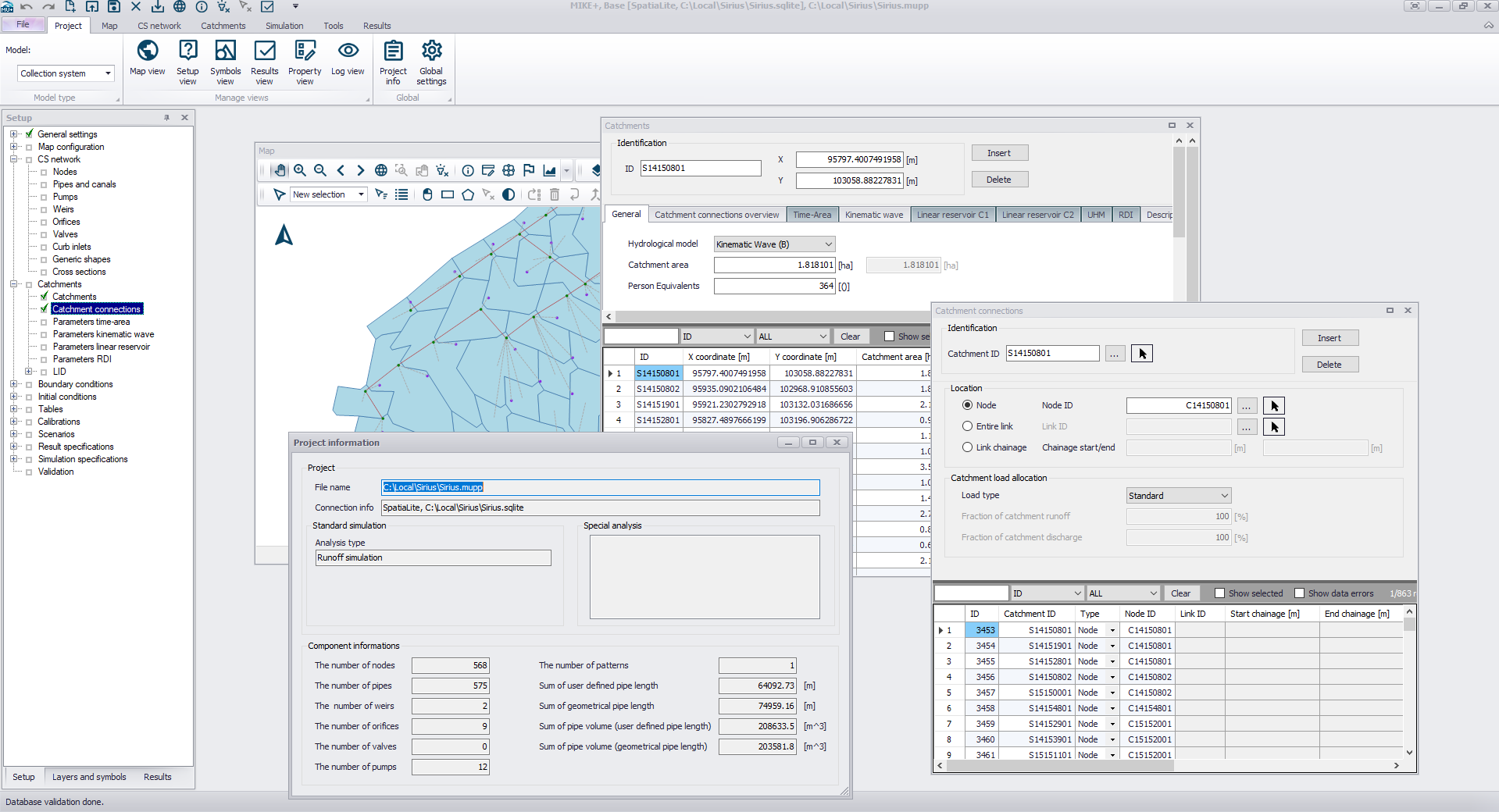
Figure: MIKE+ user interface with "floating" editors
The figure below shows the MIKE+ user interface with all editors "docked". In this case only the active editor is visible.
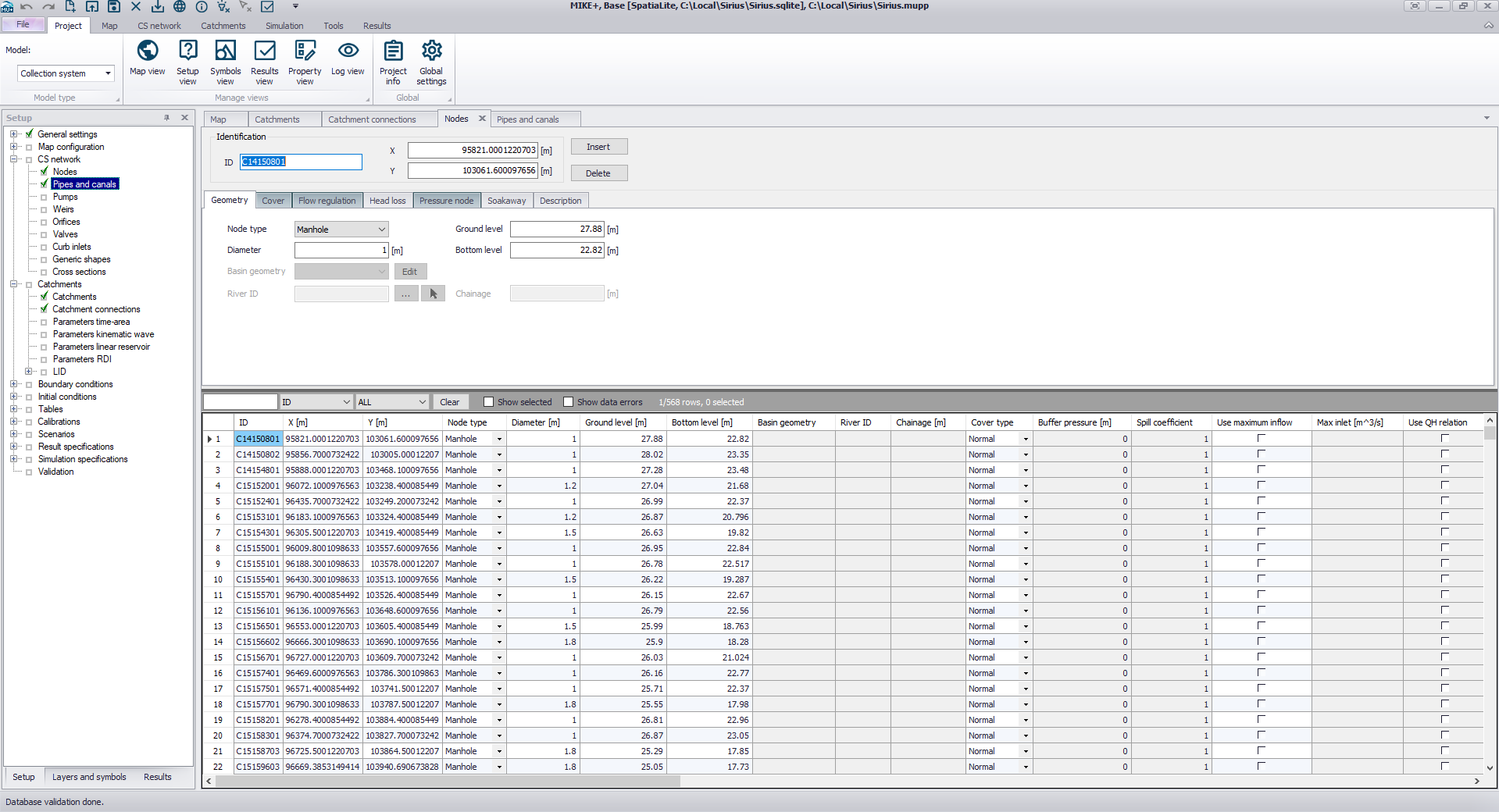
Figure: MIKE+ user interface with all editors "docked"
Most of the editors contain an overview table at the bottom, which offers a number of functionalities as described below:
- A search field above the table allows to filter the table, in order to show only the relevant items in the list (e.g. show only the nodes with a specific type, or show a specific ID, etc.). Type a text to show only the records with the selected field (e.g. ID) starting with this text. Type * followed by a text to show only the records with the selected field ending with this text. Type a text between two * to show all records containing this text.
- Check boxes above the table allows to show only the selected records, or show only the records with validation errors
- Double-clicking a row number will zoom to the corresponding item / record on the map. Pressing the Ctrl key while double-clicking will pan to the corresponding item / record on the map (keeping the map scale unchanged).
- Right-clicking in the header of a column, it is possible to either select the entire column (to later copy its content), start the ‘Field calculator’ or start the ‘Select by attributes' tool.
- Right-clicking within the table offers several options to:
- Copy and paste data
- Manage selections
- Add user defined columns
- Clone (duplicate) selected rows
- Show in the table the columns from the active tab only
- Show the table only, hiding the part of the editor above the table.
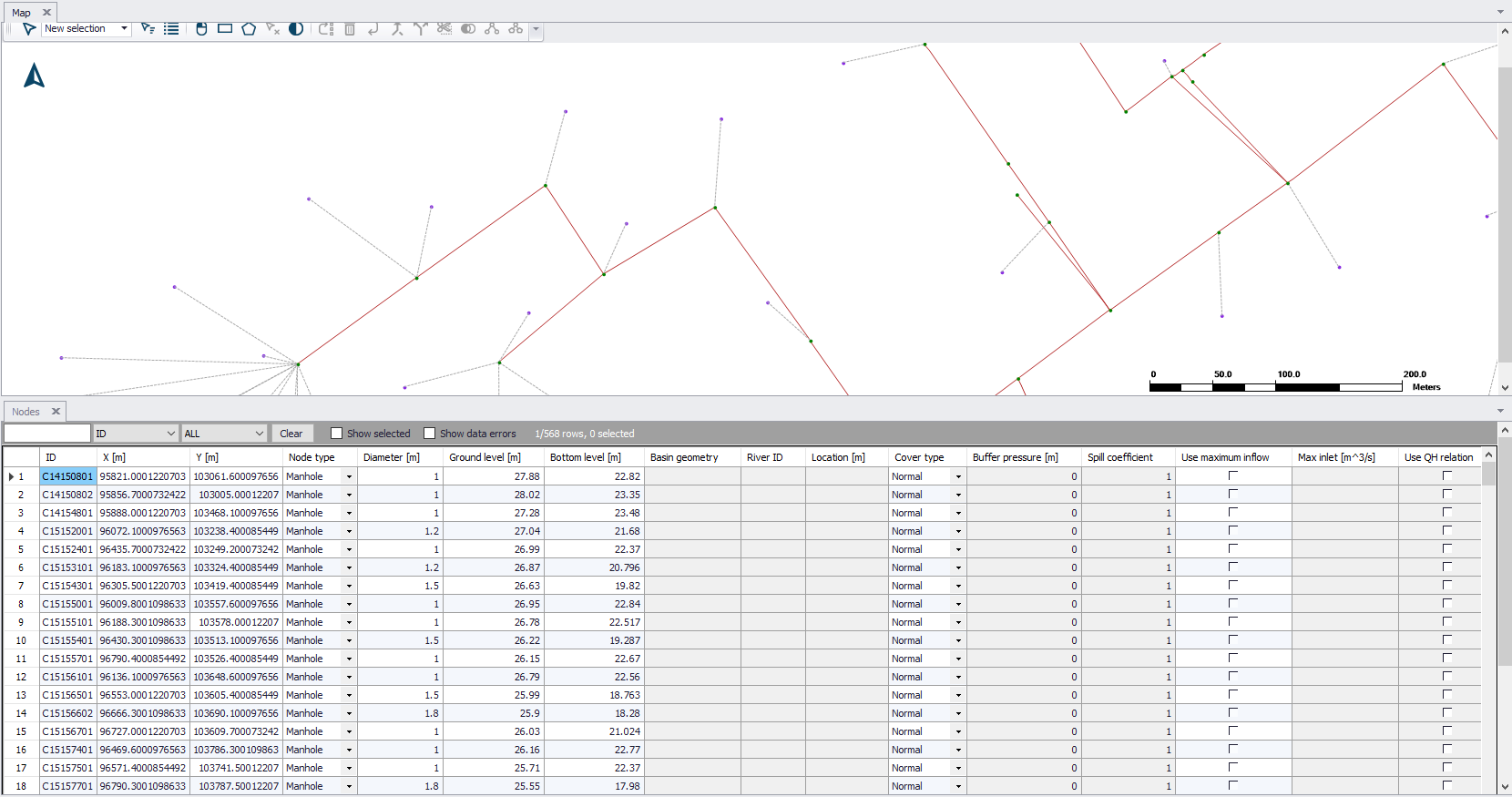
Figure: An editor with option 'Show grid only' active, and docked below the map