Tabulated structures
Tabulated structures are structures regulated by a user-defined relationship between the discharge through the structure and the upstream and downstream water levels.
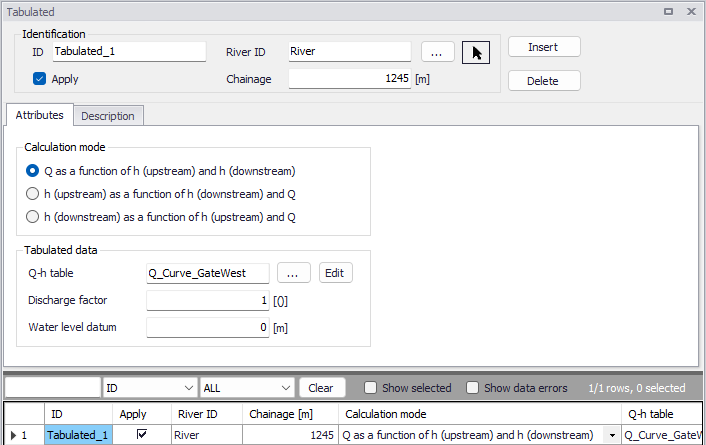
Figure: The Tabulated structures editor accessed via the River Network setup group
Identification
The Identification group holds basic information on tabulated structures.
ID
Unique string identification for the tabulated structure.
River ID
The ID of the river where the tabulated structure is located. The River ID is automatically registered if the tabulated structure is created via the Map. Use the button with an arrow, to select the location of the structure on the map: this will specify both the River ID and the Chainage of the structure.
Chainage
Chainage at which the tabulated structure is located along the river.
Apply
This check box allows the user to toggle the Active status of the tabulated structure on and off. The simulations will omit all tabulated structures that are not active.
Attributes
Calculation mode
Three calculation modes are available:
- Q as a function of h (upstream) and h (downstream): The discharge is given as a function of the upstream and downstream water levels. This relationship is defined in a table in the 'Two-dimensional tables' editor'. This table must have the type 'Tabulated Q (h(upstream), h(downstream))'. In this table, the upstream water level 'h (upstream)' must be tabulated in the first column and must increase in the downward direction. The downstream water level 'h (downstream)' must be tabulated in the first row in the table and must increase in the right direction. Then the corresponding discharges must be tabulated. The discharge cannot increase in the right direction, and it cannot decrease in the downward direction.
- h (upstream) as a function of h (downstream) and Q: The upstream water level is given as a function of the discharge and downstream water level. This relationship is defined in a table in the 'Two-dimensional tables' editor'. This table must have the type 'Tabulated h(upstream) (Q, h(downstream))'. In this table, the downstream water level 'h (downstream)' must be tabulated in the first column and must increase in the downward direction. The discharge must be tabulated in the first row in the table and must increase in the right direction. Then the corresponding upstream water levels must be tabulated and must increase in the right and the downward direction.
- h (downstream) as a function of h (upstream) and Q: The downstream water level is given as a function of the discharge and upstream water level. This relationship is defined in a table in the 'Two-dimensional tables' editor'. This table must have the type 'Tabulated (h(downstream) (Q, h(upstream))'. In this table, the upstream water level 'h (upstream)' must be tabulated in the first column and must increase in the downward direction. The discharge must be tabulated in the first row in the table and must increase in the right direction. Then the corresponding downstream water levels must be tabulated and must decrease in the right direction and increase in the downward direction.
Tabulated data
Three attributes are required to define in the tabulated data:
- Q-h table: The selected table holding the relationship between the discharge in the structure and its upstream and downstream water levels, from the list of tables in the 'Two-dimensional tables' editor.
- Discharge factor: The discharge factor is multiplied to the discharge in the table.
- Water level datum: The water level datum is added to the upstream and downstream water levels in the table.
Description
Use the Description tab to add free text descriptions for tabulated structures. It offers options for providing model management information, as well as attributes for quick model data query.
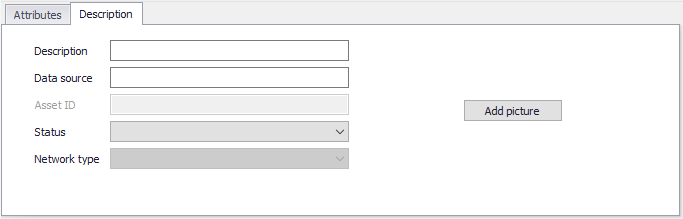
Figure: The Description tab on the Tabulated structures editor
- Description: Free text description for the tabulated structures.
- Data source: Free text describing data source for tabulated structures data.
- Status: Project-defined status information that may be used for model build management or e.g. model data query. Pre-defined codes are contained in the Status Code editor which may be accessed via the ellipsis button from the Status dropdown menu.
- Add picture: Option for adding images associated with the tabulated structure.