AD Initial Conditions
Initial conditions are needed to define the initial state of water quality and other module-specific variables at the start of the simulation.
Initial water quality component concentrations in river and collection system networks are defined in the AD Initial Conditions editor.
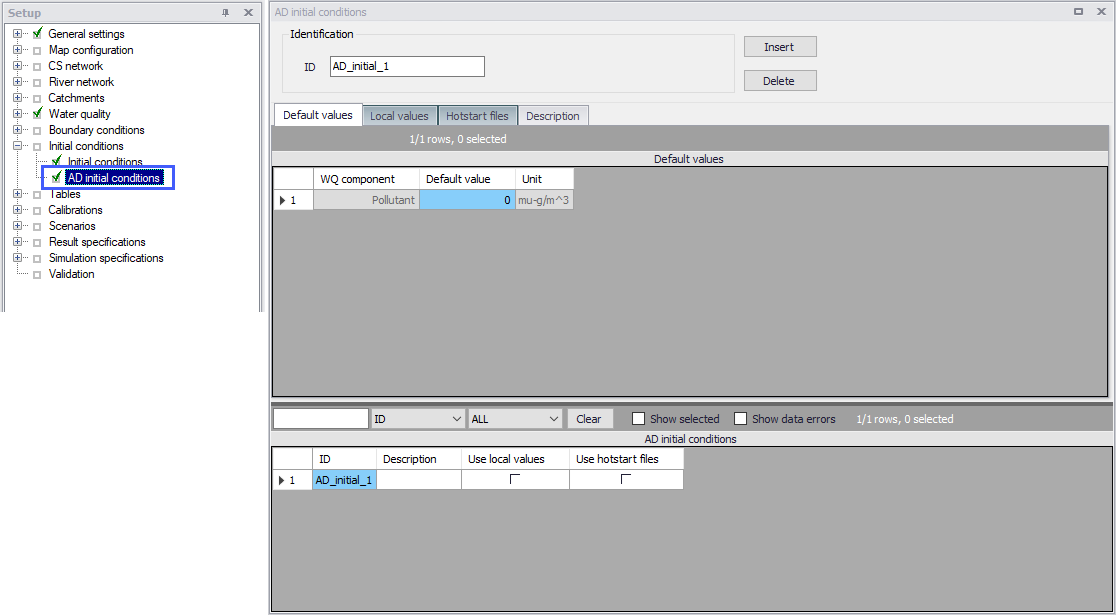
Figure: The AD Initial Conditions editor for both CS and River networks
If an initial concentration is not specified a default value of zero will be applied throughout the model. Global and local values of initial concentrations can be specified for each component.
For a set of AD initial conditions to apply in a simulation, it must be selected in this simulation definition, from the 'Simulation setup' editor.
Identification
The Identification group holds information on the unique ID for an AD initial conditions setup.
Use the ‘Insert’ button to add AD initial conditions setups in the editor. The Delete button removes the active AD initial conditions setup.
Default Values
Define default initial AD conditions in the Default Values tab page of the AD Initial Conditions editor the figure here.
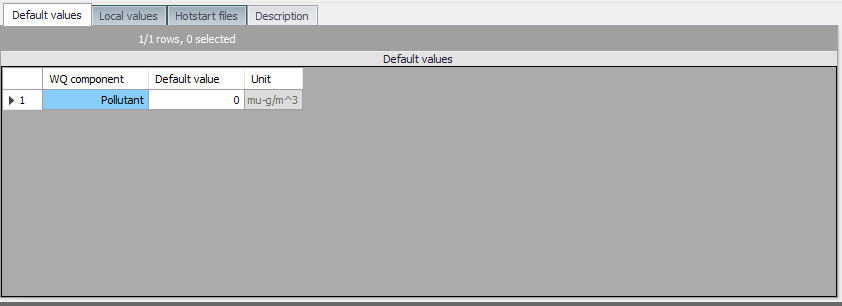
Figure: The Default Values page on the AD Initial Conditions editor
Default values for initial AD conditions are applied at computational points which are not included in hotstart files, and for which no local values have been defined.
For Water blend components, concentrations must always be given as a number between 0 and 100 %, and the sum of the two blend components must add up to 100 %.
For initial conditions specified at individual manholes, the initial conditions in connected links are calculated by linear interpolation of the concentrations specified in the upstream and downstream grid points.
Local Values
Initial AD conditions may be defined in specific areas of river and/or collection system network models. MIKE+ will use the initial values specified under the Default Values tab page except for those locations were local values have been specified.
Local initial AD conditions are defined in the Local Values tab page of the AD Initial Conditions editor.
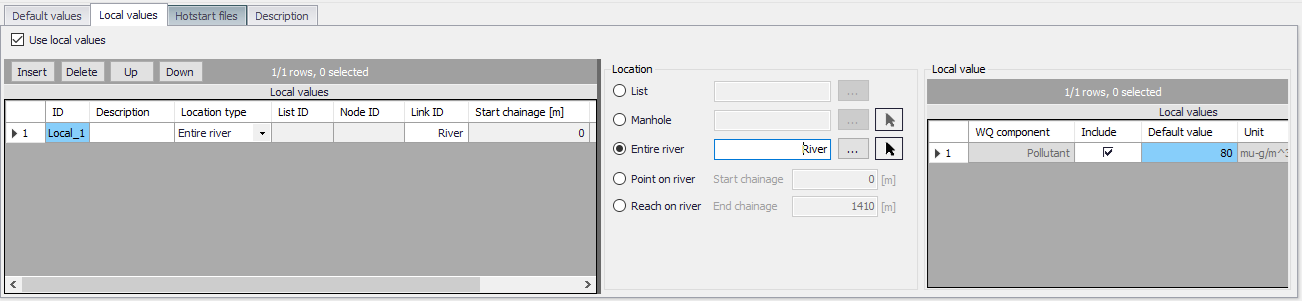
Figure: The Local Values tab of the AD Initial Conditions editor
Use Local Values
Activate the ‘Use local values’ option to allow definition of local values for the active AD initial conditions setup.
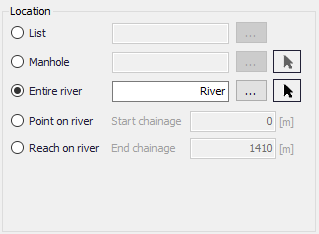
Location
The location of local AD initial conditions may be defined by a:
- List: A predefined selection list of network model elements. Click on the ellipsis button to view the ID Selector dialog, which presents available selection lists. Selection lists may be defined using the Selection Manager accessed via the Map menu ribbon.
- Node: A particular node in the CS network. Click on the ellipsis button to view the ID selector dialog presenting a list of nodes in the project. Alternatively, use the arrow button to interactively select the node from the Main Map.
- Entire Link: The entire river branch or CS network link defined in the Link ID input box. Click on the ellipsis button to view the ID selector dialog presenting a list of River branches or CS network pipes and canals that exist in the project. Alternatively, use the arrow button to interactively select the river branch or CS network link from the Main Map.
- Point on link: A point in the river branch or CS network link defined in the Link ID input box. Define the point along the link or river branch in the ‘Start chainage’ input box in the editor.
- Reach on link: A segment in the river branch or CS network link defined in the Link ID input box. The segment is defined by the ‘Start chainage’ and ‘End chainage’ values in the editor.
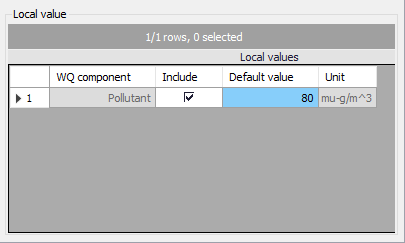
Local Value
Here the WQ component for which local initial conditions shall be set is selected. It is possible to choose between the components defined in the WQ Components editor. Local values are defined in a table containing information on:
- WQ Component: WQ components defined in the project in the WQ Components editor.
- Include: Tick this option to set local values for the corresponding WQ component for the initial AD conditions setup.
- Default Value: The value for the WQ component.
- Unit: Units for the corresponding WQ component varying according to type.
Note
If two or more local values are defined within the same river reach or link, the intermediate values will be calculated by linear interpolation.
If only one local value location is defined in a river or link, then this value will be applied at the specific location and all other values in the link will be assigned Default values.
Defining Local Initial AD Conditions
To define local initial AD conditions:
-
Tick on the ‘Use local values’ option on the Local Values tab page.
-
Insert a row in the secondary table on the leftmost side of the Local Values tab page using the ‘Insert’ button.
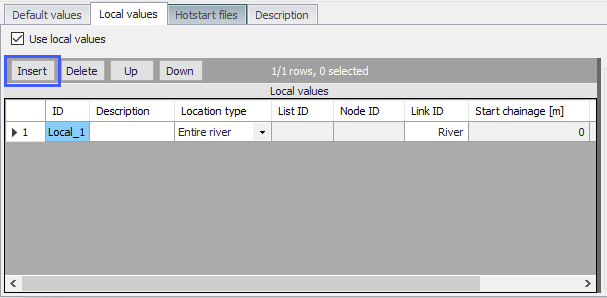
- Define the location for the local AD initial condition under the Location groupbox.
- Activate and define the value(s) for available WQ component(s) in the Local Value table on the rightmost side of the tab page.
Hotstart Files
Hotstart files (*.res1d, *.trf, or *.res11) may be used to define AD initial conditions for networks in MIKE+. Define hotstart files to use for an initial conditions setup via the Hotstart Files tab page of the Initial Conditions editor the figure here.
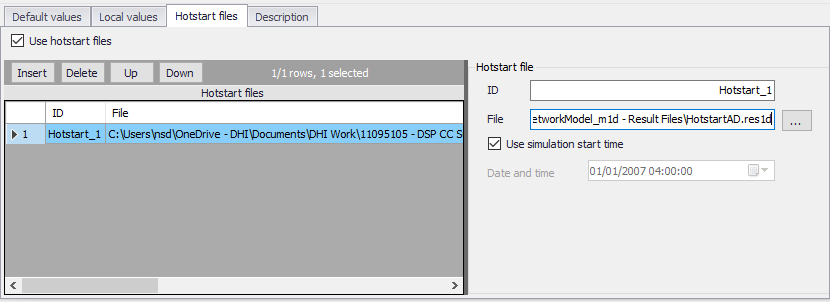
Figure: The Hotstart Files tab in the AD Initial Conditions editor
Use Hotstart Files
Activate the ‘Use hotstart files’ option on the tab page to allow definition and use of hotstart files for the active AD initial conditions setup.
ID
Hotstart file ID
File
Hotstart file path and name. Files of type *.RES1D, *.TRF, and *.RES11 may be used as AD hotstart files. Point to the file using the ellipsis button.
Use Simulation Start Time
If ‘Use simulation start time’ option is enabled, the initial AD condition is automatically extracted from the hotstart file using the simulation start date and time as specified in the ‘Simulation Setup’ editor.
Date and Time
The date and time at which the initial AD conditions are loaded from the hotstart file. Only active if ‘Use simulation start time’ option is inactive.
Defining Hotstart Files for Initial AD Conditions
-
Activate the ‘Use hotstart files’ option on the tab page.
-
Add a row in the Hotstart files table using the ‘Insert’ button. Note that several hotstart files may be added. If a part of the network is covered by more than one hotstart file the first hotstart file will be used.
-
Define the file name and path for the hotstart file under the Hotstart File groupbox in the ‘File’ input box using the ellipsis button.
-
Define the Date and Time in the hotstart file for which initial condition values will be taken.
Info
It is possible to define multiple hotstart files covering different or overlapping areas. If a part of the network is covered by more than one hotstart file, the first file will be used. If a part of the network is not covered by the specified hotstart files, Default or local values are used.
Description
Add optional free text descriptions for an AD Initial Conditions setup in the Description tab page of the AD Initial Conditions editor.