River Tools
A number of tools for river data processing are available in the 'River network' tab of the ribbon, in the 'Rivers toolbox' group.

Figure: The river data processing tools
Tools for creating, editing, importing and exporting cross sections are also accessible from the 'Cross sections' editor. Refer to Cross Section Tools for related descriptions.
Trace rivers from DEM tool
It is possible to automatically draw (trace) a river line using the elevation data from a DEM. From a start point (upstream) defined by the user on the map, the tool searches for the highest slope to find the direction of the flow i.e. the direction of the river line. This procedure is applied iteratively to find the river direction from cell to cell within the DEM extent.
While the tracing tool is active, moving the cursor over the map will automatically display a preview of the river that would be traced starting from the cursor position. When satisfied with the preview, click on the map to actually create the river.
The river will stop either when it reaches the border of the DEM or when it meets another existing river, in which case a connection to this river will also be created by the tool. It is possible to manually edit the river line afterwards, if necessary.
It is possible to include all elevation data (cells) from the DEM in the analysis, or include only a subset of the data. Using only a subset is especially relevant when the input DEM file is big. In that case, using only a subset can speed up the analysis. It is recommended that the size of the DEM should not exceed 25 million pixels. To use only a subset of the data, it is possible to reduce the spatial extent being analyzed and/or resample the data.
DEM source layer
Select from the list the DEM file to be used for the analysis. The tool supports DEM files with DHI format .dfs2, Esri text file format (.asc, .txt) or GeoTIFF (.tif, .tiff). The list initially shows the supported files already added to the map. If the file is not already available in the list, click the '…' button, select the file type and select the file.
Rotated grids are not supported, i.e. the Y axis of the DEM grid must be aligned with the North direction.
Spatial extent
Two options are available:
- Use whole DEM: the entire extent of the DEM will be included in the analysis.
- Use DEM only inside digitized area: this option allows defining a reduced extent covered by the DEM, from the map. Click the 'Digitize' button to draw on the map a rectangle defining the reduced extent. Once the area is finally defined, right-click on the map to stop the digitization. To edit the reduced area afterwards, use the 'Edit' button and then click and drag the symbols on the map to resize the rectangular area or move it on the map. Right-click on the map to stop editing.
Resampling
Resampling requires specification of a resampling factor. If a resampling factor of 2 is used, then the minimum elevation of a 2x2 set of pixels is assigned to one new pixel with the same area as the 2x2 set. A resampling factor of 3 assigns the minimum value of a 3x3 pixel set to one new pixel with the same area as the 3x3 set, and so on.
Number of pixels
This group shows for information the number of pixels in the source DEM, as well as the final number of pixels actually used in the analysis. They are both provided as number along the X axis and along the Y axis respectively. The final number of pixels is reduced by the spatial extent of the analysis when using the option 'Use DEM only inside digitized area', and is divided by the value of the resampling factor.
Warning
Many DEMs contain inaccuracies because of their resolution or artifacts resulting from the method of creation. When tracing rivers from a DEM, you may find some unexpected results. This can especially happen in flat areas where DEMs may not have the vertical resolution to correctly trace the rivers. Manual adjustments of the river lines may be necessary after the automatic tracing.
Note
in many digital elevation models, all pixels in lakes or other areas with ponded water have undefined (or blank) pixel values. When this situation occurs, all internal areas with undefined values are handled as a local depression. When a traced river is added, an artificial channel will be traced through the depression along the shortest path between the upstream and downstream ends. For example, if a lake is represented in a DEM as an undefined area, then an artificial flow path will be created through the lake along the shortest path to the outlet.
Compute storage from DEM tool
The storage capacity (Elevation-area relationship) can be computed for reservoirs, lakes, ponds, etc. and can be used as input definition for storage elements in the river network. The storage capacity is calculated using elevations from a DEM and spatial extents from the storage polygons on the map. The tool will automatically extract the area at different elevations for each storage, and assign the obtained table (relationship) to the relevant storage.
Horizontal storage areas are calculated at regular vertical intervals. The lowest and highest elevations correspond respectively to the lowest and highest elevations from the DEM within the polygon. The inter-mediate elevations are controlled by the user-defined number of intervals, and are distributed evenly.
Note
Applying the tool to storages for which a geometry table is already applied will update them with a new geometry table.
DEM layer
This is the source DEM used to estimate the storage capacity within the polygons. If valid DEMs are already loaded on the map, they can be selected from the drop-down list. The '…' button can be used to load a new DEM file.
No of intervals in geometry table
This controls the number of elevations which will be obtained in the Elevation-area table.
Input selection
The tool can process either:
- All storages: an Elevation-area relationship will be computed for each storage element in the model setup.
- Storages from selection on the map: an Elevation-area relationship will be computed only for the currently selected storages.
- Single storage: an Elevation-area relationship will be computed only for the selected storage.
Configuration
- Open: loads the settings from a file created during a previous use of the tool.
- Save: saves the current settings in the tool to a file for later re-use.
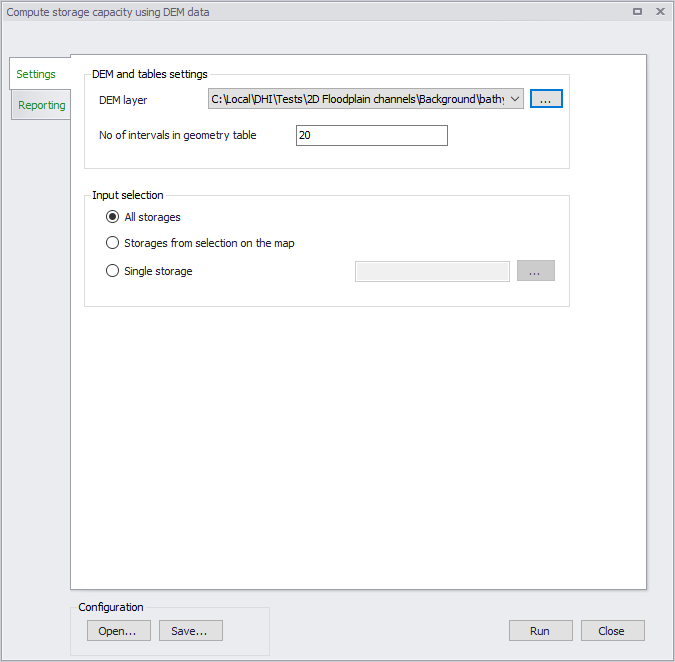
Figure: The Compute storage from DEM tool