HD Initial Conditions
Initial conditions are needed by most numerical models to define the initial state of hydrodynamic and other module-specific variables at the start of the simulation.
Define hydrodynamic initial conditions for network models (i.e. Rivers and/or Collection Systems) in the Initial Conditions editor in MIKE+ accessed under the Initial Conditions group on the setup tree.
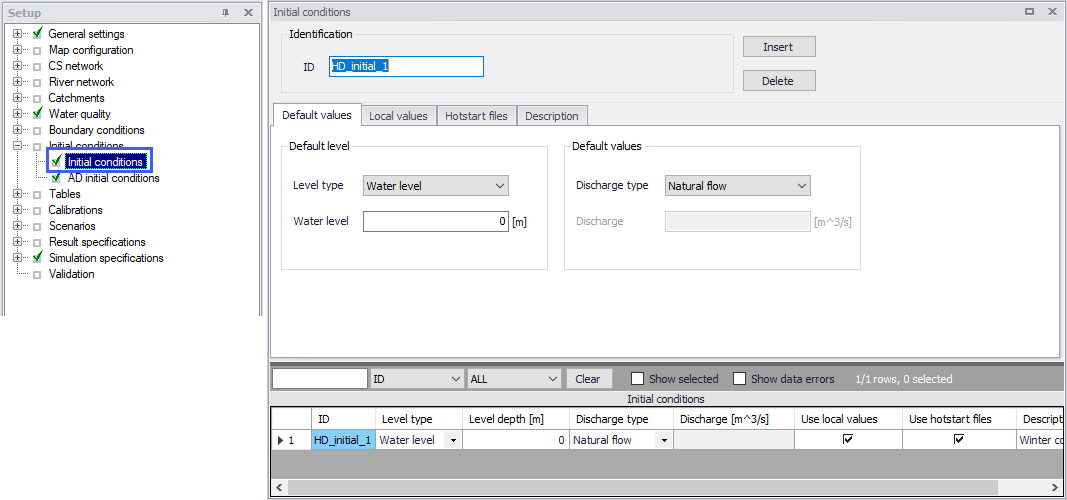
Figure: The Initial Conditions editor
Initial network HD conditions may be defined by:
- User-defined values for state variables. They may be defined as general values to be universally applied in the network models, or local values for specific parts of networks.
- Hotstart files resulting from previous simulations (i.e. previous simulation result files). Values from the hotstart file are used where available, but where computational points are not in the hotstart file, user-defined values are automatically applied.
For a set of HD initial conditions to apply in a simulation, it must be selected in this simulation definition, from the 'Simulation setup' editor.
Identification
The Identification group contains information on the unique ID for the initial conditions setup.

Use the ‘Insert’ button to add initial conditions setups in the editor. The Delete button removes the active initial conditions setup from the list.
Default Values
Define default initial conditions in the Default Values tab page of the Initial Conditions editor.
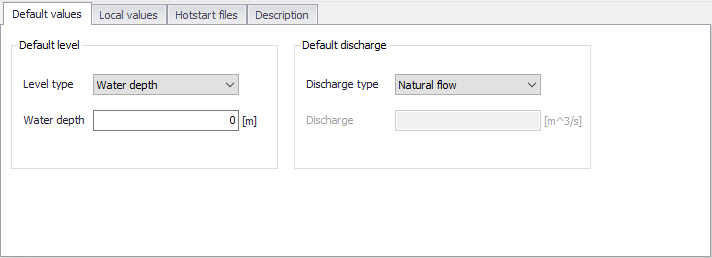
Figure: The Default Values tab on the Initial Conditions editor
Default values for initial conditions are applied at computational points which are not included in hotstart files, and for which no local values have been defined.
Default Level
Initial water level conditions may be defined in terms of level or depth, using the following attributes:
- Level Type: Controls how height of water at computation points is expressed. Water height may be specified as Water level (measured from a Datum) or Water depth (measured from the invert level).
- Water Level/Depth: Corresponding value for the water level or depth.
Default Discharge
Discharge may be specified either as User defined flow values or calculated as Natural flow, using the following attributes: - Discharge Type: Controls whether the initial discharge is specified as ‘User defined’ flow values or calculated as ‘Natural flow’. - Discharge: Corresponding value for ‘User defined’ Discharge Type.
The ‘Natural flow’ option calculates discharge according to the Manning formula:
(6.1) 
where
R = Hydraulic radius
A = Flow Area
M = Manning number*
I = Water surface slope
*Natural flow calculation can use Manning (M) or Manning (n) roughness formulations depending on the selected option under Default Roughness Formulation in the Bed Roughness editor.
Local Values
Initial HD conditions may be defined in specific areas of network models in MIKE+ (i.e. Rivers and/or Collection Systems). Localized initial conditions are defined in the Local Values tab page of the Initial Conditions editor.
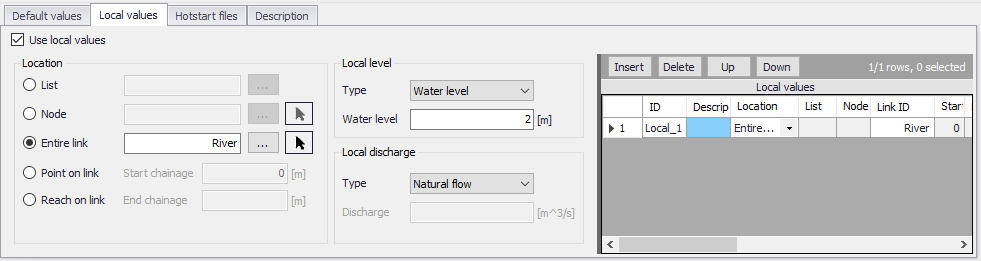
Figure: The Local Values tab of the Initial Conditions editor
Use Local Values
Activate the ‘Use local values’ option to allow definition of local values for the active initial conditions setup.
Location
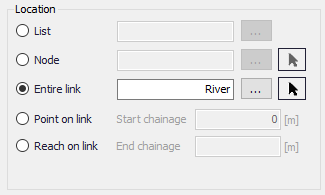
The location of local initial conditions may be defined by a:
- List: A predefined selection list of network model elements. Click on the ellipsis button to view the ID Selector dialog, which presents available selection lists. Selection lists may be defined using the Selection Manager accessed via the Map menu ribbon.
- Node: A particular node in the CS network. Click on the ellipsis button to view the ID selector dialog presenting a list of nodes in the project. Alternatively, use the arrow button to interactively select the node from the Main Map.
- Entire Link: The entire river branch or CS network link defined in the Link ID input box (see figure below). Click on the ellipsis button to view the ID selector dialog presenting a list of River branches or CS network pipes and canals that exist in the project. Alternatively, use the arrow button to interactively select the river branch or CS network link from the Main Map.
- Point on link: A point in the river branch or CS network link defined in the Link ID input box (see figure below). Define the point along the link or river branch in the ‘Start chainage’ input box in the editor.
- Reach on link: A segment in the river branch or CS network link defined in the Link ID input box (see figure below). The segment is defined by the ‘Start chainage’ and ‘End chainage’ values in the editor.
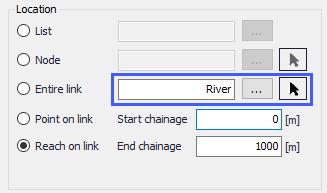
Figure: The Link ID input box for defining local initial conditions along links
Local Level
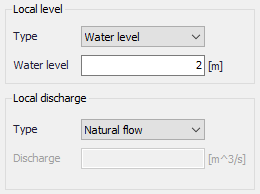
Local initial water level conditions may be defined in terms of level or depth:
- Type: Water height may be specified as Water level or Water depth.
- Water Level/Depth: Corresponding value for the water level or depth.
Local Discharge
Local discharge conditions may be specified as User defined flow values or calculated as Natural flow:
- Type: Discharge may be specified either as ‘User defined’ flow values or calculated as ‘Natural flow’. The ‘Natural flow’ option calculates discharge according to the Manning formula as described in Default Discharge.
- Discharge: Corresponding value if Type is ‘User defined.’
Note
If two or more local values are defined within the same river reach or link, the intermediate values will be calculated by linear interpolation.
If only one local value location is defined in a river or link, then this value will be applied at the specific location and all other values in the link will be assigned Default values.
Defining Local Initial HD Conditions
To define local initial conditions:
-
Activate the ‘Use local values’ option on the Local Values tab page.
-
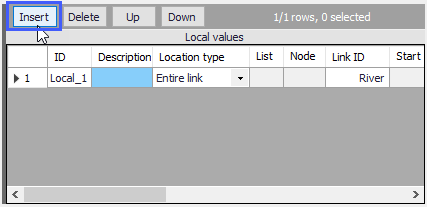
Insert a row in the secondary table on the right side of the Local Values tab page using the ‘Insert’ button.
- Define the location for the local initial condition under the Location groupbox.
- Define initial water level/depth and discharge conditions under the Local Level and Local Discharge group boxes.
Hotstart Files
Hotstart files maybe used to define HD initial conditions for networks in MIKE+. Define hotstart files to use for an initial conditions setup via the Hotstart Files tab page of the Initial Conditions editor.
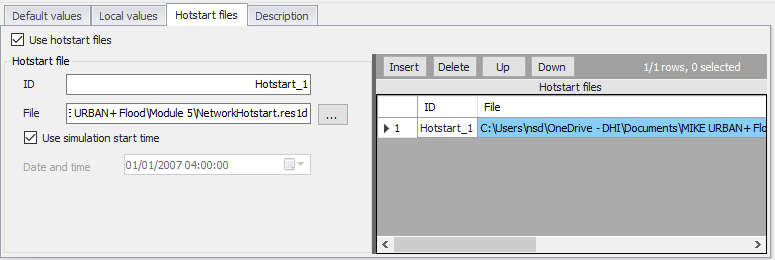
Figure: The Hotstart Files tab in the Initial Conditions editor
The following file types may be used:
- *.res1d: MIKE 1D engine computation results.
- *.prf: MOUSE engine pipe flow computation results.
- *.res11: MIKE 11 engine computation results.
Use Hotstart Files
Activate the ‘Use hotstart files’ option on the tab page to allow definition and use of hotstart files for the active initial conditions setup.
ID
Hotstart file ID
File
Hotstart file path and name.
Use Simulation Start Time
If ‘Use simulation start time’ option is enabled, the initial condition is automatically extracted from the hotstart file using the simulation start date and time as specified in the ‘Simulation Setup’ editor.
Date and Time
The date and time at which the initial conditions are loaded from the hotstart file. Only active if ‘Use simulation start time’ option is inactive.
Defining Hotstart Files for Initial HD Conditions
-
Activate the ‘Use hotstart files’ option on the tab page.
-
Add a row in the secondary table on the right side of the Hotstart Files tab page using the ‘Insert’ button. Note that several hotstart files may be added. If a part of the network is covered by more than one hotstart file the first hotstart file will be used.
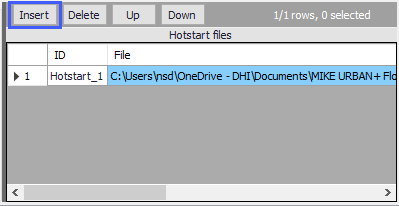
- Define the file name and path for the hotstart file under the Hotstart File groupbox in the ‘File’ input box using the ellipsis button.
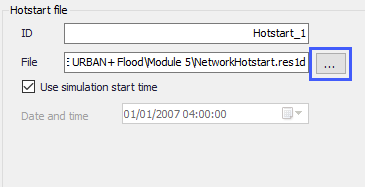
- Define the Date and Time in the hotstart file for which initial condition values will be taken.
Notes
It is possible to define multiple hotstart files covering different or overlapping areas. If a part of the network is covered by more than one hotstart file, the first file will be used. If a part of the network is not covered by the specified hotstart files, Default or local values are used.
If the network in a hotstart file differs from the current network e.g. the number of grid points in a link have changed, then interpolation is performed.
Description
Optional free text description for an HD Initial Conditions setup.
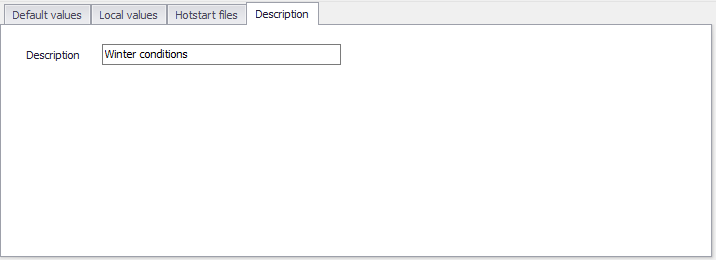
Figure: The Description tab on the Initial Conditions editor