User-Defined Columns
Most of the editors contain a table with a pre-defined list of columns, corresponding to the pre-defined attributes being edited in the editor. It is however possible to add extra columns containing custom data. This is achieved by right-clicking over the table and selecting the option 'Add user defined column'.
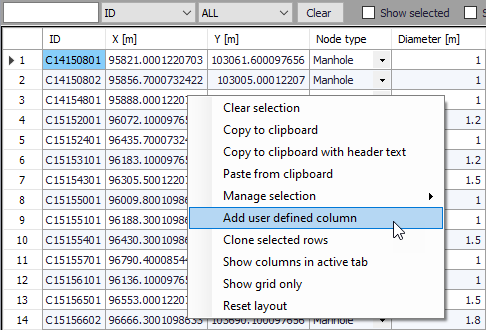
Figure: Adding a user defined column
Three types of columns can be created:
- A new column with values stored in the database: when this option is selected, the data type must be selected (double, string, integer, or date and time). Two names must also be specified: one which will be shown in the header of the table, and one for the column's name in the database. When the column is created, it will initially be empty, and it can then be populated with the same tools as for any other column. It can also be removed from the table by right-clicking on the header of the column and selecting 'Remove column', but the column will not be deleted in the database. Once this type of column has been removed, it can be restored in the table by adding again a user-defined column and selecting the option 'Restore removed column'.
- A column showing an expression, where the expression is a function of other attributes / columns. When this option is selected, the name to be shown in the header of the table must be specified. This type of column is not saved in the database. The expression is specified using the 'Edit' button which opens the Expression Editor. When the column is created, its content is updated dynamically as soon as the source attributes are updated.
- A column showing result values. When this option is selected, the name to be shown in the header of the table must be specified. This type of column is not saved in the database, but read from a result file. Note that this type of column is only available for pipe networks editors, and excluding the 'Air chambers' editor. Use the 'Select' button to select the type of result to be shown, using the following settings:
- Result file: select the input result file to read results from. The result file must have been loaded in MIKE+ from the 'Results' tree before it can be selectable in this list.
- Item: choose the result item among the list available in the selected result file (e.g. water level in nodes, discharge in links, etc.).
- Value type: select which value to show for the selected result item. Possible options are 'Animation' (showing time-varying results, for the active time step selected in the ribbon), 'Minimum' (showing the minimum value throughout the simulation period), 'Maximum' (showing the maximum value throughout the simulation period), 'Average' (showing the average value computed from all time steps in the result file) or 'Time step' (showing values at a particular time step).
- Time step: Select the date/time of the results to show, when the selected value type is 'Time step'.
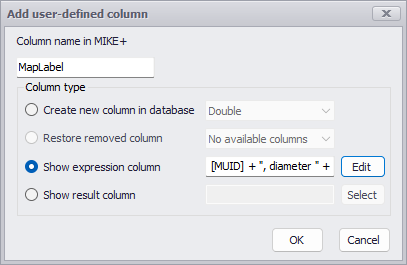
Figure: Specifying a user defined column
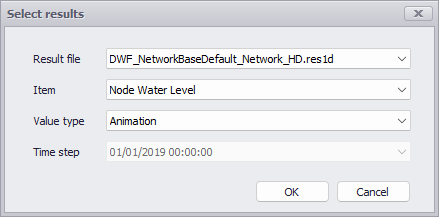
Figure: Defining results to show in a user defined column of results