Management of Catchment Connections
Connecting Catchments to the Drainage/Wastewater Collection Network
In order to utilize the MIKE+ catchments in network modelling, they have to be connected to the network.
The definition and management of catchment connections is supported both through the editors, and by a set of graphical catchment connection tools.
Catchment Connections Editor
For 'Rivers, collection system and overland flows' model type, connections between the catchments and the network are defined and stored in the 'Catchment connections' editor.
The Catchment Connections Editor contains information on all catchment connections in the model.
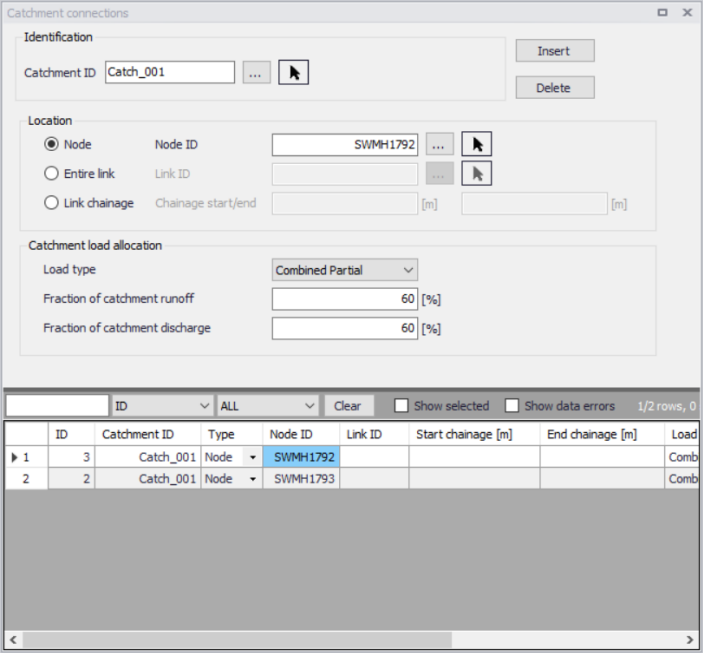
Figure: The Catchment Connections editor
For this model type, it is possible to connect multiple catchments to the same network locations, and also to connect the same catchment to multiple network locations in order to distribute its runoff along the network.
Create catchment connections through the ‘Insert’ button. A catchment can be the source of multiple load types (i.e. stormwater and wastewater), and can be connected to multiple network elements and network types.
| Edit field | Description | Usage | Attribute Table Field |
|---|---|---|---|
| Catchment ID | Unique catchment identifier | Yes | CatchID |
| Location Type radio buttons | Specifies the type of network element to which the catchment is connected. Options are: Node Entire link, or Link chainage | Yes | TypeNo |
| Node ID | Identifier of a connection node | Yes, if ‘Single Node’ connection type | NodeID |
| Link ID | Unique identifier for the connected link | Yes, If Connection Type = Entire link or Link chainage | LinkID |
| Chainage start/end | Start and end chainages of the connected link | Yes, If Connection Type = Link chainage | StartChainage/EndCHainage |
| Load Type dropdown menu | Parameter that defines how the loads from the catchment are allocated to the pipe network for a connection. Options are: Standard, Wastewater Total, Stormwater Total, Combined Partial, Wastewater Partial, and Stormwater Partial. These different Load Types are further explained in the text below. | Yes | LoadTypeNo |
| Fraction of Catchment Runoff | Fraction of the catchment stormwater runoff to allocate for the connection | Optional, If Load Type = Combined Partial or Stormwater Partial | RRFraction |
| Fraction of Catchment Discharge | Fraction of the catchment discharge to allocate for the connection | Optional, If Load Type = Combined Partial and Wastewater Partial | PEFraction |
Table: Overview of the Catchment Connections Editor fields (Table msm_CatchCon)
Qualifying a connection according to pipe network type and connection options is important. These Load Types are:
- Standard: This type of load connection applies to combined systems where all the catchment output is connected to a single location. This is the Default type, which corresponds to the MIKE URBAN Classic Single Node connection type.
- Wastewater Total: This type of load connection applies to fully separated systems, where the catchment is connected to a single location in the wastewater network.
- Stormwater Total: This type of load connection applies to fully separated systems where the catchment is connected to a single location in the stormwater network.
- Combined Partial: This type of load connection applies to combined systems where the catchment is connected to multiple locations in a combined network. This is the fully versatile connection type.
- Wastewater Partial: This type of connection applies to fully separated systems, where the catchment is connected to multiple locations in a wastewater network.
- Stormwater Partial: This type of connection applies to fully separated systems where the catchment is connected to multiple locations in a stormwater network.
The User's choice of Load Type affects the Catchment load allocation Editor fields and the internal data validation.
A facility for data validation checks that for each catchment in the Catchment Connections Editor, the sum of the fractions for Catchment Discharge (i.e. PEFraction) and Runoff Discharge (i.e.RRFraction) is close to 100 (99.9\<sum\<100.1).
For catchments where this sum is not found to be close to 100%, all specified connections will be reported as faulty and marked in red.
Details on defining catchment connections via the Editors are also found in the MIKE+ Collection System User Guide Chapter 4 "Rainfall-Runoff Modelling".
Catchment Connections Overview
The ‘Catchment Connections Overview’ tab in the ‘Catchments’ editor (figure below) shows a table summarizing the connections of the (active) catchment to the network. The data dynamically link to records in the Catchment Connections Editor.
Add a catchment connection via the ‘Add connection’ button. This will create and open a new connection in the 'Catchment connections' editor.
The summary table shows information on:
- Location. To which type of network element the catchment is connected, and the ID of the element.
- Catchment Runoff. Percentage of the Catchment Runoff from the catchment entering a location.
- Catchment Discharge. Percentage of the Catchment Discharge from the catchment entering a location.
- Action. Offers options for editing or adding connections for the active catchment.
- Edit. Opens the Catchment Connections Editor, wherein attributes for the existing catchment connection entry can be modified.
- Add connection. Adds a connection for the active catchment. The new connection is reflected in the overview table and the Catchment Connections Editor.
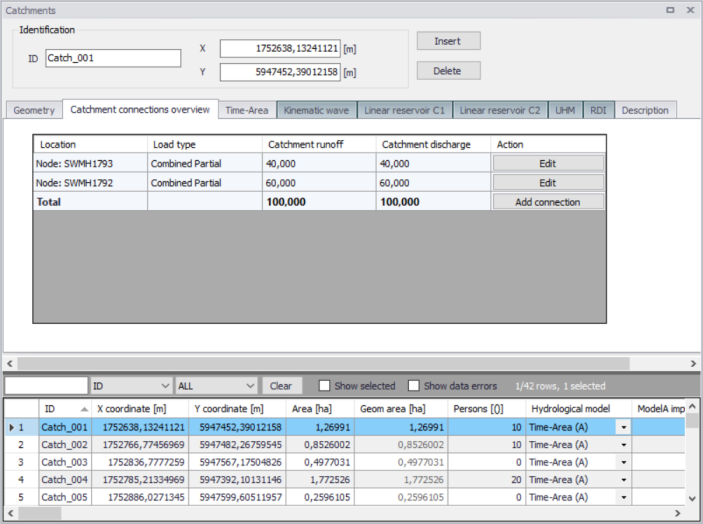
Figure: The Catchment Connections Overview tab
SWMM Catchment Connections
For 'SWMM5 collection system and overland flows' model type, connections between the catchments and the network are defined in the 'Catchments' editor, in its 'SWMM catchment connections' tab.
Refer to the MIKE+ SWMM Modelling User Guide Catchment Connections for more information.
Graphical Tools for Connecting Catchments to Networks

Figure: Catchment connection tools in the ‘Catchments’ ribbon
A set of graphical tools supports the process of connecting catchments to networks. These tools can be accessed through the Catchments ribbon. Furthermore, some of the tools are available on the map's toolbars as long as the application is in ’Catchments’ edit mode.
The tools support the option of connecting a catchment to a network element, i.e. nodes and links.
Catchment Dialog

This tool opens the Catchments editor.
Find Catchment Overlaps and Gaps

The ‘Catchment overlaps’ tool highlights catchment overlaps - that is all areas covered by 2 or more catchments.
The highlighted graphics can be removed by pressing the ’Catchment overlaps’ tool again or the ‘Clear highlighted’ tool.

This tool highlights catchment gaps - that is all areas not covered by any catchment, but completely surrounded by catchment polygons.
The highlighted graphics can be removed by pressing the ’Catchment gaps’ tool again or the ‘Clear highlighted’ tool.

The ‘Clear highlighted’ tool removes highlights on areas identified with various ‘Show on map’ tools.
Show Connected Catchments

This tool selects all the catchments connected to the currently active network.
Remove graphical highlights using the ‘Clear highlighted’ tool.
Show Disconnected Catchments

This tool selects all the catchments without connections to the currently active network.
Remove graphical highlights using the ‘Clear highlighted’ tool.
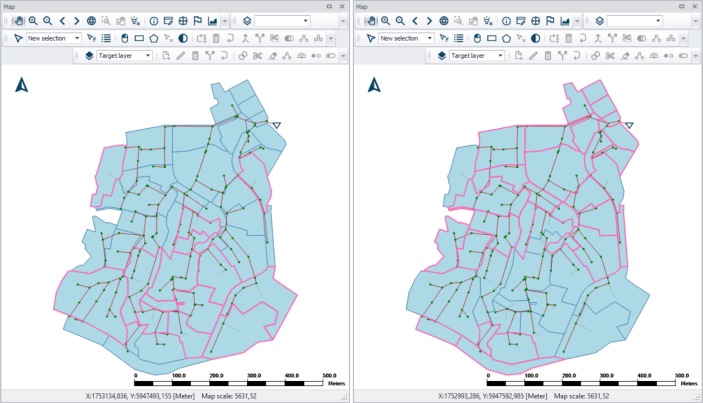
Figure: Highlighted connected catchments (left) and disconnected catchments (right)
Connect Catchment

This tool allows for connecting one catchment to a network element from the map.
For 'Rivers, collection system and overland flows' model type, click the main button in the ribbon, and select the desired mode:
- Replace connections: this mode will ensure that the selected catchment will have only one connection to the network. When the new connection is made, all previous connections to the selected catchment are removed.
- Add connection: this mode adds a new connection to the selected catchment, keeping all previous connections to this catchment unchanged. After adding a new connection to existing ones, ensure that catchment load types and fractions remain consistent (i.e. total 100%).
For 'SWMM5 collection system and overland flows' model type, execution of this tool will define a connection to the selected node in the 'SWMM catchment connections' tab of the 'Catchments' editor. It will always replace the previous connection, if any.
Click on the catchment to connect on the map, and finally click on the network element (i.e. node or link) to which the catchment shall be connected. The program draws the connection line upon completion.
When connecting to a link, a window to control the start and end chainage of the connection will show up. If the start and end chainages are kept equal, the catchment will connect to this single point location. If the start and end chainages differ, the catchment will connect to the specified span along the pipe, and the runoff will be distributed to all calculation points in this range of chainages.
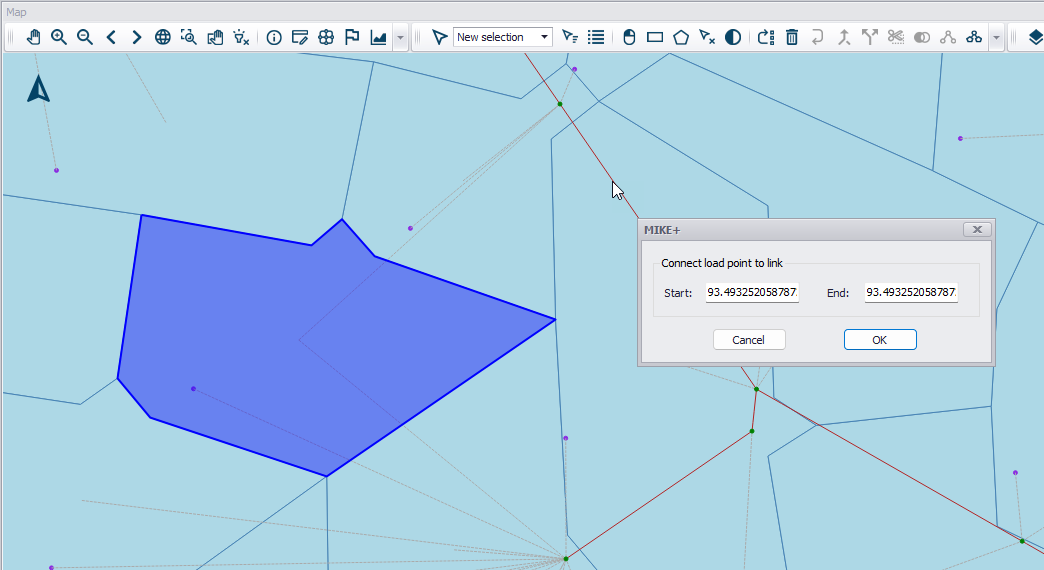
Figure: Graphical connection of a catchment to a network link