LTS Report
MIKE+ has facilities for generating LTS statistics reports. The reports can be viewed and exported in various document file formats for printing, editing, or information dissemination.
To create a new LTS report, right-click on the LTS result file or one of its result items in the list of result files. The following types of LTS Reports could be generated:
- Summary report on extreme events statistics
- Detailed report on extreme events statistics
- Report on annual/monthly statistics
See also MIKE+ Collection System User Guide chapter LTS Statistics Presentation for more details on LTS result statistics.
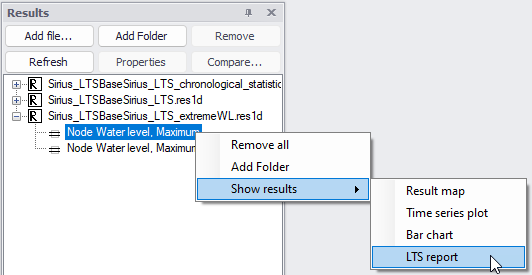
Figure: Creating a LTS report from the list or result files
Summary Report on Extreme Events Statistics
This type of LTS report contains tables with a summary of all calculated statistics, i.e. for all individual locations, variables and statistics types. It can be generated only for result files with LTS extreme event statistics.
To create a new LTS report, right-click on the extreme event LTS result file or one of its result items in the list of result files, and select 'LTS report'.
Figure: Creating a LTS report from the list of result files
This will open the 'Create LTS report' window below.
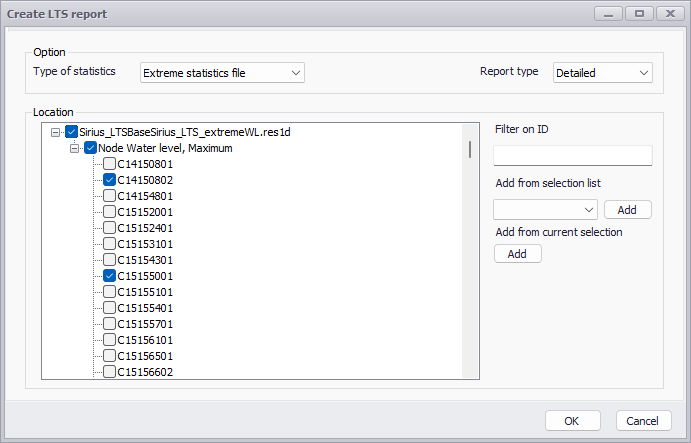
Figure: The 'Create LTS report' window
Choose to generate a report with the ‘Extreme statistics file’ from the dropdown list at the top, and select the ‘Summary’ report type. Choose the result file, result item and locations to include from the list. Use the filter on ID to search through the potentially long list of available locations. One may also use a selection list (saved in the 'Selection manager') or the active selection, to select all items from the selected list.
Click on the ‘OK’ button to create the new LTS Extreme Event Statistics Summary report. An example is shown in the figure below.
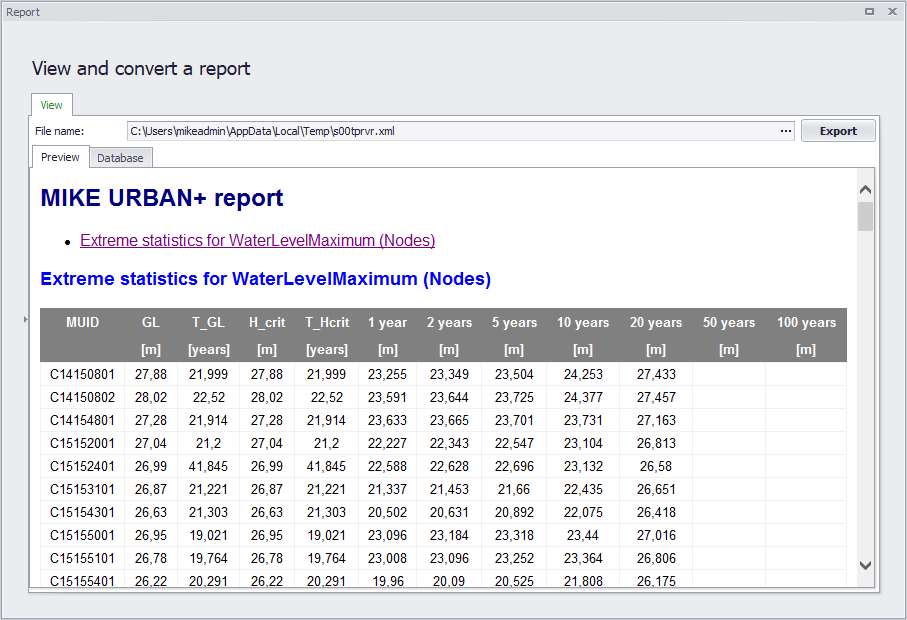
Figure: Example LTS extreme event statistics summary report
See also MIKE+ Collection System User Guide chapter Generating Reports on LTS Statistics for more details on LTS result statistics.
Detailed Report on Extreme Events Statistics
This type of LTS report contains tables with details of all calculated statistics in the file, i.e. for all individual locations, variables and statistics types. It can be generated only for result files with LTS extreme event statistics.
To create a new LTS report, right-click on the extreme event LTS result file or one of its result items in the list of result files, and select 'LTS report'.
Figure: Creating a LTS report from the list of result files
This will open the 'Create LTS report' window below.
Figure: The 'Create LTS report' window
Choose to generate a report with the ‘Extreme statistics file’ from the dropdown list at the top, and select the ‘Detailed’ report type. Choose the result file, result item and locations to include from the list. Use the filter on ID to search through the potentially long list of available locations. One may also use a selection list (saved in the 'Selection manager') or the active selection, to select all items from the selected list.
Click on the ‘OK’ button to create the new Detailed LTS Extreme Event Statistics report. An example is shown in the figure below.
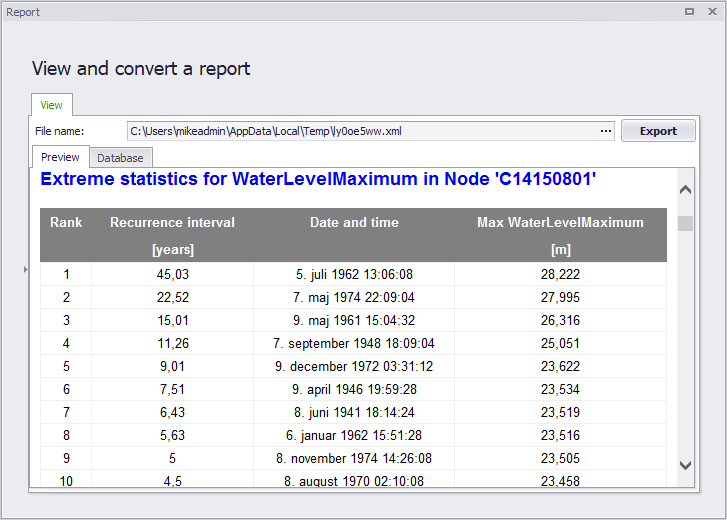
Figure: Example detailed LTS extreme event statistics report
See also MIKE+ Collection System User Guide chapter Generating Reports on LTS Statistics for more details on LTS result statistics.
Report on Annual/Monthly Statistics
This type of LTS report contains tables with all calculated annual/monthly statistics for all individual locations and variables (e.g. volumes, accumulated mass, durations, number of events). It can be generated only for result files with LTS chronological (annual/monthly) statistics.
To create a new LTS report, right-click on the chronological LTS result file or one of its result items in the list of result files, and select 'LTS report'.
Figure: Creating a LTS report from the list of result files
This will open the 'Create LTS report' window below.
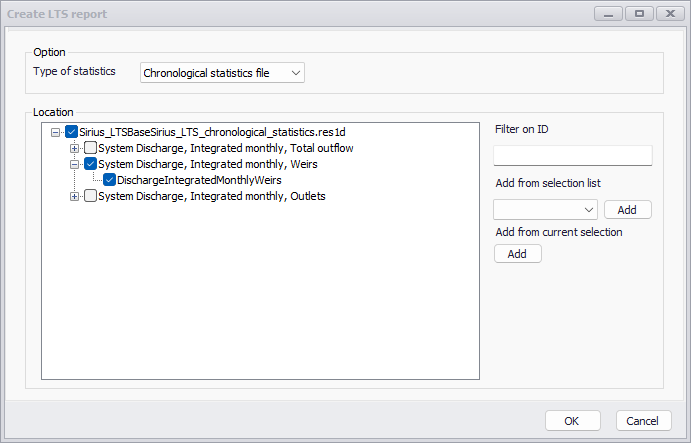
Figure: The 'Create LTS report' window
Choose to generate a report with the ‘Chronological statistics file’ from the dropdown menu at the top. Choose the result file, result item and locations to include from the list. Use the filter on ID to search through the potentially long list of available locations. One may also use a selection list (saved in the 'Selection manager') or the active selection, to select all items from the selected list.
Click on the ‘OK’ button to create the new LTS chronological statistics report. An example is shown in the figure below.
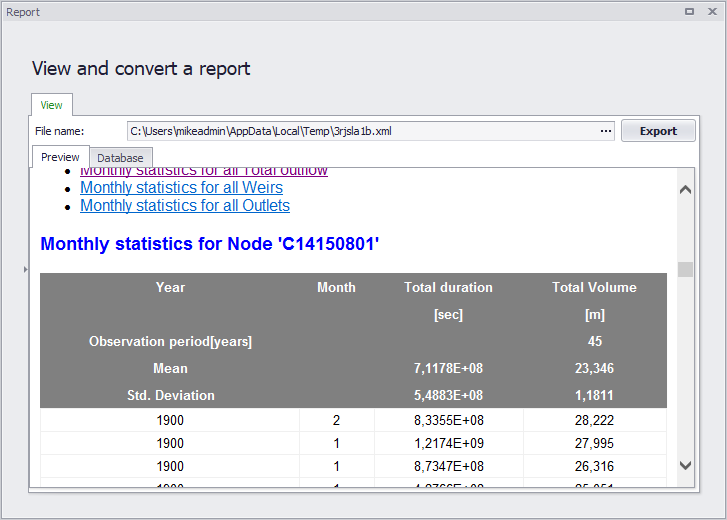
Figure: Example LTS chronological statistics report
See also MIKE+ Collection System User Guide chapter Generating Reports on LTS Statistics for more details on LTS result statistics.
The LTS Report Window
The LTS Report window presents the LTS report generated from the Result Items dialog. It has the following components and functionalities:
Preview Tab
Shows a preview of the report document, including content formatting.
Database Tab
Shows a tabular (unformatted) view of information included in the report.
Export
Button functionality allowing export of the generated report to various types of documents (e.g. *.DOCX, ‘.PDF, ‘.HTML, ‘.CSV, among others).
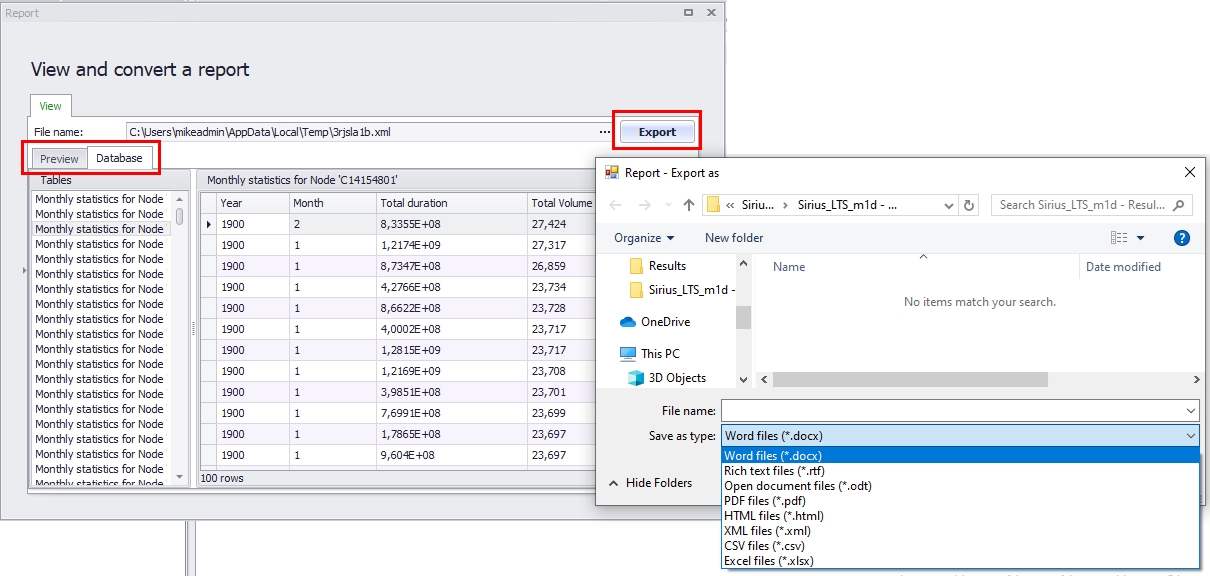
Figure: LTS report export functionality from the Report window