Linking to ArcGIS Pro
ArcGIS Pro is the latest desktop GIS software from ESRI. ArcGIS Pro allows to explore, visualize and analyse data, create 2D maps and 3D scenes. Furthermore the work can be shared on ArcGIS Online or ArcGIS Enterprise portal.
Depending upon your license conditions you will have a number of possibilities of amending the functionality of MIKE+ with the more general functionality found in ArcGIS Pro. MIKE+ allows you to export selected model components to a geodatabase (*.GDB) file format and work with the (selected) model components in ArcGIS Pro.
MIKE+ operates on top of a SQLite| PostGIS database which can be quickly integrated into a personal geodatabase and stores all data in a designated data structure.
ArcGIS Integration Tool
Access the ArcGIS Integration tool from the Tools menu ribbon.

This launches the ArcGIS Integration dialog, from where:
- Select the elements which shall be linked to data in an ArcGIS Pro geodatabase. Choose from model- and result-related items, switching between the two types via the dropdown menu at the top.
- Define the file path and name of the geodatabase file to be created for the ArcGIS Pro project.
- Click on the ‘Link to ArcGIS Pro’ button to start the export of the MIKE+ (selected) data to the ArcGIS Pro database. The export can often take several minutes.
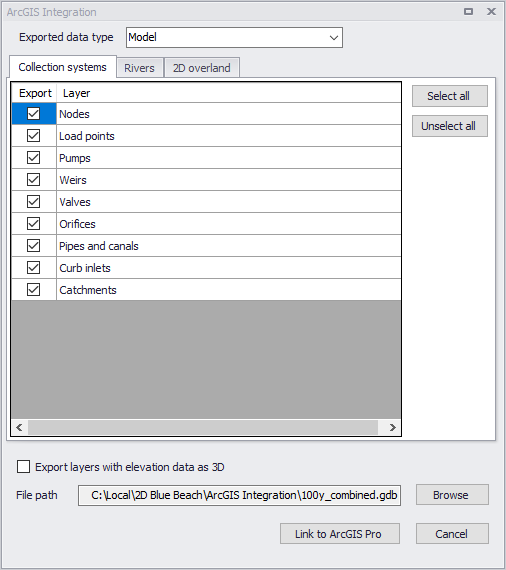
Figure: The ArcGIS Integration dialog
When selecting the 'Result' data type, the tool will list the result layers displayed on a map, and you can select which of these layers to export to the ArcGIS Pro database. Therefore, it is a prerequisite that the expected results layers are added to the main map or a result map in MIKE+, before they can be exported.
For 1D results, the exported time step of the results corresponds to the time step of the results shown on the map when running the tool. For 2D results, multiple time steps can be exported, following the settings in the 'Time steps selection' window, opened using the '…' button for each result file.
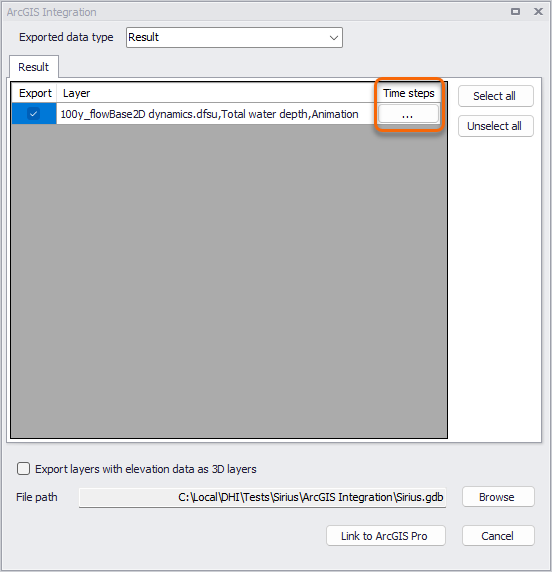
Figure: Accessing the time step settings before exporting a 2D result layer
In this window, it is possible to control the first and last time steps of the result file to export, as well as an interval to control the number of intermediate time steps. Note that the 'Last exported time step' is a maximum time step value, but the last time step actually exported to the ArcGIS Pro database may be smaller if the interval is such that the 'Last exported time step' is not selected for the export.
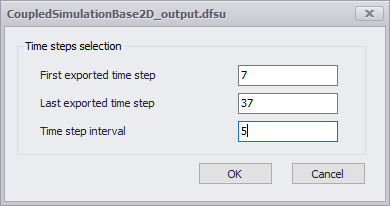
Figure: The 2D time steps selection window
If the option 'Export layers with elevation data as 3D layers' is selected, then the feature layers in the geodatabase will use the built-in 3D format when relevant, allowing for extra data processing in ArcGIS. As an example, pipes will be exported with their invert levels, allowing for nice 3D visualisations of the network in ArcGIS Pro. The following layers can be exported as 3D layers:
- Links (Collection system pipes and conduits - both from MIKE 1D and SWMM models - , Water distribution pipes)
- Nodes (Collection system - both from MIKE 1D and SWMM models - only)
- 2D overland domain.
The exported 3D layers are available in Map_3D (Local Scene) in ArcGIS Pro.
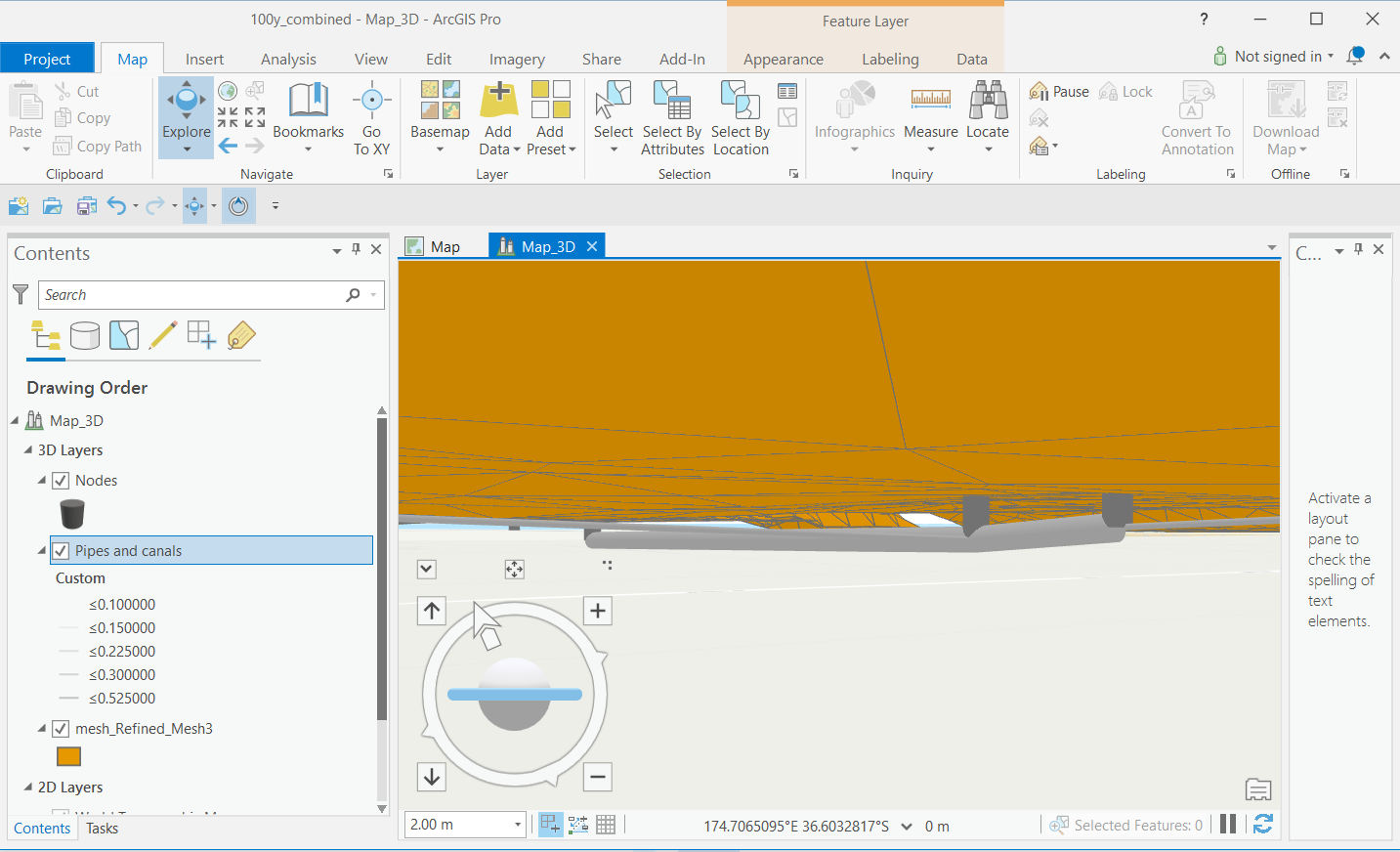
Figure: 3D scene showing a collection system network and a 2D domain in ArcGIS Pro
For 3D visualisation of the networks, pipes can be drawn using 3D graduated symbol Tube. The layer property can be set to Display 3D symbols in real-world units. This provides proper zooming functionality. Because Collection and Water distribution systems are under ground, the Elevation surface \ Ground layer needs to be switched off. For more information about Ground elevation surface, please refer to ArcGIS Pro documentation.
The Planar navigation can be used to navigate in 3D mode.
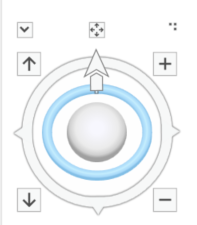
Figure: Use the planar navigation to move the 3D layers exported from MIKE+
For more details on how to use Local scenes, refer to the ArcGIS Pro documentation.
Layers are exported with a default symbology controlled by the *.lyrx files available in the MIKE+ installation folders (Collection System.lyrx - containing also Rivers and 2d Overland - , SWMM.lyrx, Water Distribution.lyrx, Domain3D.lyrx, Mesh_3D.lyrx, msm_Link3D.lyrx, msm_Node3D.lyrx, mss_Link3D.lyrx, mss_Node3D.lyrx, mw_Pipe3D.lyrx). These files can be modified if a different default symbology shall be used during the export.
For 2D overland models, it is possible to export both the 2D domain and the 2D results. When the domain type is a 'Flexible mesh', the 2D domain is exported as a polygon feature layer, containing elevations (optionally exported as 3D polygon layer). Flexible mesh results are exported as a polygon feature class containing attributes for all result items from the 2D results. The exported feature class also contains a Time attribute, providing the possibility to animate results. The result item to display on the map needs to be selected in the symbology settings, usually using graduated colors to display the results colors on the map.
For more details on how to use temporal data, refer to the ArcGIS Pro documentation.
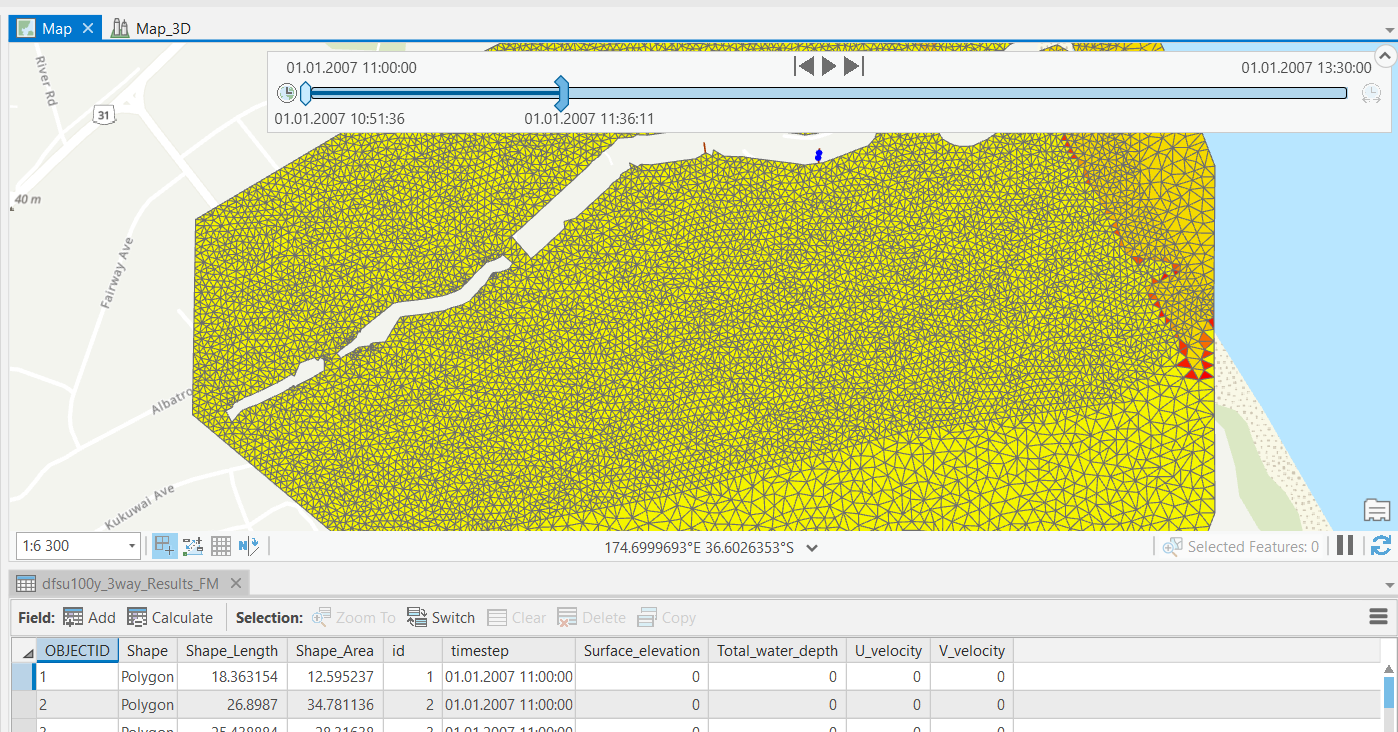
Figure: Animating exported 2D results using the Time control
When the 2D domain type is a 'Rectangular grid', the domain is exported as a raster layer containing level values. Corresponding results are exported as one raster per combination of result item and time step. There is no time attribute, but the corresponding time of the raster is indicated in the raster name.
These exported raster data can be used to create a multidimensional raster dataset in ArcGIS Pro. Refer to the ArcGIS Pro documentation for more information about this: an overview of multidimensional raster data, create a multidimensional mosaic dataset from a set of time series images in ArcGIS Pro.
Note on rotated grids
MIKE+ supports rotated grids (i.e. with the Y-axis rotated from the North direction), which is not supported in ArcGIS Pro. Rotated domains and results are therefore re-sampled to create a non-rotated grid. For this reason, the geometry of the rasters and their cell values in ArcGIS Pro may differ from the original data in MIKE+.
Note on performance
When displaying large 2D layers or making 3D visualisations in ArcGIS Pro, the performance depends on the computer's hardware and the visualisation can sometimes be slow. Better performance can be obtained on computers equipped with a powerful graphical card (GPU).
Working with MIKE+ Data in ArcGIS Pro
As ArcGIS Pro is a general GIS desktop application it is important to realize that ArcGIS Pro does not support the data consistency checks and other protection mechanisms normally performed by the MIKE+ program.
The following precautions should be recognized.
Data View
No restrictions. As long as ArcGIS Pro is not taken into 'edit mode' there is no danger of corrupting the database. Examples of tasks/objectives that can be accomplished in viewing mode are:
- Advanced GIS analysis
- Advanced presentations of model and saved data
- Complete layout tasks for inclusion in final reporting
- Ad-hoc analysis requiring the user to write scripts in VBA or similar
- Easy use of ArcPy, suitable to implement geographic data analysis, data conversion, data management, and map automation with Python
Data Editing
Uncritical editing of data in the MIKE+ database may easily corrupt the database and make it unusable in MIKE+. However, very powerful tools exist in ArcGIS Pro that may be utilized for editing. Provided that you take care to obey the constraints, editing from ArcGIS Pro can be very powerful. However the level of Integration with MIKE+ of ArcGIS Pro is limited to the exportation of the native personal geodatabase, hence modifying the personal geodatabase in ArcGIS Pro will not directly affect the data stored in the SQLite or PostGIS database until the data is reimported into MIKE+.
General recommendations when working with WD and CS network databases outside the MIKE+ environment:
Editing Geometry
In general the editing of geometry (pipe shapes, manhole placement, and catchments) can be done without danger of corruption to the data structure. This is probably also the area in which there is most benefit from working in ArcMap | ArcGIS Pro as the editing tools here are more advanced than in MIKE+.
Altering Attributes
In general this can be done to most attributes without danger, EXCEPT when the attribute is an ID field used to maintain consistency of the database. To avoid this you may consult the datamodel appendix and as a general do not edit any attribute with a name containing the alias 'ID'.
Inserting and Deleting Records
Should be avoided unless you have a very good knowledge about the MIKE+ data structure. Deleting or inserting in MIKE+ is often triggering a number of background operations that update other tables so the consequence of doing such operations outside MIKE+ may easily be a corrupt database.
Typical GIS Native Environment Tasks
Typical tasks that may be done in ArcGIS Pro are:
- Complex editing and data analysis requiring joining and relating several tables from various data sources
- Tasks involving complex spatial analysis, spatial joining of data
- Geoprocessing tasks like intersecting, overlaying etc. apart from the pre-defined tasks existing in MIKE+
- Working with layouts, plotting to scale and similar high-level reporting
- CAD-style editing
- Further some organizations have developed in-house tools in ArcGIS Pro to perform certain functions. If these functions need to be performed on MIKE+ data, you will need to run the scripts from ArcGIS Pro.