Network Summary
A network summary file in HTML format is created during all hydrodynamic simulations for collection system and river networks.
When no custom network summary configuration is used in the simulation, a default HTML summary is created with pre-defined content. It shows information on the simulation, overall results summary, and boundary inputs.
The content of these HTML summaries may be customised. Various Network Summary configurations may be defined through the 'Network summary' editor (Result specifications | Network summary). These configurations may then be invoked in the 'Simulations setup' editor when preparing simulations (see chapter Simulation setup).
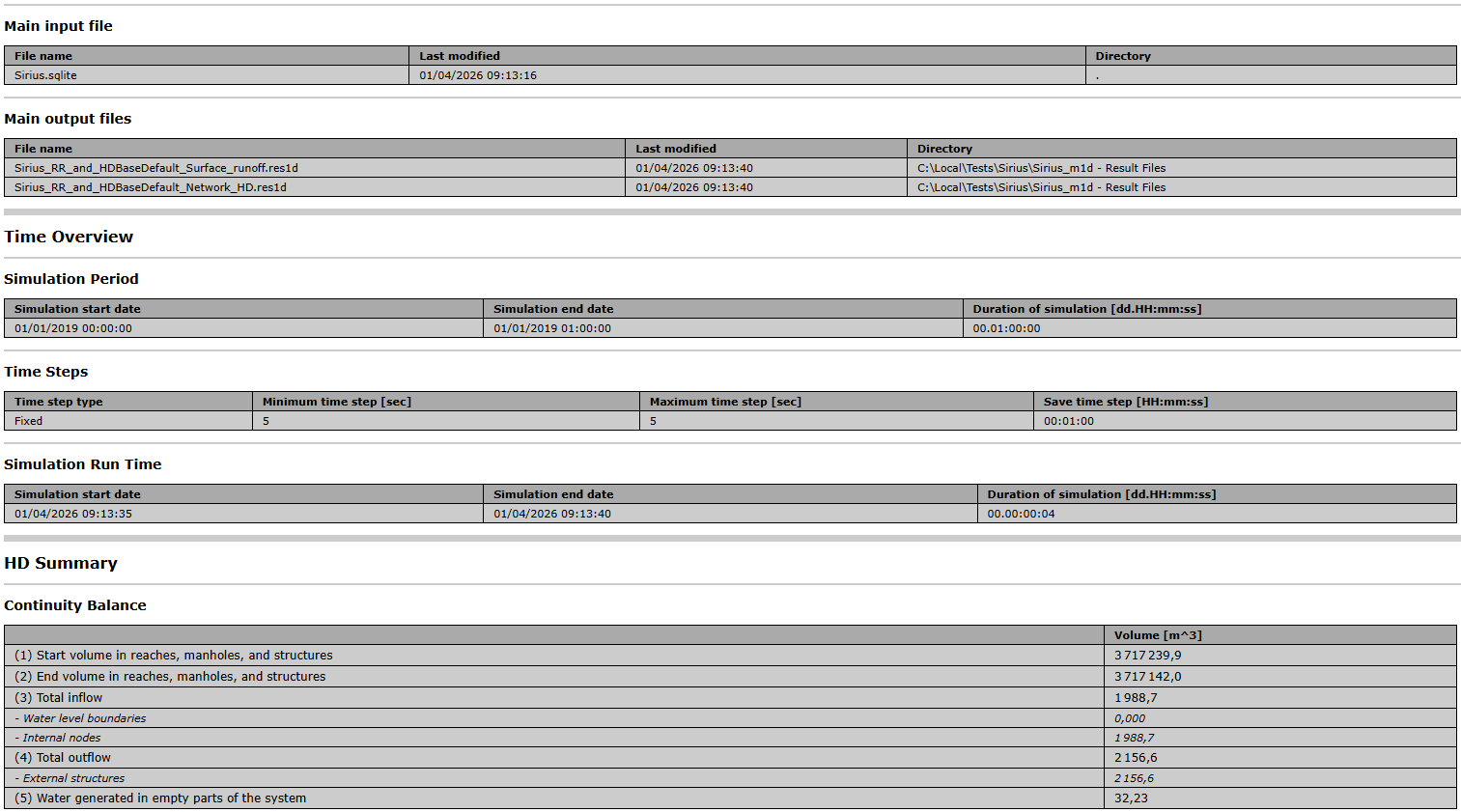
Figure: Example network simulation HTML summary showing input settings and a continuity balance table
To control the content of a network summary configuration, insert a new configuration using the 'Insert' button and select items to include, in the following groups:
- Identification
- Tables with min., max. and accumulated values
- Summary of input data
- Use selection to reduce summary tables.
An overview of the various options in the editor is shown in the table below.
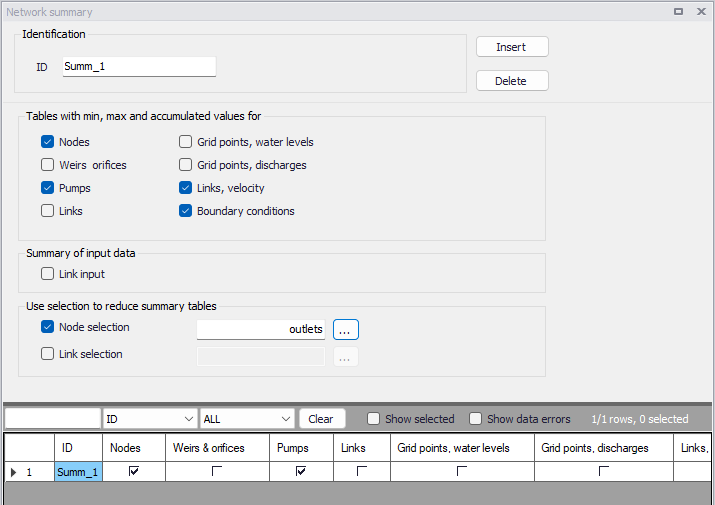
Figure: The Network Summary editor
| Edit field | Description | Used or required by simulations | Field name in datastructure |
|---|---|---|---|
| ID | ID of summary- user specified | Yes | MUID |
| Nodes checkbox | Activate to include tables with min, max and accumulated values in the summary | Optional | SummaryNodeNo |
| Weirs and orfices checkbox | Activate to include tables with min, max and accumulated values in the summary | Optional | SummaryWeirNo |
| Pumps checkbox | Activate to include tables with min, max and accumulated values in the summary | Optional | SummaryPumpNo |
| Links checkbox | Activate to include tables with min, max and accumulated values in the summary | Optional | SummaryLinkNo |
| Grid points, water levels checkbox | Activate to include tables with min, max and accumulated values in the summary | Optional | SummaryLinkLevelNo |
| Grid points, discharge checkbox | Activate to include tables with min, max and accumulated values in the summary | Optional | SummaryLinkDischargeNo |
| Links, velocity checkbox | Activate to include tables with min, max and accumulated values in the summary | Optional | SummaryLinkVelocityNo |
| Boundary conditions checkbox | Activate to include tables with min, max and accumulated values in the summary | Optional | SummaryBoundaryConditionNo |
| Summary of input data, Links and structures checkbox | Activate to include a summary of input data in the HTML summary | Optional | SummaryLinkInputNo |
| Node selection file checkbox | Activate to specify nodes for which to include tables with min, max and accumulated values in the summary | Optional | NodeSelectionNo |
| Node selection input box | Input box for specifying the Node selection list | Yes If NodeSelectionNo=1 | NodeSelectionName |
| Link selection file checkbox | Activate to specify links for which to include tables with min, max and accumulated values in the summary | Optional | LinkSelectionNo |
| Link selection input box | Input box for specifying the link selection list | Yes If LinkSelectionNo=1 | LinkSelectionName |
Table: Overview of the Network Summary editor attributes (Table msm_HtmlSummary)
Use the following buttons on the editor to add or remove network summary setups for the project:
- 'Insert' button: Adds a new Network Summary configuration in the editor.
- 'Delete' button: Removes the active/selected Network Summary configuration from the editor.